
Engage your visitors and increase sales with our
Phenomenal image zoom
     | |
Get Magic Zoom Plus today!
Our tools are used on 60,045 websites (and counting).

Choose your platform Install Magic Zoom Plus on your site without writing a single line of code
Or install it on any website with these simple instructions.Do anything with Magic Zoom Plus

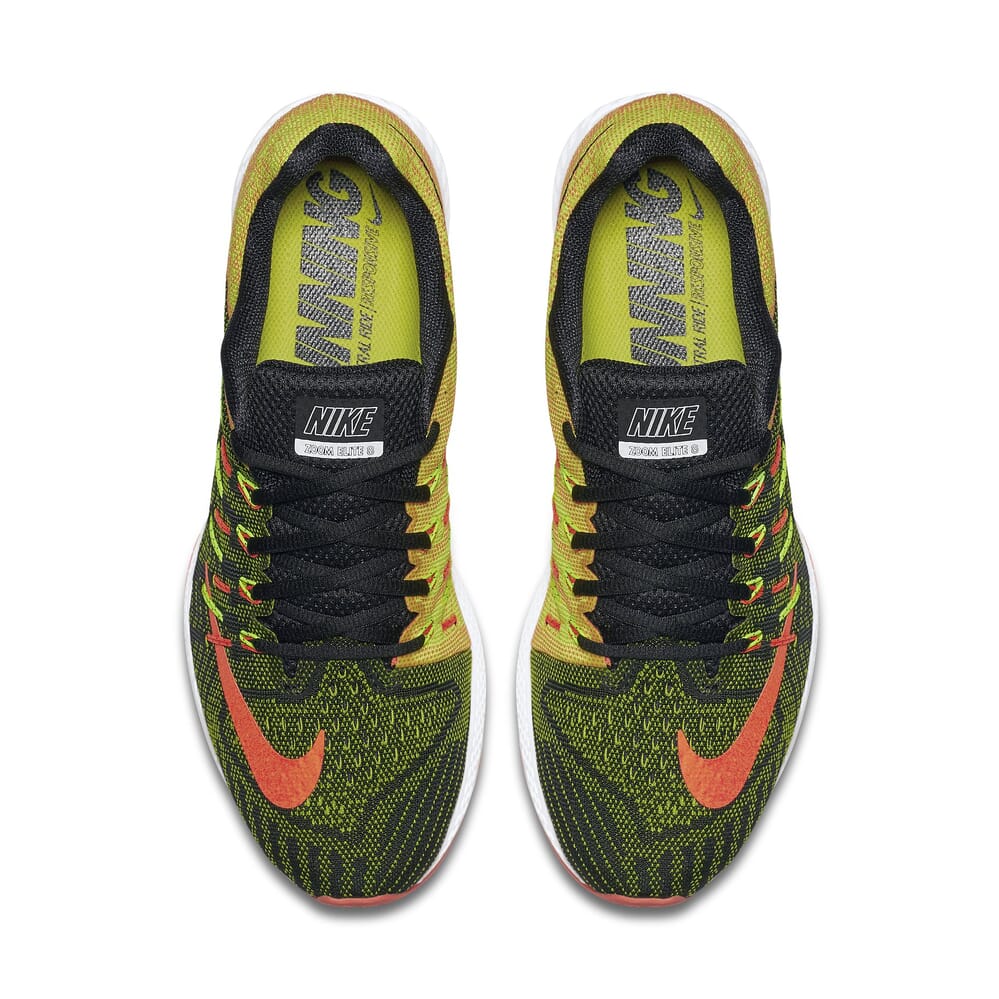


Use the power of video to persuade your users
Visitors are 73% more likely to make a purchase after watching a video about the product. Show your YouTube / Vimeo videos alongside your product images for the ultimate shopping experience. Supported by Magento 1, Magento 2, WordPress, Woocommerce and Prestashop.




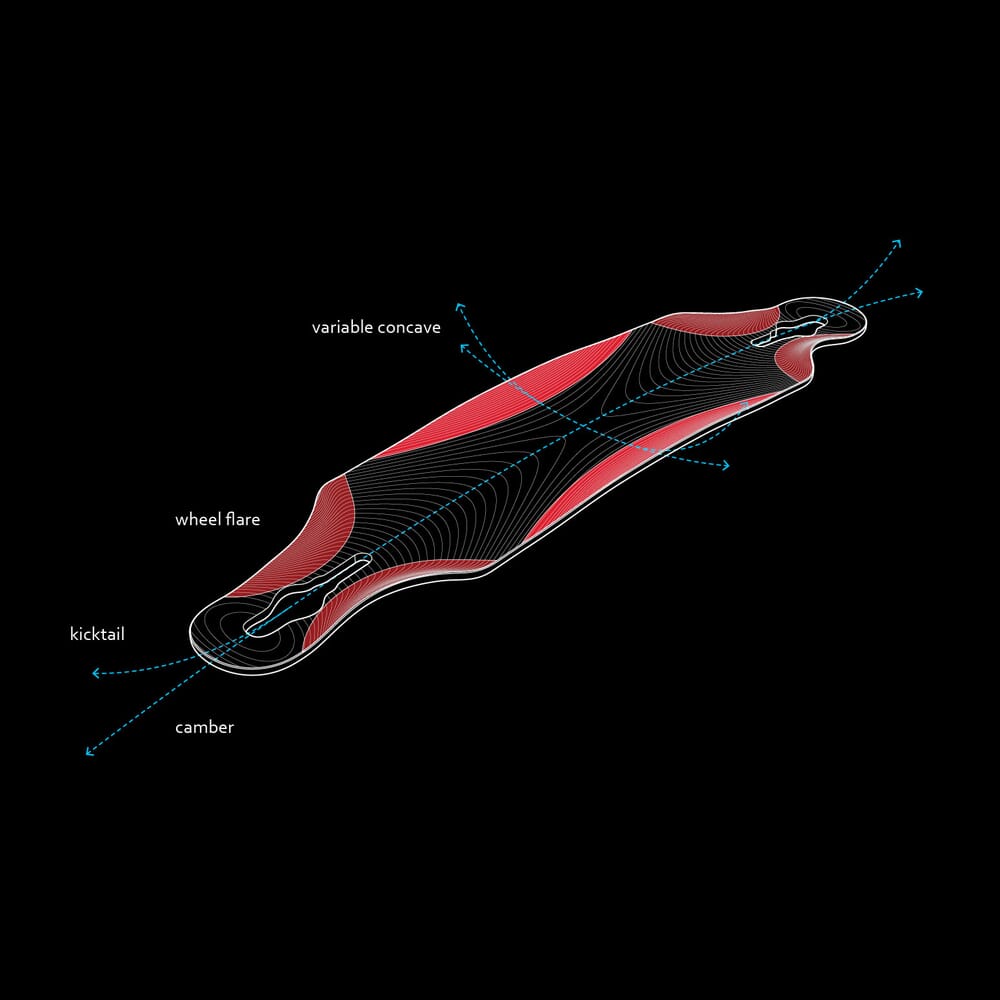
Add 360 spins
This 360 spin is served from our new imaging service, Sirv. It delivers images via a super-fast CDN and makes creating, managing and embedding 360 spins easy and enjoyable. That's just the tip of the iceberg!


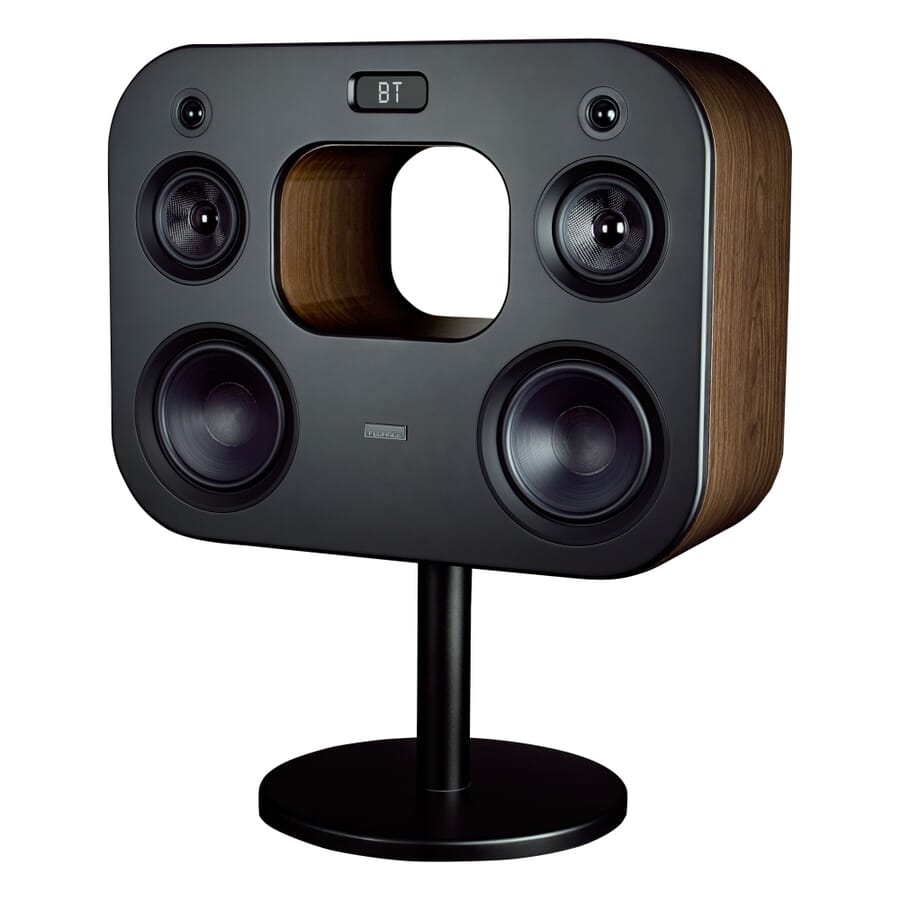
Refined for every browser

Optimized for every device

Transparent pricing with no ongoing Fees
- 1 Site
- Unlimited usage on 1 website
- Perfect for webstore owners
£49
One-off payment- 5 Sites
- Unlimited usage on 5 websites
- Perfect for freelancers
£149
One-off payment.- 10 Sites
- Unlimited usage on 10 websites
- Perfect for freelancers
£249
One-off payment- Unlimited Sites
- Unlimited use on unlimited sites
- Perfect for agencies
£599
One-off paymentWhat you'll get with your purchase
- Unrestricted use forever
- Instant access to 42 extensions
- 30 minutes of tech support
- 1 year of free upgrades
- 35% discount on Magic Scroll
- A little bit of Magic

Responsive
Enjoy responsive image zoom by default. No need for complex configuration, it fits every page perfectly.jQuery not required
Magic Zoom Plus is 100% compatible with all websites. It works beautifully with or without jQuery or other 3rd party libraries.Bandwidth allocation
Control how Magic Zoom Plus initializes & loads images. Choose to activate on page load or on request (lazy load).SEO Friendly
Vital for high ranking in search engines, Magic Zoom Plus supports SEO friendly URLs.Customer reviews
What really sets Magic Toolbox apart is the ease of customization and the fantastic support team. They’re always ready to help, ensuring that everything runs smoothly, and that my site looks exactly the way I want it to. If you’re looking for a clean, beautiful design for your online store, don’t hesitate to try the demo and go for the full version. It’s totally worth it!
Jonathan Sjon, bjoux.mx
Aleksandar Atanasov
Vortex
David Fricke, fostersrestore.com
Neil Dawson, rtzanz.shop
Submit your review
Your review has been received and will be posted soon.
Frequently asked questions
Why do I need an image zoom on my website?
67% of online shoppers think that clear and detailed images are more important than product information or customer ratings. Source - National Retail Federation
61% believe the ability to zoom in on images is very important when shopping online SourceLooking at this data, the decision should be obvious. Image zoom provides a clean and elegant solution to display every product detail, which enables your customers to make the purchasing decision. And it also decreases returns, since people are getting a better idea what they're buying.
Why choose Magic Zoom Plus?
There are plenty of image zoomers on the market today, both paid and open source. What makes Magic Zoom Plus stand out? It's an all-in-one solution for gorgeous product image display that is actually easy to implement and use. Want your image zoom to trigger on hover? On-click? Zoom in a box on the side, inside or magnifying glass? Just tick a couple of checkboxes in the Magic Zoom Plus module and that's it. Change effects, mobile behavior, use your own captions, choose where zoom box is located and much more. There's over 80 configuration options you can choose from. Zoom boxes and magnifiers are cool, effective and universally accepted. However, nothing beats full-screen zoom, really. Except full-screen 360 degree view. With our full-screen image zoomer, you can:- Display high-resolution images without slowing down your website.
- Show product thumbnails for easy navigation
- Automatically generate background images based on your product color
- Full mobile and retina support
jQuery Compatibility?
You might be looking for a jQuery image zoom. Magic Zoom Plus does not require the jQuery library, but doesn't conflict with it either. It's written in vanilla JavaScript to provide the best possible performance. It's still super easy to customize. Check out the full documentation.What about mobile devices? Is Magic Zoom Plus responsive?
Our image zoom provides full mobile and retina support out of the box. Users can zoom in and out using gestures, swipe through thumbnail images in a natural way. The entire mobile experience is intuitive, fast and simple.What about image thumbnails?
It is a known fact that showing multiple views of your product will significantly improve your conversion rates. If you have a lot of product images for your products, you can display their thumbnails even more effectively with Magic Scroll. By offering your customers an ability to view every detail of your product you give them confidence to make a purchase.Is this a One-off payment or a monthly subscription?
It's an One-off payment. No subscriptions, just pay once and use it for as long as you want.Do you provide a money-back guarantee?
Of course! If you're not satisfied with our products, you may freely request a full refund within 30 days of your purchase.What if it's incompatible with my theme?
No problem! Our team of experts will help adding support for your theme for free.Do you provide support if I get stuck?
We provide free email support. Just use our secure contact form and we'll get back to you ASAP.Changelog
- v5.3.7October 8, 2020
- Addresses an issue where Magic Zoom Plus stopped working in the upcoming browsers' releases
- v5.3.6September 1, 2020
- Addresses a potential issue with missing blurred background in the latest Chrome browser on macOS.
- v5.3.5March 11, 2020
- Fixed issue where hint did not hide after zooming in on mobile when zoomMode is "zoom" and expand is disabled.
- Fixed issue where hint did not hide after zooming in with a pinch gesture.
- Apply ALT attribute from the original main and additional images to the zoom image and other
tags created within Magic Zoom.
- v5.3.4January 22, 2020
- Addresses an issue with shaded thumbnails appearance in fullscreen in IE11.
- v5.3.3January 8, 2020
- Improved lazy loading of zoom image
- Added type="button" to control buttons to avoid interference in form submission
- v5.3.2October 21, 2019
- Addresses a possible issue with the layout of the zoomed image in fullscreen on iOS 10.3.
- Fixes an issue where thumbnails may not be displayed in fullscreen on iOS 10.3.
- v5.3.1October 15, 2019
- Addresses issue where Magic Zoom may works incorrectly in the “request desktop site” browser mode on iOS/iPadOS.
- (Plus version) Addresses an issue with blurry images in fullscreeen in Safari 13.
- (Plus version) Added history setting that provides an ability to disable exit fullscreen with the browser back button.
- v5.3.0October 7, 2019
- Pinch gestures to open/exit fullscreen and to zoom in/out of the fullscreen image.
- Basic support for the <picture> HTML tag.
- The default style of the selected thumbnail is now highlighted with an underline.
- The old thumbnail style (shaded) can be applied by adding the class thumbnails-style-shaded.
- New ability to place fullscreen thumbnails to the left by applying class expand-thumbnails-left.
- Ability to exit fullscreen with the browser back button.
- If lazy loading is enabled, it now also applies to the medium size additional images.
- Previous/next arrows can be shown on the main image by using mz-show-arrows in the cssClass setting.
- Font-based controls (arrows & buttons) have been replaced with the inline SVGs.
- v5.2.10August 15, 2019
- Fix of the vertical scroll issue in mobile Firefox
- Ability to opt out of runtime CSS for medium image
- v5.2.9March 11, 2019
- Addresses an issue with a blurred background when it may not be shown in the latest versions of Chrome browser.
- Fixes an issue on mobile devices where an image disappears after a swipe in the expanded view in case of a single-image gallery.
- v5.2.8January 10, 2019
- Addresses issue where the selector of the main image may not be highlighted by default.
- v5.2.6December 12, 2018
- Addresses issue with fullscreen in Chrome 71.
- Resolves issue where hint doesn’t appear on mobile devices in “magnifier” mode with the enabled lazy zoom.
- Other improvements.
- v5.2.5October 12, 2017
- Addresses a possible issue with side zoom activation on click on touch screens when expand is turned on.
- v5.2.4June 30, 2017
- Some tweaks to Variable Zoom.
- v5.2.3June 9, 2017
- Fixes and improvements to Variable Zoom.
- v5.2.2March 19, 2017
- Addresses a compatibility issue with CloudFlare lazy-loading images.
- Resolves an issue with the incorrect hint text shown on mobile devices with a small screen when lazyZoom is turned on.
- Fixes an issue with lazyZoom on mobile devices with a small screen where expanded view did not open on the first tap.
- v5.2.1December 19, 2016
- Fixes an issue with the broken lazyZoom that was introduced in v5.1.17.
- v5.2.0December 16, 2016
- Addresses Safari's issue that may cause a delay while closing the expanded view.
- Removes bounce effect in animation triggered when the expanded view opens and closes.
- v5.1.17December 12, 2016
- Addresses a possible issue with a blurry magnified image in Chrome.
- Improves magnifier deactivation when mouse pointer moves beyond the image edges.
- Fixes an issue where data-link option of non-primary images was ignored in gallery mode.
- Addresses a potential issue with the animation on zoom activation.
- Fixes an issue in IE9 where thumbnail was shown as a black box until its image is loaded.
- Fixes a style of the loader in IE<10.
- v5.1.16October 14, 2016
- Trigger onZoomReady callback without waiting for the large image if lazyZoom setting is on.
- v5.1.15October 11, 2016
- Fixes an issue in MS Edge/IE11 when expanded view does not open if zoomOn parameter was set to 'click'.
- Addresses an issue with a blurred image in the expanded view on retina screen.
- Resolves an issue where the preview window does not appear the very first time if lazyZoom setting is turned on.
- v5.1.14July 25, 2016
- Addresses a rare issue when the lens could show a wrong image after closing the expanded view.
- v5.1.13June 20, 2016
- Small fixes.
- v5.1.12June 6, 2016
- Fixes an issue where the zoomed image may be stuck on the first appearance if lazyZoom is enabled and cursor is on the small image while loading.
- Other small fixes and tweaks.
- v5.1.11March 14, 2016
- Better touch screen support in MS Edge / IE 11(10).
- Resolves an issue that requires two clicks for activation in Chrome on Windows 7/8/10 when lazyZoom is turned on.
- Addresses an issue when page may scroll to the top when opening the expanded view.
- v5.1.10February 3, 2016
- Fixes an issue introduced in v5.1.9 where page freeze when opening the expanded view in fullscreen mode on iOS.
- Tweaks to the buttons in the expanded view.
- v5.1.9February 3, 2016
- Addresses possible flickering issues in expanded view in MS Edge browser.
- Fixes a potential issue with image dimensions when entering the expanded view on iPhone.
- Respects the hint "always" option when displaying a hint in the expanded view on mobile.
- Ability to automatically activate zoom upon entering the expanded view on mobile devices (requires explicitly set expandZoomMode to "always" in the options for mobile devices).
- v5.1.7January 29, 2016
- Fixes an issue in the expanded view when click on the edges of the zoomed image closes the expanded view instead of zooming out the image.
- Fixes an issue with the panning the first image opened in the expanded when the expandZoomOn options is set to "always".
- Refinements to the user experience in magnifier mode.
- v5.1.6January 20, 2016
- Addresses an issue with a wrong hint text when lazyLoad option is enabled.
- v5.1.5January 11, 2016
- Fixes an issue in IE10 when the image disappeared in the expanded view after being zoomed in.
- v5.1.4December 1, 2015
- Minor improvements.
- v5.1.3November 17, 2015
- Small tweaks to CSS.
- v5.1.2November 12, 2015
- Defines icons font inline in the magiczoomplus.css file to speed up loading and avoid cross-origin issues or issues when "fonts" folder are missing on a server.
- Improves design of the close button.
- Adds .no-expand-thumbnails CSS helper class to hide thumbnails in the expanded view. See integration guide for details.
- v5.1.1October 29, 2015
- New "smoothing" parameter to turn off smooth zoom movement.
- Improves sensitivity of the panning on touch screen.
- New predefined "mz-square" CSS class to create magnifier of square shape.
- Fixes an issue in expanded gallery of separate zooms when active image thumbnail was not highlighted on open.
- Automatically change zoom trigger from touch to double tap when switching from side to inner zoom and vice versa on mobile devices.
- If expanded view enabled, automatically disable zooming on mobile devices when switching from side to inner zoom and re-enable zooming when switching back from inner to side zoom.
- v5.0.8October 22, 2015
- Disable zoom mode on tablets if zoom position is set to inner and expanded view enabled.
- Fix an issue when image disappears on click in expanded view if zoom is disabled in expanded view.
- v5.0.7October 15, 2015
- Addresses an issue with side zoom in Firefox on Android tablets.
- v5.0.6October 7, 2015
- Minor fixes.
- v5.0.5September 30, 2015
- Resolves an issue that prevented the expanded view opens in fullscreen in some browsers.
- Fixes an issue where the image cannot be zoomed after opening in the expanded view when zoomMode and upscale options are turned off.
- Resolves an issue that prevented close the expanded view by clicking on the image when zoom mode is always turned on.
- Address issues with image size and visibility while swapping images in expanded view if zoom mode is always active.
- Do not activate zoom if the size of the zoom image less than 20% larger of the original image and the upscaling is turned off.
- v5.0.4September 29, 2015
- Fix issue introduced in v5.0.3 that breaks page scroll over an image on touch-screen devices.
- Address issue with incorrect layout of expanded view on mobile divices when page viewport is not optimized for mobile.
- Fix initial position of magnifying glass in Chrome on touch-screen devices.
- v5.0.3September 23, 2015
- Address possible issue with a delay when leaving expanded view in Chrome.
- Fix issue with entering and leaving expanded view in the stock browser on Android 4.0-4.3.
- Address issue with image switching in expanded view in the stock browser on Android 4.0-4.3.
- Resolve issue when context menu appears on a long tap in stock browser on Android 4.x.
- Address issues with magnifier mode in the stock browser on Android 4.0-4.3.
- v5.0.2September 16, 2015
- Change loader shape to circle.
- Tweaks to buttons CSS to prevent overwriting of their styles by 3rd party CSS.
- Fix issue with image switching on touchscreen devices when Zoom inside FlexSlider.
- Resolve issue when Zoom stops working if one of its parent element has invalid ID attribute.
- Address issue with a possible delay in the appearance of thumbnails and nav controls when entering expanded view in Chrome.
- v5.0.1September 8, 2015
- Resolves issues caused by the Clicky script.
- Other small fixes.
- v5.0September 3, 2015
Today we unveil an almighty new version of the World's best JavaScript image zoom tool, enhanced with new features:
- Zoom with magnifying glass.
- Swipe gestures to swap images.
- Mousewheel variable zoom level.
- Preview mode for quick enlarged views.
- Expanded image with thumbnails.
- Beautiful fullscreen mode.
- Built-in way to supply hi-res images for retina displays.
- Manual or automatic start.
- Separate settings for mobile devices.
- Even better responsiveness.
- Refinement of every detail to elevate user experience.
- Fully customizable stlyes with CSS.
- More JavaScript API & Callback options.
- Faster performance with hardware acceleration.
- jQuery still not required.
- As ever, made with love and a little bit of Magic 🙂
- v4.5.41February 19, 2015
- Minor bug fixes.
- v4.5.40January 19, 2015
- Fix issue in Firefox 35 when the large image may be cut off or blurred.
- v4.5.39September 15, 2014
- Fix an issue with calling MagicZoomPlus.update() when the image is enlarged.
- v4.5.38August 25, 2014
- Fix for error in IE7.
- v4.5.37August 4, 2014
- Fix issue with the incorrect image size if image is hidden during initialization.
- v4.5.36July 31, 2014
- Fix issue with a visibility in IE8.
- Do not prevent swipe over the image when in inactive state.
- v4.5.35July 31, 2014
- Fix pounce effect.
- Fix a rare blinking issue when switching images.
- v4.5.34July 23, 2014
- Improve compatibility with third-party CSS.
- v4.5.33July 18, 2014
- Fix an issue on devices with touch screen when clickable elements that are behind the expanded image can be triggered.
- v4.5.32July 14, 2014
- Automatically switch to inner zoom and turn on the click-to-activate option on small touch screens.
- Better compatibility with Bootstrap CSS.
- v4.5.31May 29, 2014
- Enables pan-zoom on touch-screen devices.
- v4.5.30May 9, 2014
- Fix a rare bouncing issue with when switching images.
- Fix an issue when switching to an uninitialized image in the expanded mode.
- v4.5.27April 22, 2014
- Do not automatically scale zoom window on page resize if its initial size is set precisely in pixels.
- v4.5.26April 16, 2014
- Fix potential "jump" issue when switching images.
- v4.5.25February 25, 2014
- Resolves an issue with click-to-activate option in Google Chrome v33.
- v4.5April 15, 2013
- Responsive design - images scale up/down to fit users screen.
- Zoomed image can now be set as a percentage or pixels.
- Option to initialize on click of additional images.
- API methods to show/hide zoom window: zoomIn and zoomOut.
- Callback to track zoom readiness - onready.
- Permit dragging on touch-screens by using click-to-activate.
- v4.0October 11, 2011
Perfecting the ultimate zoom, today we present:
- Full support for iOS (iPad/iPhone) and Android.
- Set height or width of expanded image.
- Pan & zoom expanded image.
- Hint overlaid on small image.
- Zoom position set by external id.
- Zoom alignment to main image.
- Title on inner zoom.
- External source of a title.
- New pounce effect for switching multiple images.
- Initialization on hover.
- Hide zoom window on click.
- CSS class for an active selector.
- Shadow and glow effects behind zoom.
- Option to swap images only (disable zoom and expand).
- Show/hide right-click menu.
- Option to translate button tooltips.
- New API methods for expand and restore.
- Click anywhere to close expanded image.
- Automatically re-position zoom window to fit page.
- We hope you enjoy it!
- v3.0October 10, 2011
Version skipped to synchronise with Magic Zoom™ version numbers.
- v2.0December 16, 2009
Incredible new version with 20 features requested by users. Includes exclusive
- New hotspot feature.
- Smooth mouse movement.
- Fade zoom in/out.
- Special effects for expanding.
- Custom buttons.
- Slideshow mode.
Activate on click.
... and much, much more.
- v1.5August 10, 2009
- Improved caption sliding in IE8.
- Corrected caption size in IE backwards compatibility mode.
- Removed IE7 status bar message that tries to load "null" object from the server.
- v1.1May 14, 2009
By popular request we have added the option to automatically fit the enlarged image to the screen (to prevent scrolling). Other improvements:
- Zoom hidden when image enlarges.
- Position of enlarged image improved.
- Double click is now equivalent to single click.
- v1.0January 27, 2009
First launched to combine our two popular effects – Magic Zoom™ and Magic Thumb™. One JavaScript file and one CSS file. Image zoom on hover and image lightbox on click.