










No coding required.
Use your Magic Slideshow extension almost anywhere on your Magento site.
You can even apply different slideshow options to each page or block.
- Product details page
- Home page (Magento 1.x)
- Recently viewed products (Magento 1.x)
- CMS pages (Magento 1.x)
- Manual install elsewhere
Supported pages & blocks
Supported features
- Multiple images (uploaded with the default Magento image manager)
- Multi-language (different locales)
- Different configs for different themes
- Show additional selectors on category page
- Magento image clipped can be ignored
- Native Magento watermarks
- Can be used with our other Magento modules
- Enterprise: 2.4.x, 1.11.x - 1.14.x
- Community: 2.4.x, 1.4.x - 1.9.x
Beautifully crafted for Magento, Magic Slideshow is ready for use on your hompage, product pages, recently viewed products block and any CMS page you want.
This Magento image slideshow extension instantly adds life to your pages, with fading Ken Burns, image shuffle and a dramatic full-screen slideshow option. With 30 customization settings, Magic Slideshow can be tweaked to look just how you want it.
Dominant in open-source ecommerce, Magento powers more than 240,000 online stores. Make your store look awesome with the best responsive image slider - try Magic Slideshow today.
Verified by Magento:
Read reviews of Magic Slideshow on the official marketplace for Magento 1.x and Magento 2 extensions.
Key features
Works with every Magento version
Magic Slideshow is compatible with all Magento versions: Magento 1.x, Magento 2.x both Community and Enterprise editions. With constant updates, you can be confident that your slideshows will stay perfect and that your Magento website will stay secure.Beautiful, customisable effects
Choose from many popular styles to make it look perfect on your site. The settings page provides 23 adjustable options to change effects, bullets, thumbnails, arrows, speed and more. This JavaScript slideshow which is compatible with and without jQuery.Support you can count on
We understand that your success is our success. That's why every Magic Toolbox customer receives free support (30 minutes of free technical support and free email support while your license is active). If you ever encounter any problems with our slideshow extension for Magento, please don't hesitate to contact us.
Super fast loading time
Faster pages help improve conversion and SEO. Magic Slideshow automatically resizes and caches your images, to accelerate your website.SEO Friendly URLs & watermarks
Enjoy the best possible Google search ranking with Magento SEO Friendly URLs. Our slideshow extension supports SEF URLs. You can even apply image watermarks to protect images from unauthorised copying.
Live demos

Screenshots

Installation
Magento 1.x reached end-of-support on June 30, 2020. New features will not be added to our Magento 1 extensions after this time.
- Download Magic Slideshow for Magento (free and fully functional demo version).
- Unzip the file on your computer and FTP the magicslideshow folder to your Magento directory (on your server), keeping the file and folder structure intact.
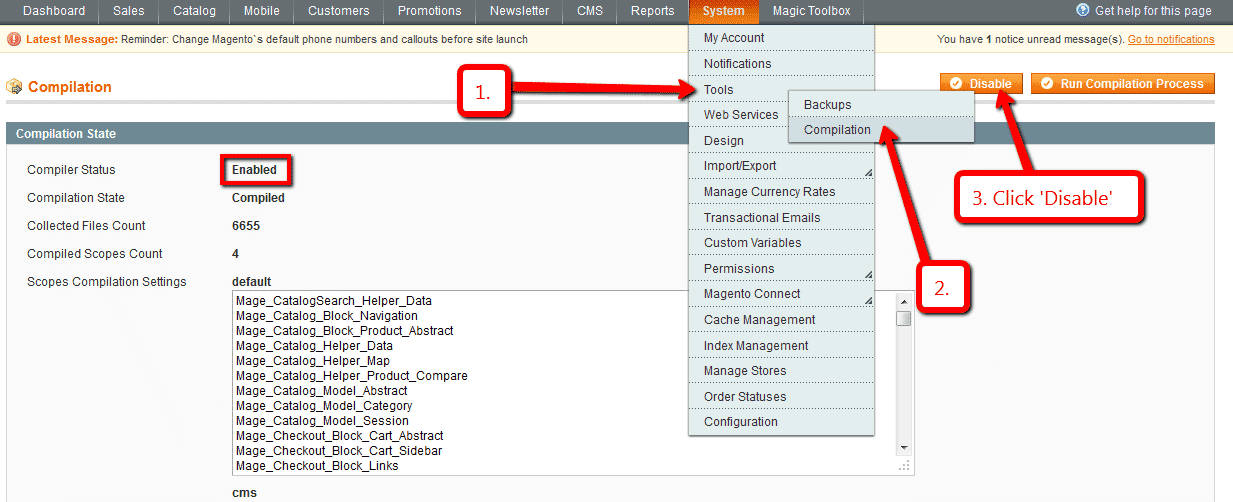
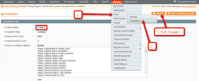 If you use Magento Compiler, disable it System > Tools > Compilation > Disable.
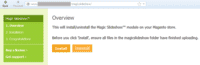 Go to http://www.yoursite.url/magicslideshow/ in your browser > click 'Install' (replace yoursite.url with your domain name).
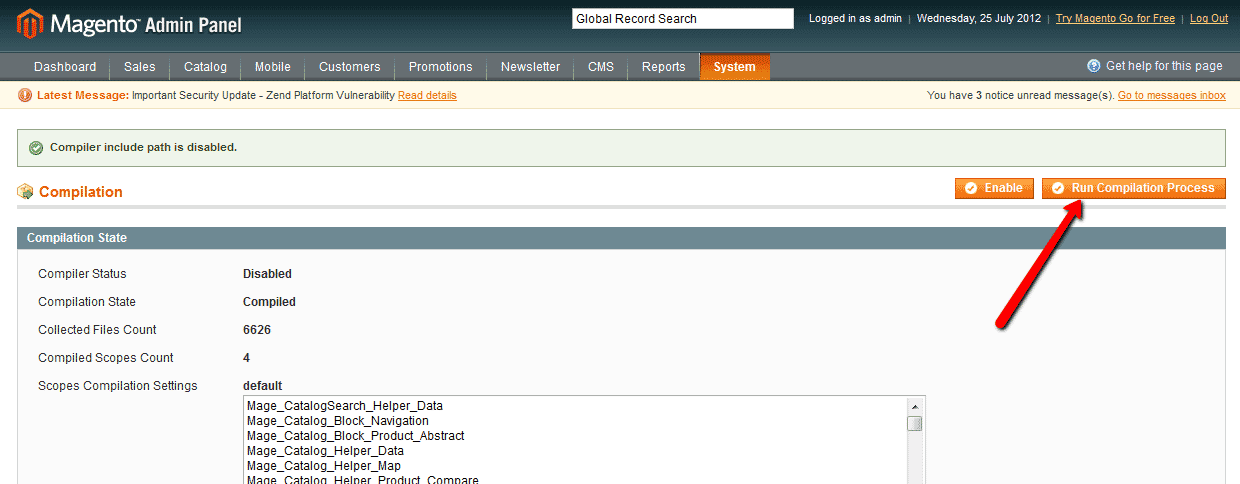
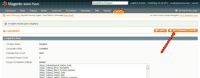 If you use Magento Compiler, click 'Run Compilation Process'.
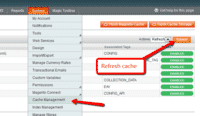 Go to System > Cache Management > Select All and refresh the cache.
- The demo version is now installed!
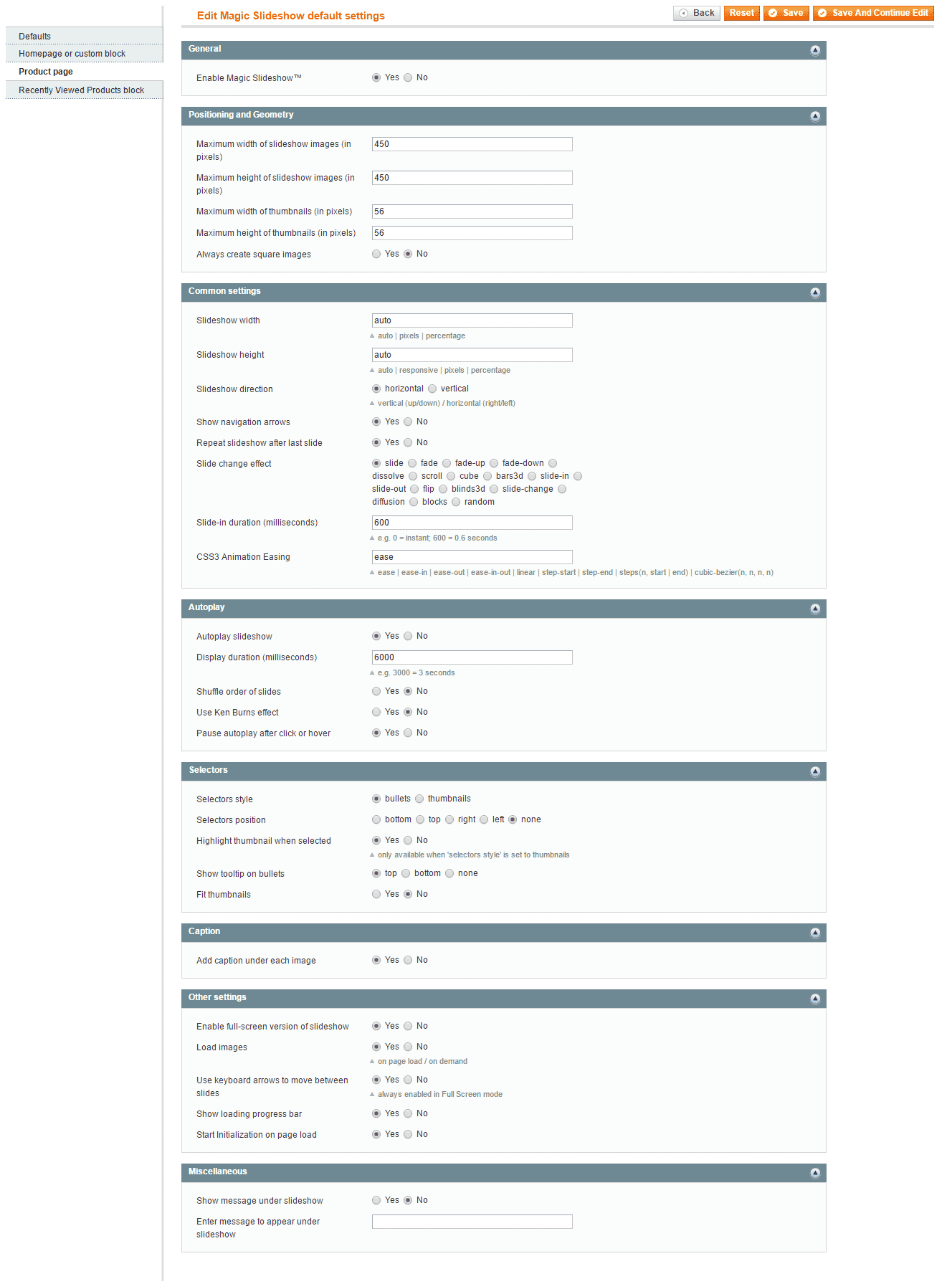
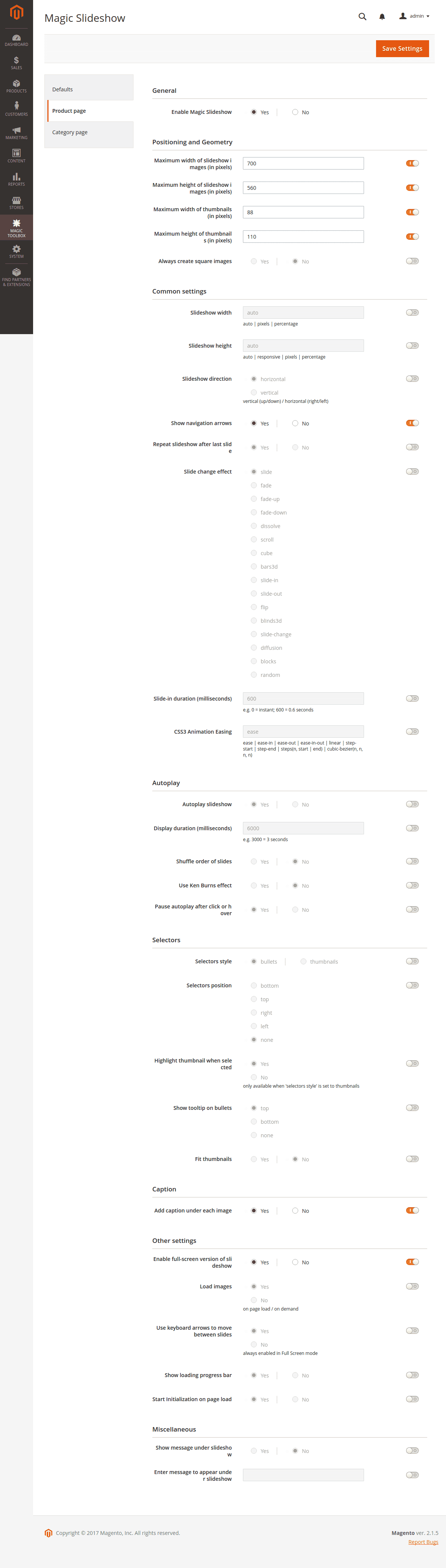
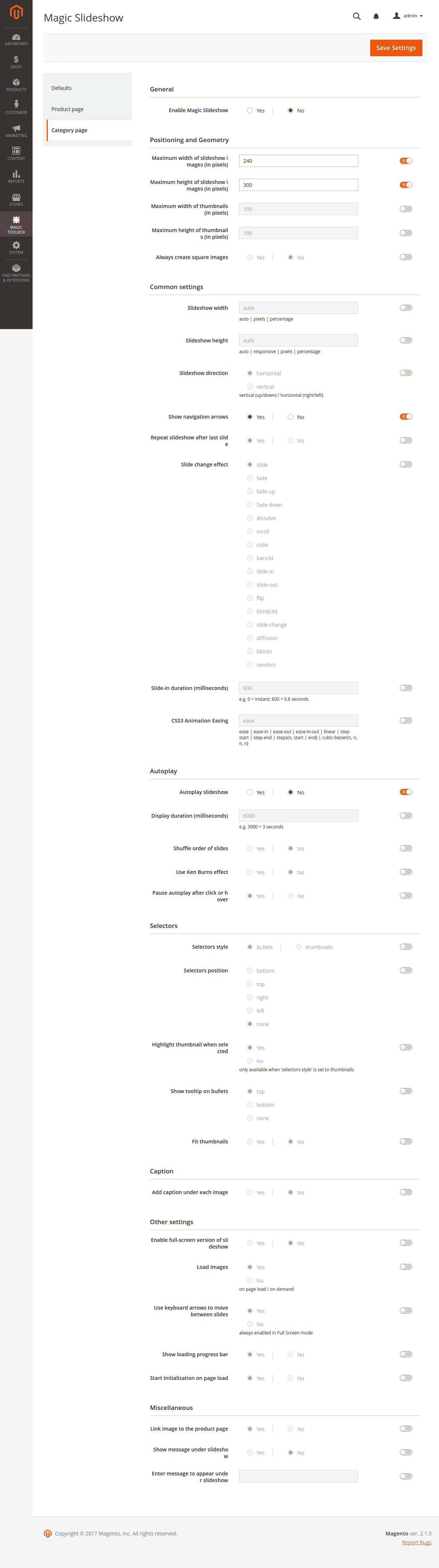
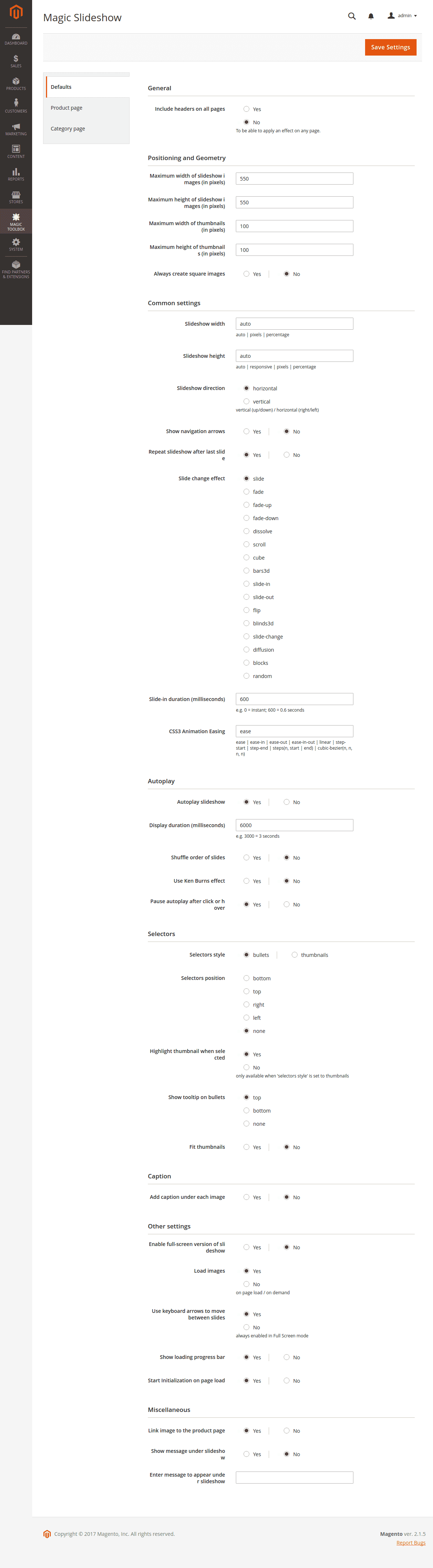
 Customize the Magic Slideshow extension through the Magic Toolbox > Magic Slideshow settings > Default settings menu in your Magento admin panel.
-
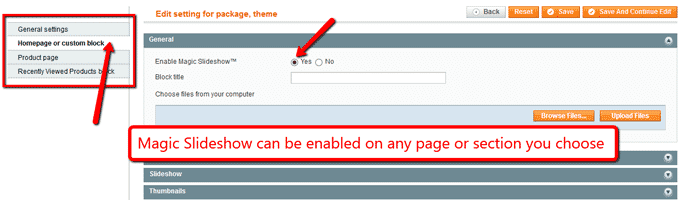
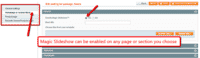 Magic Slideshow can be enabled on any page or section you choose.
 - Buy Magic Slideshow To upgrade your version of Magic Slideshow (which removes the "Trial version" text), buy Magic Slideshow and overwrite following file with the same one from your licensed version:
/skin/frontend/[your_interface]/[your_theme]/js/magicslideshow.js


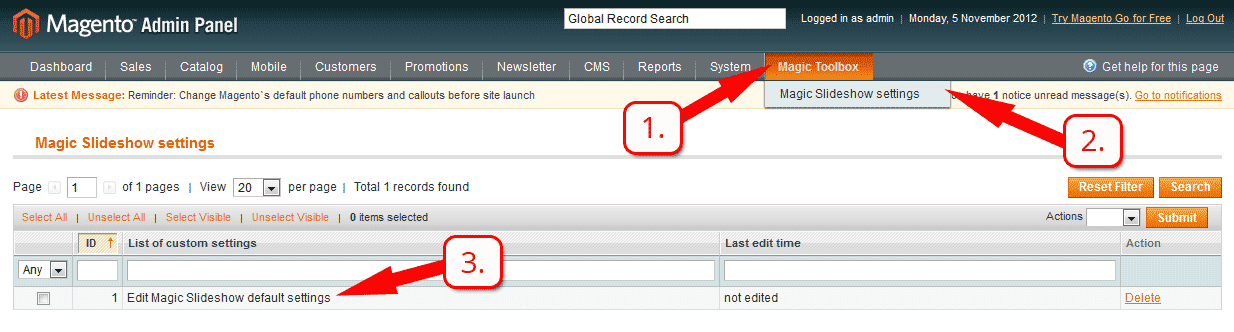
- Download Magic Slideshow for Magento 2 (free and fully functional demo version).
- Unzip the file on your computer and FTP the 'app' folder to your Magento directory (on your server), keeping the file and folder structure intact.
Activate module from command line:
#List all modules php -f bin/magento module:status #Enable Magic Slideshow module php -f bin/magento module:enable MagicToolbox_MagicSlideshow --clear-static-content #Run database installation upgrades php -f bin/magento setup:upgrade #Remove previously compiled classes rm -rf var/generation #Compile (only needed in Production Mode) php -f bin/magento setup:di:compile #Deploy Static Content (only needed in Production Mode) php -f bin/magento setup:static-content:deploy- The demo version is now installed.
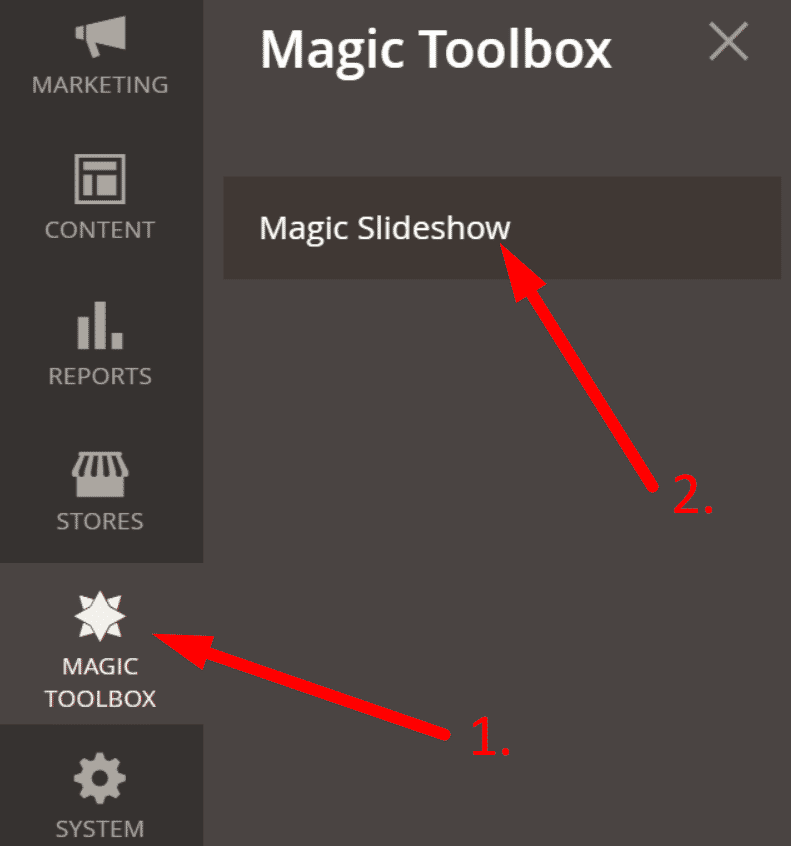
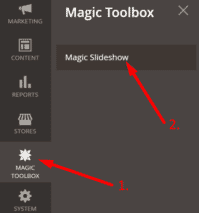 Customize Magic Slideshow settings to suit your needs - go to the [Magic Toolbox > Magic Slideshow] menu in the Magento admin panel.
- If you need help, please send questions to our support team. Include your page URL and if you'd like us to make changes, a login to your Magento admin. We reply to every email as quickly as possible (Monday-Friday, 9am-5pm UTC).
- Buy Magic Slideshow
To upgrade your version of Magic Slideshow (which removes the "Trial version" text), buy Magic Slideshow and overwrite following file with the same one from your licensed version:
app/code/MagicToolbox/MagicSlideshow/view/frontend/web/js/magicslideshow.js
Magento slideshow benefits
You're excited that your Magento store is now live. Your products are ready. But how do you grab the attention of potential customers?
A home page image slideshow could be your fix, by grabbing visitor attention immediately. But could it be a potential conversion killer? There's been a debate for years whether slideshows on a homepage help or hinder ecommerce stores. While the debate continues, JavaScript slideshows are more popular than ever.
While a slider might not immediately increase your revenue, it will give an instant WOW factor to your site. This Magento image slideshow extension is ready to use on your store straight away.
Why are home page sliders so popular?
The fact is, a banner slider looks modern. Large, wide images influence how a visitor feels. And if that feeling sells a lifestyle, you've just hooked a visitor into your world.
Things to keep in mind when you're creating an image slideshow...
Keep slides concise. This means clear & direct messages. You should tell a quick message in a short time. If you have no choice but to use lots of wording, slow down the speed of this Magento image slider. There's nothing worse than being halfway through reading text and the slide changes. Change 'Duration slide displayed' option on your Magic Slideshow Settings page to the speed you want.
Switch your slideshow from autoplay to manual to put the customer in control. It is their decision when to move to the next slide. A very easy change to make, just set 'Autoplay slideshow' to 'No'.
If you prefer to keep your slideshow as autoplay, consider including thumbnail images or bullets for customers to navigate between slides. Choose 'bullets' or 'thumbnails' from the 'Selectors style' option. Then choose the position they appear (top, bottom, left, right) under 'Selectors position'. Again, this means the shopper is in control, but it also shows at a glance how many slides are included.
How many slides should you use?
This is up to you. In December 2015, Microsoft used 2 slides on their homepage. Use whatever you think is appropriate. Just remember to keep the communication clear and concise.
Your mobile users can simply swipe your slideshows left/right to change the slide. Magic Slideshow is both responsive and optimized for touch screens and desktops, to suit all your visitors whether they're using desktops or mobile devices.
Thanks to the responsive nature of Magic Slideshow, your sliders will automatically scale up and down depending on the users screen size.
To keep your homepage banner fresh for repeat customers to your site, set the slider to shuffle via the 'Shuffle order of slides' option.
Another popular feature is to pan & zoom each image, commonly known as the Ken Burns effect. Set the 'Use Ken Burns effect' option to 'Yes' for each image to move in/out slowly.
So far we've spoken about the look & feel of your image slideshow. But what about moving visitors forward? The link option is a powerful feature. Every image in your slideshow can link to a different URL, to encourage users to take action, wherever they click on your image.
These are only some of the ways it's possible to customize this Magento image slideshow. Magic Slideshow can also be enabled on your Product page, Recently Viewed Product blocks & any CMS page.
However you choose to display your images, adding a slideshow component has never been easier. Download the free trial for your Magento store now.
Video tutorial
Home page slideshow
Magento 1.x stores
To create a slideshow on your home page:-
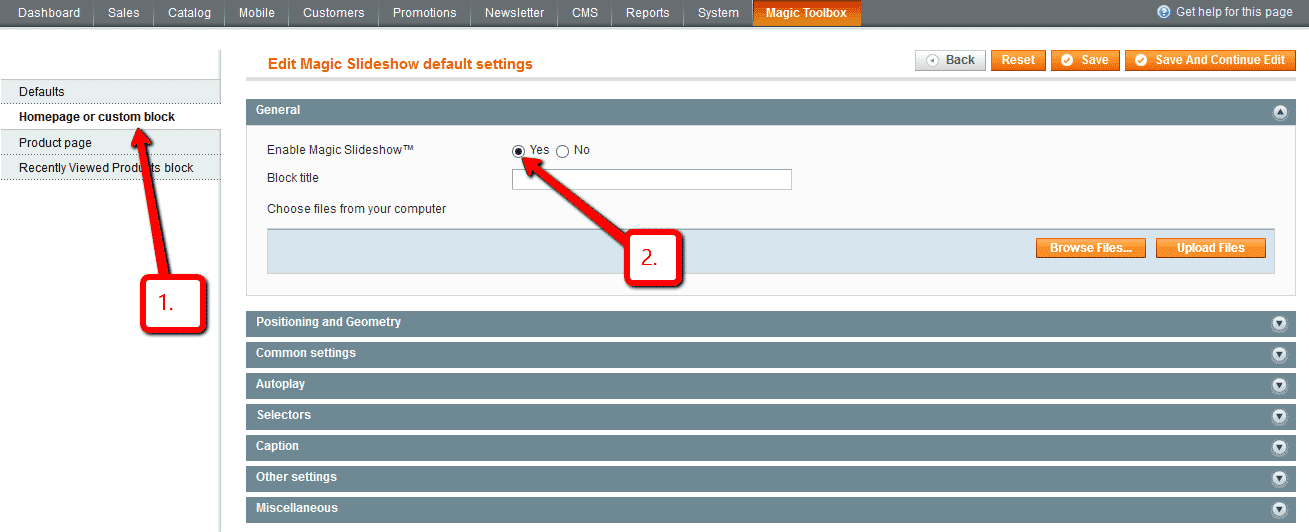
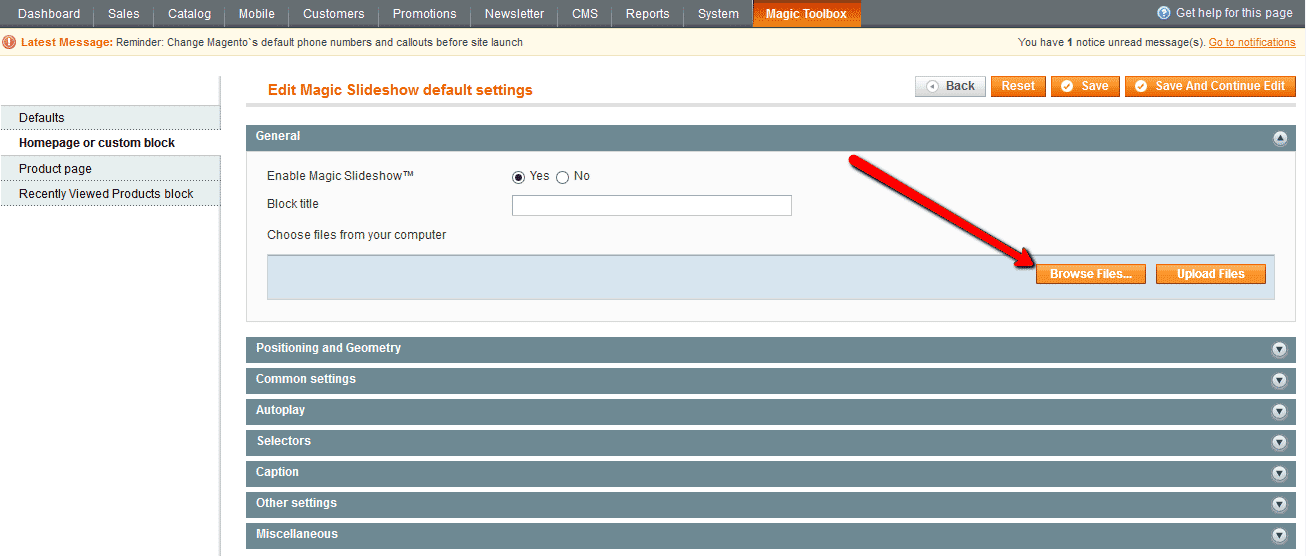
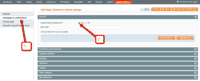 Enable Home page Slideshow section.
 -
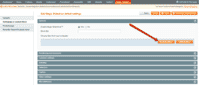 Select Browse images and browse your computer for your set of slideshow images > Click Upload images > Save changes.
 - Your slideshow is now working! The slideshow will now display on your home page, before the main content area.
-
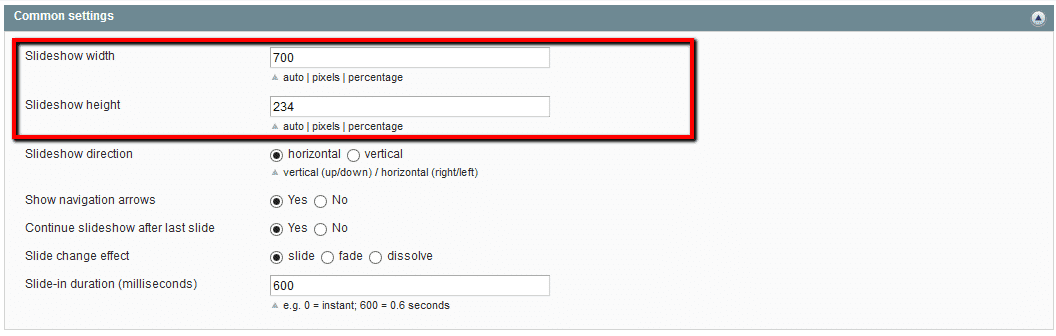
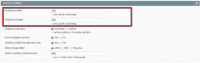 To set a specific slideshow size, change Slideshow width (pixels) and Slideshow height (pixels) options.
 - Enjoy over 30 slideshow customizations. Try them all and see which works best for your site.
Magento 2 stores
There is no dedicated home page settings page for Magento 2 but you can still create an amazing slideshow on the homepage of your store using HTML.
In your home page content area or template, create a div with a class of MagicSlideshow. Slideshows can have as many images as you want. Here is a slideshow of 7 images, each linking to a URL:
<div class="MagicSlideshow">
    <a href="/page-1/"><img src="example1.jpg"></a>
    <a href="/page-2/"><img src="example2.jpg"></a>
    <a href="/page-3/"><img src="example3.jpg"></a>
    <a href="/page-4/"><img src="example4.jpg"></a>
    <a href="/page-5/"><img src="example5.jpg"></a>
    <a href="/page-6/"><img src="example6.jpg"></a>
    <a href="/page-7/"><img src="example7.jpg"></a>
</div>
Customize the slideshow as you wish using Magic Slideshow's HTML settings.
Custom block slider
You can create a slideshow anywhere else on your website as a custom block. To create a custom block, open this file:app/design/frontend/[your_interface]/[your_theme]/layout/magicslideshow.xmland alter this block:
<reference name="content">...</reference>in this section of the file:
<cms_page>...</cms_page>
CMS page slideshow
Add glorious JavaScript slideshow to any CMS page on your Magento 1.x store.
-
 On the Magic Slideshow extension settings page, set the 'Include headers on all pages' parameter to 'Yes' (under the Defaults settings tab).
 - Go to your admin panel > CMS > Pages. Add a new page or select an existing page.
- On the 'Content' tab click on the 'Show/Hide Editor' button to disable the editor.
- Insert a slideshow anywhere in the code by adding a div with a class of
MagicSlideshowand all your sliding images inside. The HTML will look something like this:<div class="MagicSlideshow"> <img src="example1.jpg"> <img src="example2.jpg"> <img src="example3.jpg"> <img src="example4.jpg"> </div>
- Click 'Save Page'.
- Click 'Preview' to see your slideshow in action!
- See these detailed instructions for changing the options of your slideshow - thumbnails, headings, text, arrows etc.

Multi-language
You can change the language of the message and loading text like so:- Find the locale folder for the language you wish to change e.g. /app/locale/en_US.
- Open the file Mage_Api.csv into the editor and insert these lines at the and of the file:
"MagicSlideshow_Message","Write your message here"
- Continue these steps for each locale you wish to change.
Uninstallation
Thanks for trying Magic Slideshow on your Magento site! What did you hope Magic Slideshow could do? How can we improve it? Let us know, we're always improving our tools based on customer feedback.
- If you use Magento Compiler, disable it System > Tools > Compilation > Disable.
- Go to System > Cache Management > Select All and disable the cache.
- Go to http://your.site.url/magicslideshow/ in your browser and click 'Uninstall' (replace yoursite.url with your domain name).
- If you use Magento Compiler, click 'Run Compilation Process'.
- Go to System > Cache Management > Select All and refresh / enable the cache.
- Delete the magicslideshow folder from the root of your Magento directory (on your server).
- Magic Slideshow is now uninstalled.
Deactivate module from command line:
php -f bin/magento module:disable MagicToolbox_MagicSlideshow --clear-static-content
- Delete folder with module from your Magento directory (on your server).
- Magic Slideshow is now uninstalled.
FAQ
Is Magic Slideshow compatible with Hyvä theme?
A small customization is required to make Magic Slideshow compatibile with Hyvä on your Magento 2 store. Please send login details (FTP/SFTP & Admin area) and we will do this for you (free of charge).
Customer reviews
They fix my problem in a very short time.
Thank you very much!
Alberto, platayoro.it
Espen
Best regards,
Shannon Ray Timmer (a happy customer)
Shannon Ray Timmer, successbeads.com
Submit your review
Your review has been received and will be posted soon.
Other Magento extensions
Try our other great image effects!
 Magic Zoom
 Magic Zoom Plus
 Magic Thumb
 Magic 360
 Magic Scroll
You have now added this JavaScript slideshow to your Magento home page or other page. We provide free support for all our software, if you would like help, please contact us.
An alternative to this Magento module is Magic Scroll, which can slide many images at one time. It is perfect for organising product images, showing off your bestsellers, new arrivals, latest news and related products.
You can set your slideshow to fade from one image to the next and change the fading time and fading slideshow duration. For more examples, please try the Magic Slideshow examples page.