

Works on these pages:
- Product details page
- Category page
- Latest block
- Featured block
- Popular block
- Manual install elsewhere
A research conducted by disruptiveadvertising.com concluded using an image lightbox on your ecommerce store can increase conversions.
But what is an image lightbox?
An image lightbox is created using JavaScript and enlarges product images to full-screen. When the image is enlarged, the background dims which enhances the product image even more.
Created in 2009, Magic Thumb is fully responsive (resize your browser window to see) and displays all product images one after another. Activate this CubeCart lightbox by hovering the main product image or directly from the thumbnail images.
Combine Magic Thumb with Magic Scroll (carousel) to contain product image thumbnails and stop them spreading down your product page.
Download this CubeCart image lightbox extension for your store (free trial), CubeCart 5/6 or CubeCart 3/4, and enjoy over 40 customizations. If you need a zoom and lightbox extension, try Magic Zoom Plus, and enjoy 70 customizations!
Verified by CubeCart:
Read reviews of Magic Thumb on the official marketplace for CubeCart 5/6 extensions.
Features you'll love...- Responsive
- Fast
- SEO friendly
- Image caching
- Easy to customise
- Auto image resizing
- Scrollable thumbnails
- Supports all templates
- Watermarked images
- On-demand loading
- Regularly updated
- jQuery compatible
- One-off payment
- Responsive
- Fast
- SEO friendly
- Image caching
- Easy to customise
- Auto image resizing
- Scrollable thumbnails
- Supports all templates
- Watermarked images
- On-demand loading
- Regularly updated
- jQuery compatible
- One-off payment
Installation
- Download the module for Magic Thumb CubeCart 5/6 or CubeCart 3/4 (free and fully functional demo version).
- Unzip the file on your computer and FTP the magicthumb folder to the root of your CubeCart website (on your server), keeping the file and folder structure intact.
-
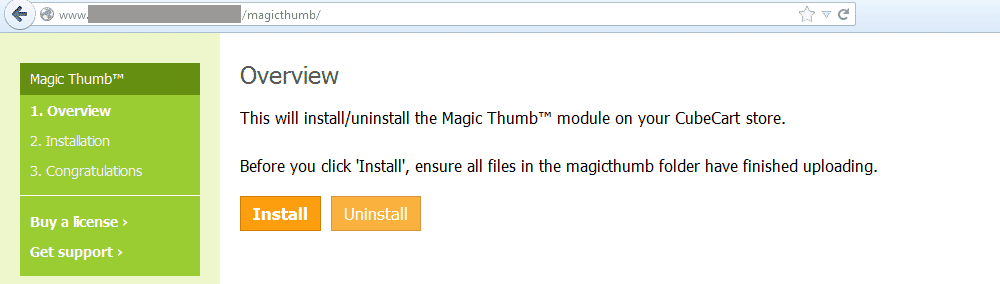
 Go to http://www.yoursite.url/magicthumb/ in your browser and click 'Install' (replace yoursite.url with your domain name).
 -
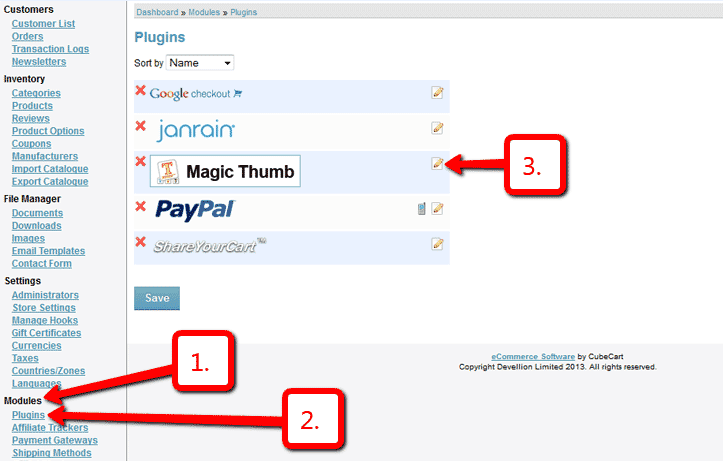
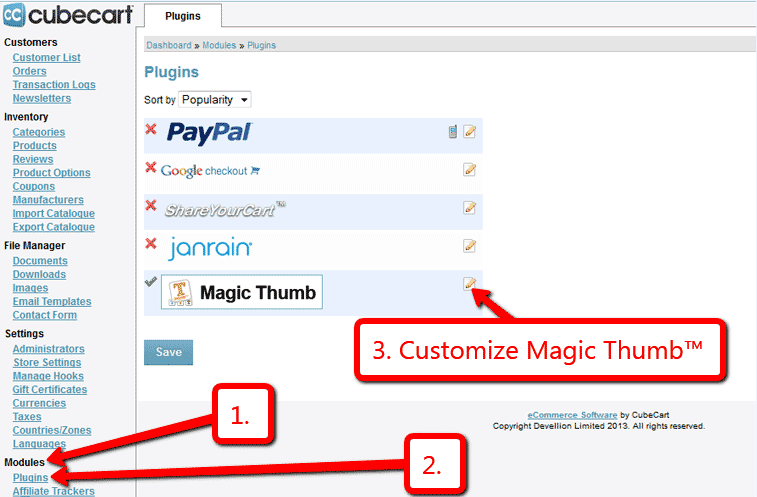
 Go to Admin panel > Modules > Plugins > Magic Thumb > Edit.
 -
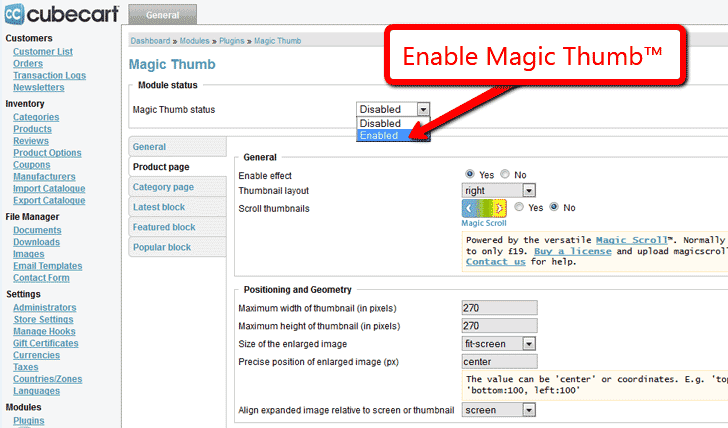
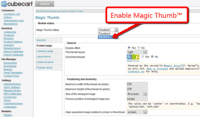 Remain on Magic Thumb settings page and enable module.
 - The demo version is now installed!
-
 Customize the Magic Thumb plugin through Modules > Plugins > Magic Thumb > Edit menu in your CubeCart admin panel.
 -
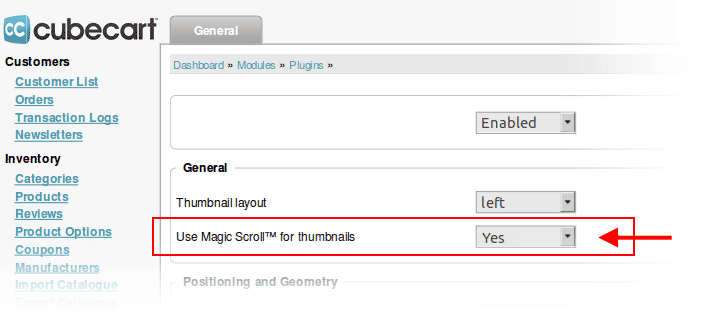
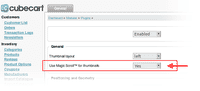 Activate Magic Scroll to enjoy organised thumbnails on your product page: Modules > Plugins > Magic Thumb > Edit > Use Magic Scroll™ for thumbnails > Select 'Yes' > Save changes.
 - Buy Magic Thumb
To upgrade your free and fully functional trial version of Magic Thumb (which removes the "Trial version" text), buy Magic Thumb and overwrite following file with the same one from your licensed version:
CubeCart 5/6:
modules/plugins/MagicThumb/core/magicthumb.js
CubeCart 3/4:
modules/magictoolbox/MagicThumb/core/magicthumb.js
Multiple images
Swapping between many images is already a standard feature in Magic Thumb. But if you have lots of images, the page can look complicated.
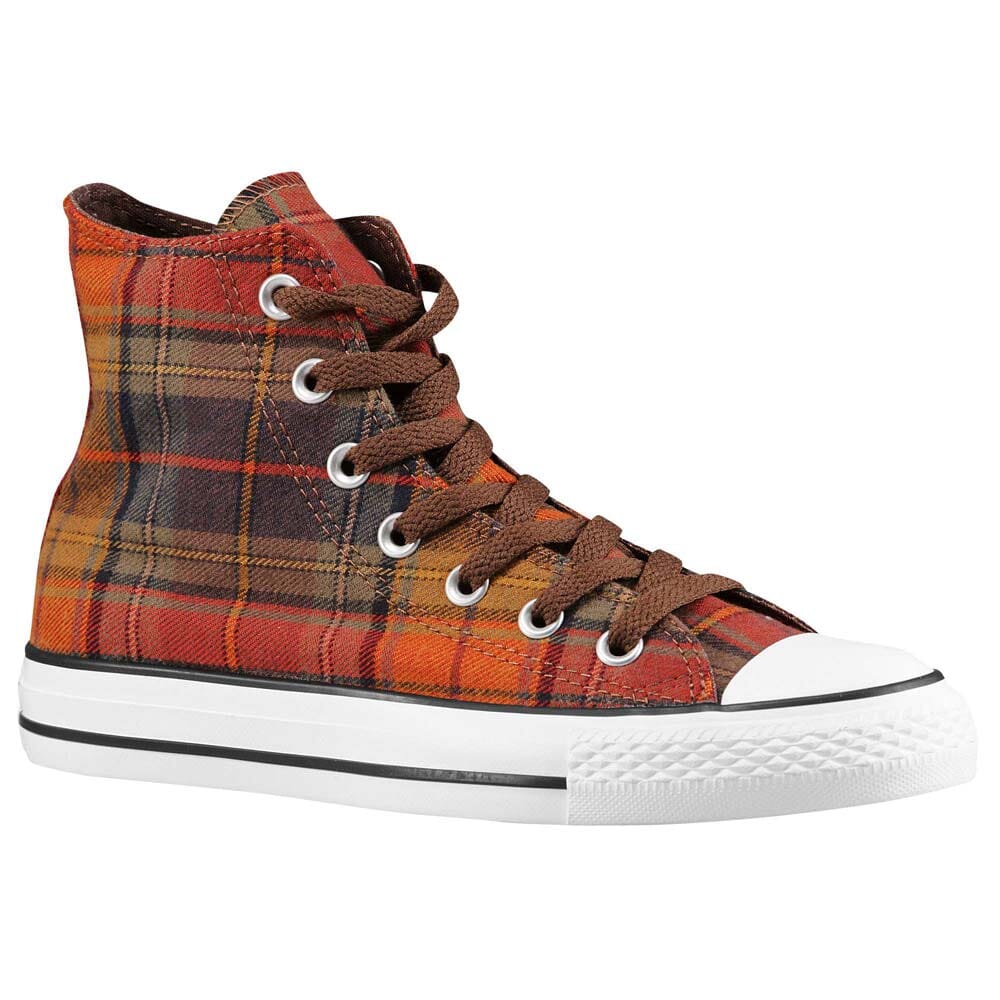
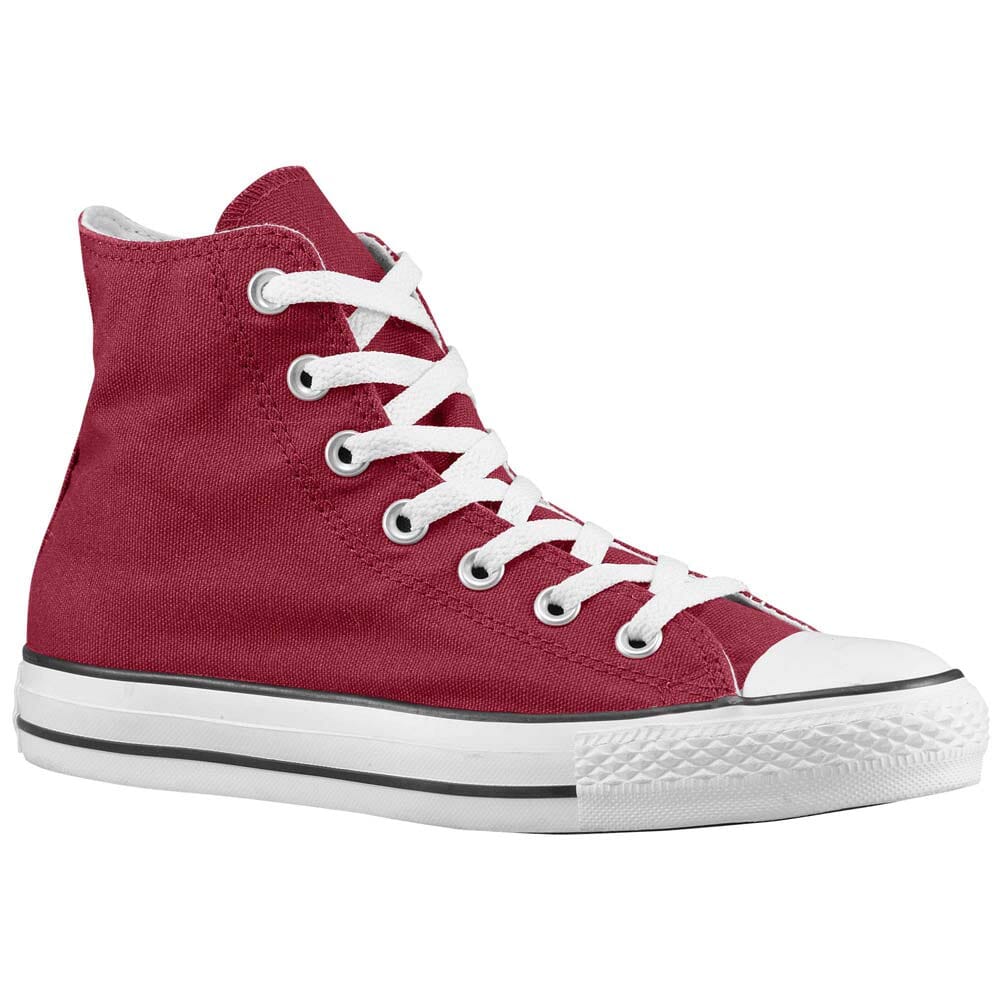
Make your thumbnails look slick and organised with Magic Scroll for CubeCart. It neatly contains the images adds arrows to slide between them. Example:







- Simply activate Magic Scroll on the Magic Thumb options page.
- To remove the "Please upgrade" text, buy a license and overwrite the /modules/magictoolbox/core/magicscroll.js file with that from your licensed version.
Uninstallation
Thanks for trying Magic Thumb on your CubeCart site! What did you hope Magic Thumb could do? How can we improve it? Let us know, we're always improving our tools based on customer feedback.
- Go to: Admin panel > Modules > Plugins > Magic Thumb > Edit > 'Magic Thumb status' option > Select 'Disabled' to disable module.
- Go to http://www.yoursite.url/magicthumb/ in your browser and click 'Uninstall' (replace yoursite.url with your domain name).
- Delete the magicthumb folder from the root of your CubeCart website (on your server).
- Magic Thumb is now uninstalled.
Customer reviews
Submit your review
Your review has been received and will be posted soon.
Other CubeCart plugins
Try our other great image effects!
 Magic Zoom
 Magic Zoom Plus
 Magic Slideshow
 Magic Scroll
 Magic 360
For help, contact us and we will help you install this CubeCart lightbox module on your website. The module was designed for the CubeCart shopping cart.
Magic Thumb lightbox uses your original product images - you don't need to upload new images to create the JavaScript lightbox effect. We recommend that your large images are 400-600px height. The module will automatically resize your images to create thumbnails. Choose the size of your image thumbnails in the settings.ini file.
This CubeCart lightbox module can enlarge images or movies on click or on hover. The enlarge will fit the image to the full browser screen, providing your images are large enough. Magic Thumb uses JavaScript and CSS to create the effect and there are more than 50 options to customize the tool just how you want it. Change the speed, duration, effect, borders, colors, text and many more things. As it uses JavaScript, it works on all major browsers and on iPhone / iPad.