




No coding required.
Use your Magic Thumb addon almost anywhere on your xt:Commerce site.
You can even apply different zoom options to each page.
- Product details page
- Category page
- Manufactures page
- Manual install elsewhere
Supported pages & blocks
- xt:Commerce 6
- xt:Commerce 5
- xt:Commerce 4 Multishop
- xt:Commerce 4 PROFESSIONAL
- xt:Commerce 4 START!
- xt:Commerce 3.x
Relied upon by xt:Commerce store owners, Magic Thumb has been the professional choice since 2008 for graceful full-screen effects.
MoreThis official xt:Commerce addon makes it easy to apply these effects to your pages. Even better - the addon gives you auto-caching, image resizing and SEO optimization as part of the dedicated xt:Commerce features.
With free new versions regularly released, your products will always look gorgeous with Magic Thumb.
Verified by xt:Commerce:
Read reviews of Magic Thumb on the official marketplace for xt:Commerce addons.
Key features
New versions support
All versions of xt:Commerce are supported (xt:Commerce 6, xt:Commerce 5, xt:Commerce 4 Multishop, xt:Commerce 4 PROFESSIONAL, xt:Commerce 4 START!, xt:Commerce 3.x). We update our modules as soon as a new version of xt:Commerce is released.
Caching
Optimize your website. Magic Thumb caches resized images. Which means fewer image downloads.
Responsive
Magic Thumb is responsive out of the box. Essential for multi-device adaptation.
Bandwidth allocation
Control how Magic Thumb initializes & loads images. Choose to activate on page load or on request.
SEO friendly
Magic Thumb supports SEO Friendly URLs. Vital for website high ranking in search engines.
Web settings
Say goodbye to manual configuration. Customize settings instantly using Magic Thumb Settings page.
jQuery compatibility
Magic Thumb requires no jQuery, 3rd party library or framework. Magic Thumb is completely compatible.
Custom themes support
If Magic Thumb doesn't work immediately on your site, email us and we'll add support for your theme (free of charge).
One-off payment
Pay once and the Magic Thumb license is yours forever.
Installation
xt:Commerce 4 (Veyton)
- Download Magic Thumb plugin for xt:Commerce 4/5 (free and fully functional demo version).
- Unzip the file on your computer and FTP the magicthumb folder to your plugins directory (on your xt:Commerce 4/5 server), keeping the file and folder structure intact.
-
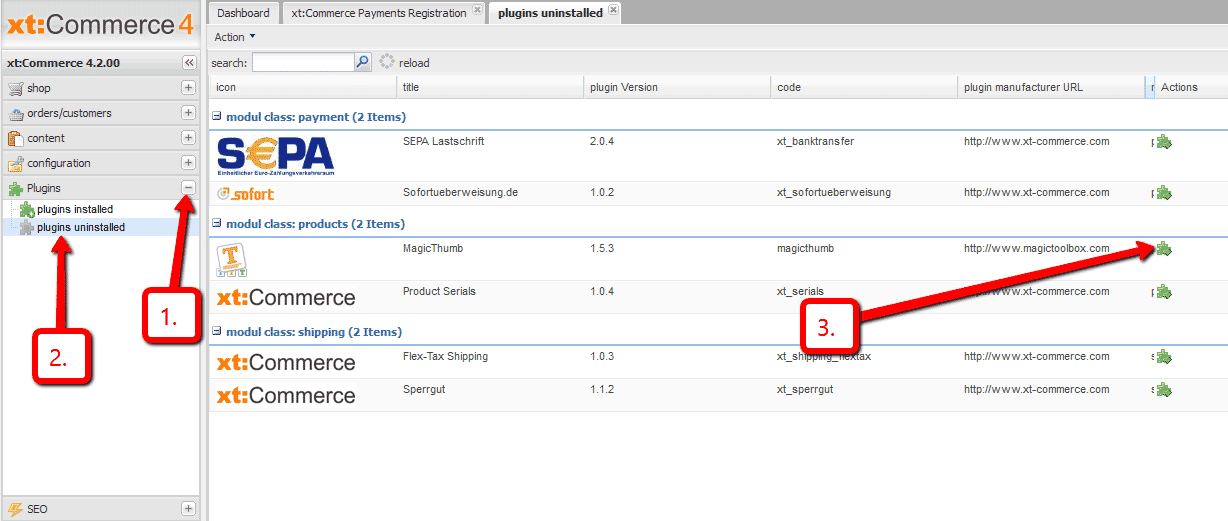
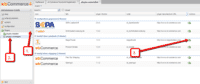 In your xt:Commerce 4/5 admin, go to Plugins > plugins uninstalled > Locate Magic Thumb > click the Run icon.
 -
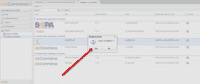 Pop up box will appear 'Plugin installieren' > Select 'Yes'.
 -
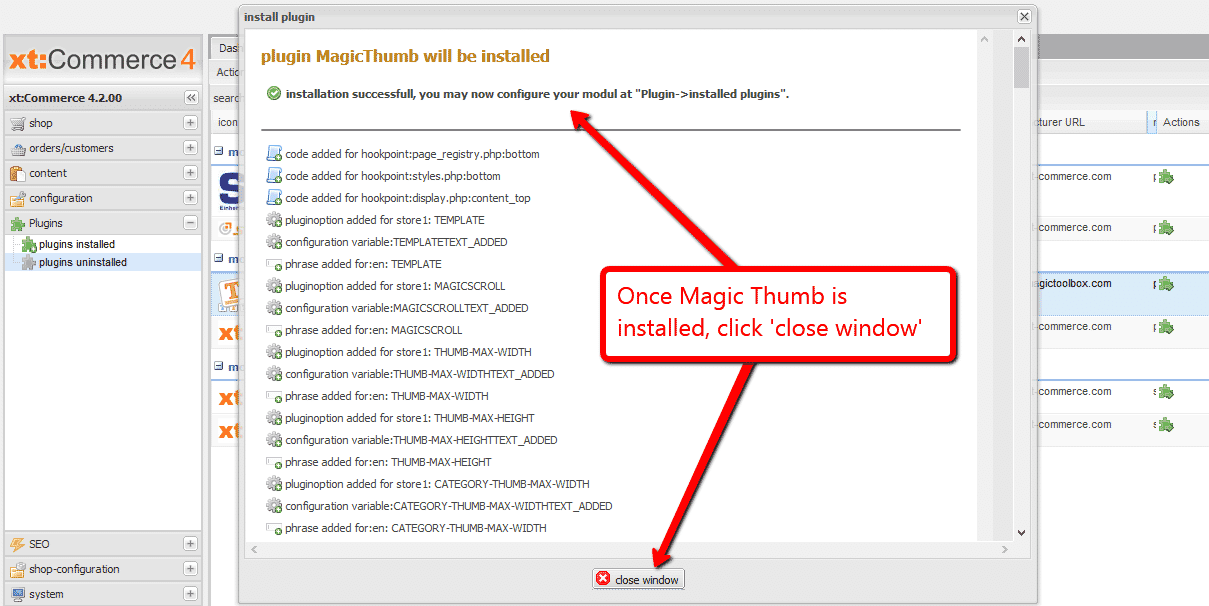
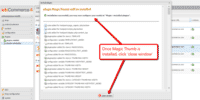 Once Magic Thumb installed message appears, click 'close window'.
 -
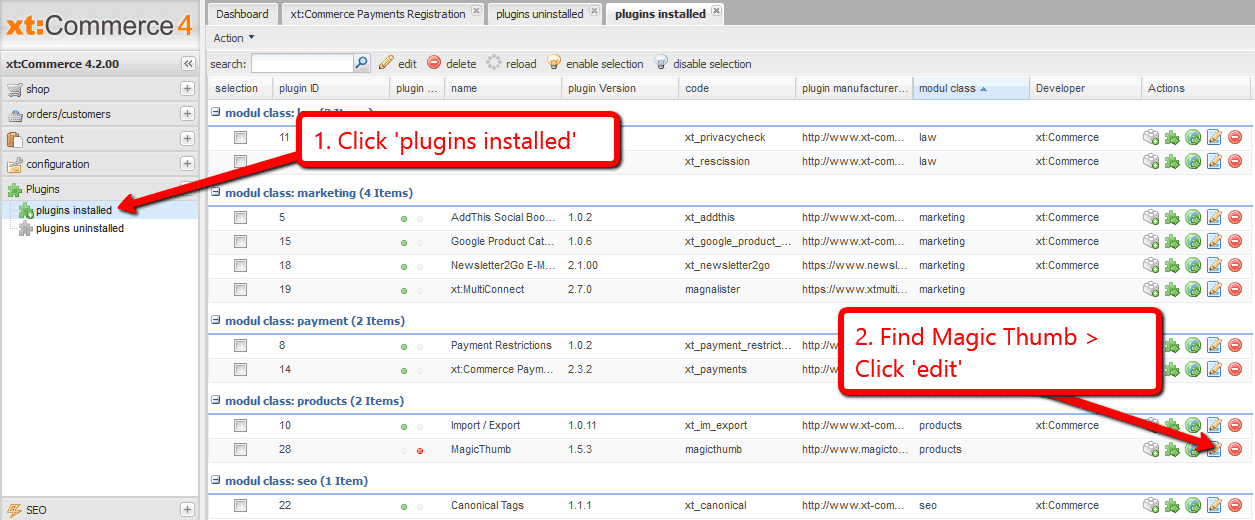
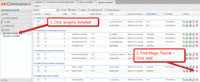 Go to Plugins > plugins installed > Find Magic Thumb > Click 'Edit'. (If you already have 'plugins installed' tab open, close the tab and reopen to see Magic Thumb listed).
 -
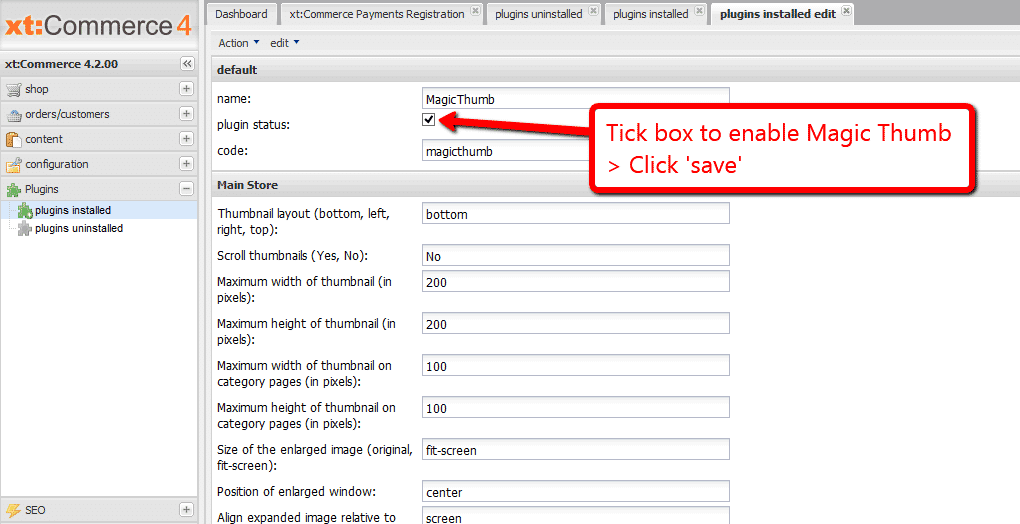
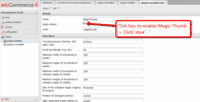 To enable Magic Thumb go to: 'plugin status' > 'Tick' box > Scroll down page and click 'save'.
 - The demo version is now installed!
- Change Magic Thumb settings through the Plugins > plugins installed > Magic Thumb > 'Edit' menu in your xt:Commerce 4/5 admin panel.
-
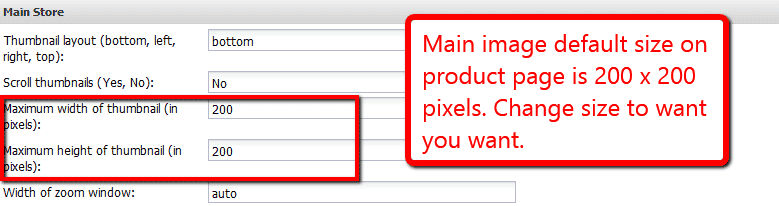
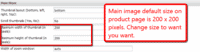 Main image default size on product page is 200 x 200 pixels. Change 'Maximum width of thumbnail (in pixels)' and 'Maximum height of thumbnail (in pixels)' settings to the size you wish.
 -
 Activate Magic Scroll to enjoy organised thumbnails on your product page: Plugins > plugins installed > Magic Thumb > Click 'Edit' > Scroll thumbnails > Enter 'Yes' > Save changes.
 - Buy Magic Thumb To upgrade your free and fully functional trial version of Magic Thumb (which removes the "Trial version" text), buy Magic Thumb and overwrite following file with the same one from your licensed version:
plugins/magicthumb/magicthumb.js


xt:Commerce 3
- Download the xt:Commerce module for Magic Thumb (free and fully functional demo version).
- Unzip it and upload the magicthumb folder to the root of your xt:Commerce website.
- Go to http://your.site.url/magicthumb/ in your browser and follow the instructions.
- The demo version is now installed!
- Buy Magic Thumb To upgrade your free and fully functional trial version of Magic Thumb (which removes the "Trial version" text), buy Magic Thumb and overwrite following file with the same one from your licensed version:
includes/modules/magictoolbox/core/magicthumb.js
Multiple images
Swapping between many images is already a standard feature in Magic Thumb. But if you have lots of images, the page can look complicated.
Make your thumbnails look slick and organised with Magic Scroll for xt:Commerce. It neatly contains the images adds arrows to slide between them. Example:









- Simply activate Magic Scroll on the Magic Thumb options page.
- To remove the "Please upgrade" text, buy a license and overwrite the plugins/magicthumb/magicscroll.js file with that from your licensed version.
Uninstallation
Thanks for trying Magic Thumb on your xt:Commerce site! What did you hope Magic Thumb could do? How can we improve it? Let us know, we're always improving our tools based on customer feedback.
xt:Commerce 4 (Veyton)
- Disable Magic Thumb via: 'plugin status' > 'Untick' box > Scroll down page and click 'save'.
- Go to Plugins > plugins installed > Find Magic Thumb > Click 'Uninstall' and follow instructions.
- Delete the magicthumb folder from your plugins directory (on your xt:Commerce 4/5 server).
- Magic Thumb is now uninstalled.
xt:Commerce 3
- Go to http://your.site.url/magicthumb/ in your browser and click 'Uninstall' (replace yoursite.url with your domain name).
- Delete the magicthumb folder from the root of your xt:Commerce website.
- Magic Thumb is now uninstalled.
Customer reviews
Submit your review
Your review has been received and will be posted soon.
Other xt:Commerce extensions
Try our other great image effects!
 Magic Zoom
 Magic Zoom Plus