
extensions
Stir up your EKM
EKM is a popular UK e-commerce solution, to quickly create a professional online shop. Packed with features and no technical knowledge required.
Improve it significantly, with one of our beautiful image zoom modules, to make your product images look magnificent.
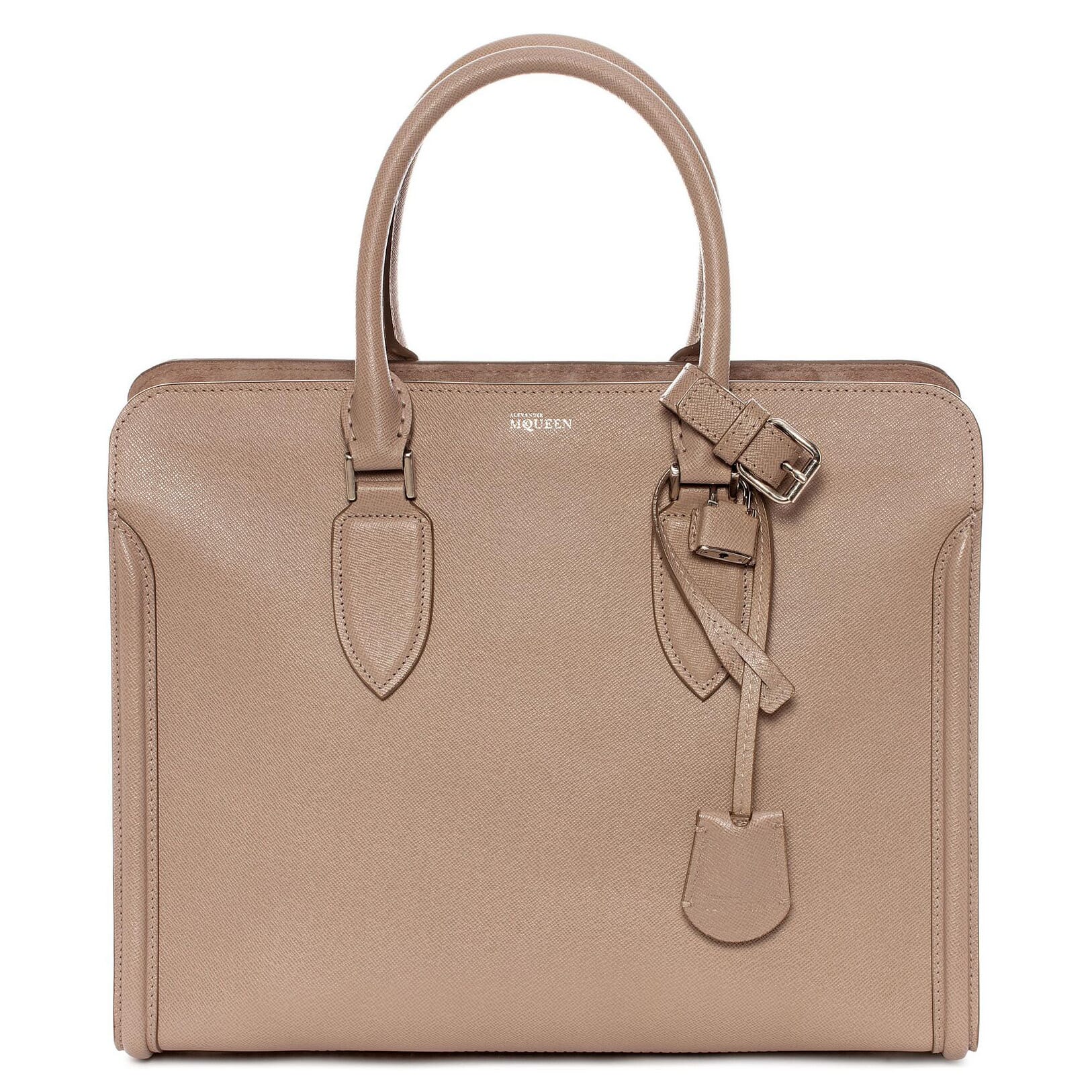  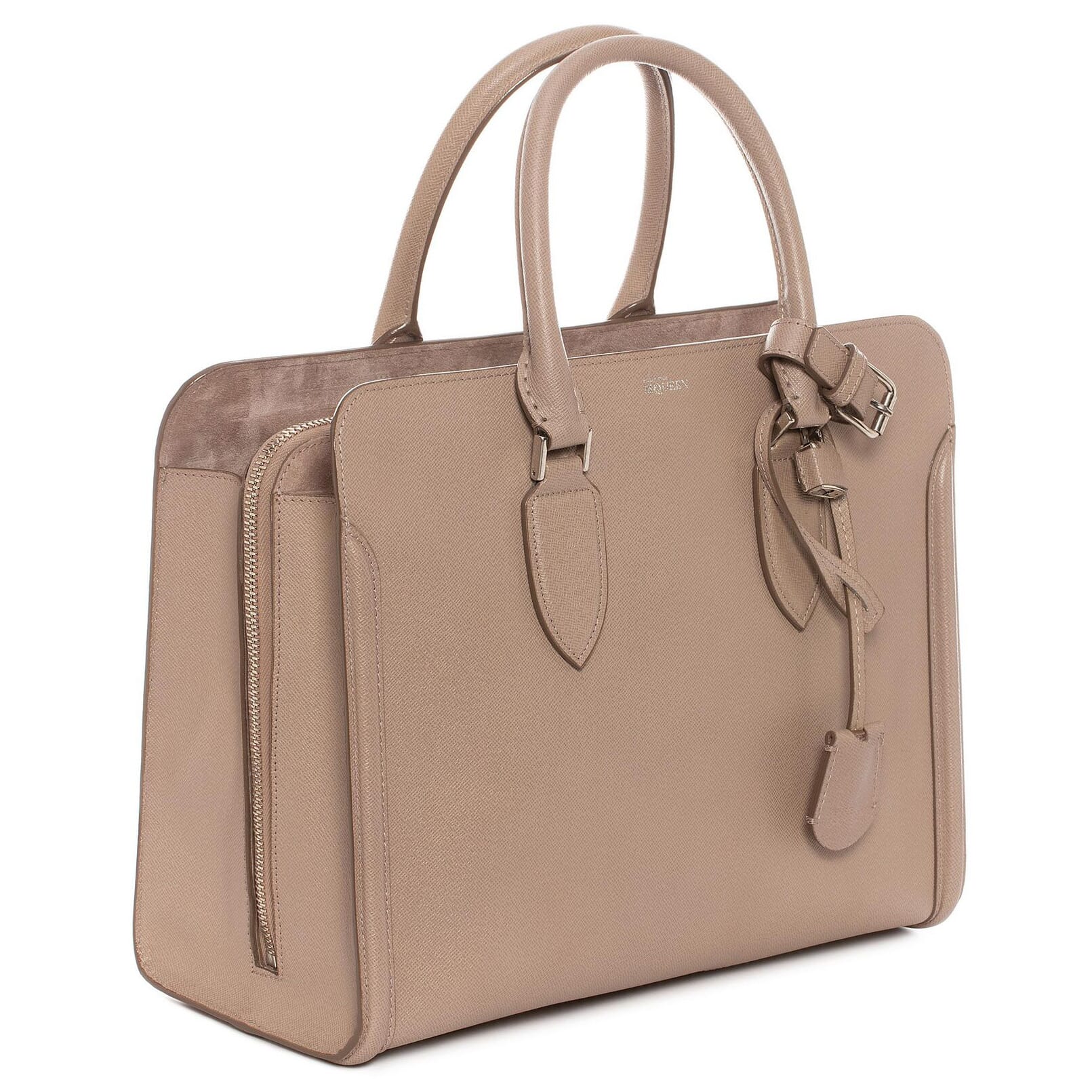 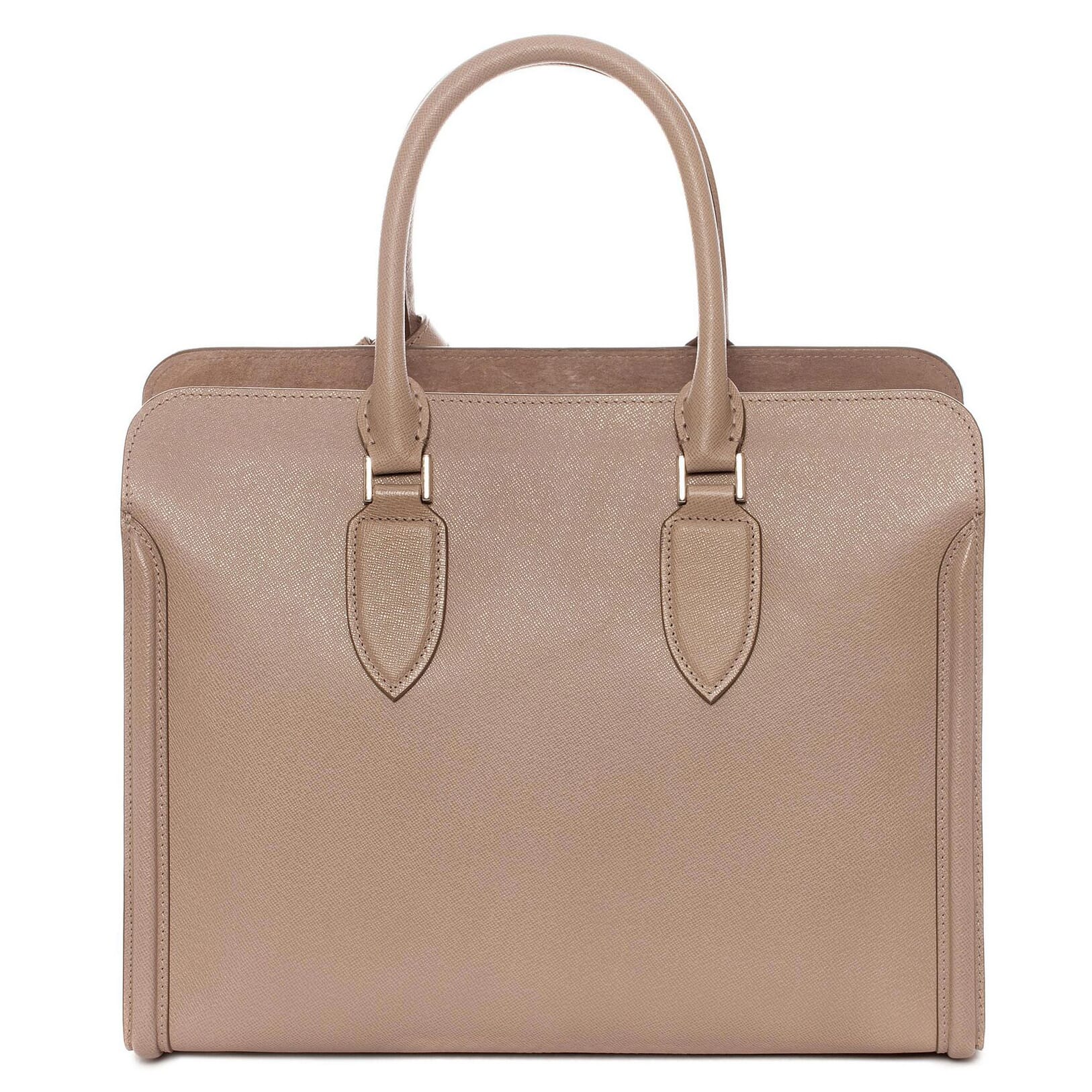 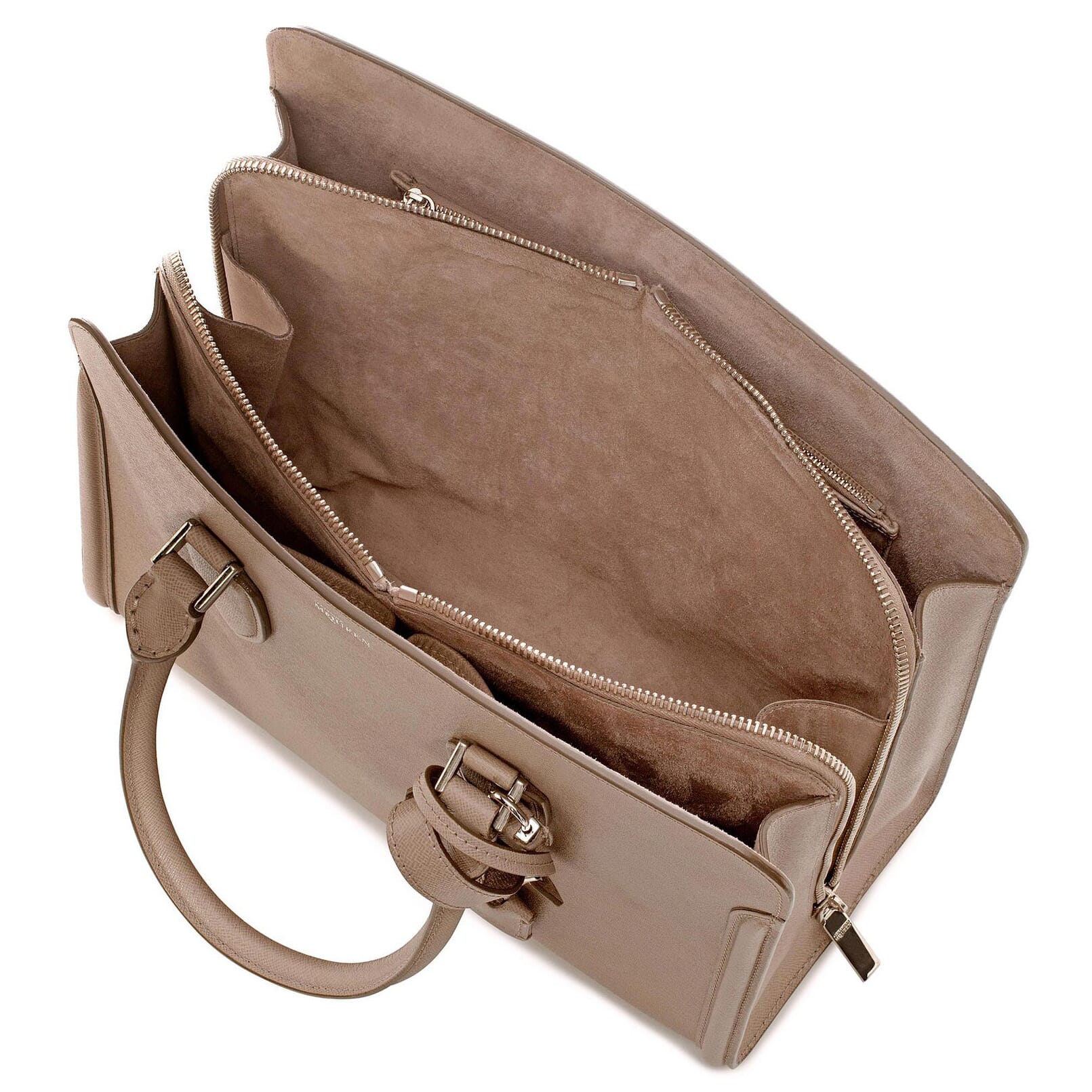 | |
Magic Zoom Plus for EKM
The world's finest image zoom for websites.
- Frequently updated so your website stays fresh.
- Beautiful experience on desktop and mobile alike.
- All latest versions
98% of shoppers say its their favourite zoom
Responsive
Fast loading
SEO friendly
Supports video
Easy to customise
Switchable thumbnails
Friendly support
One-off payment
jQuery compatible
Regularly updated
Lazy loading
Optimised for mobile
- Download Magic Zoom Plus (free and fully functional trial version).
Add following code to the end of the magiczoomplus.css file:
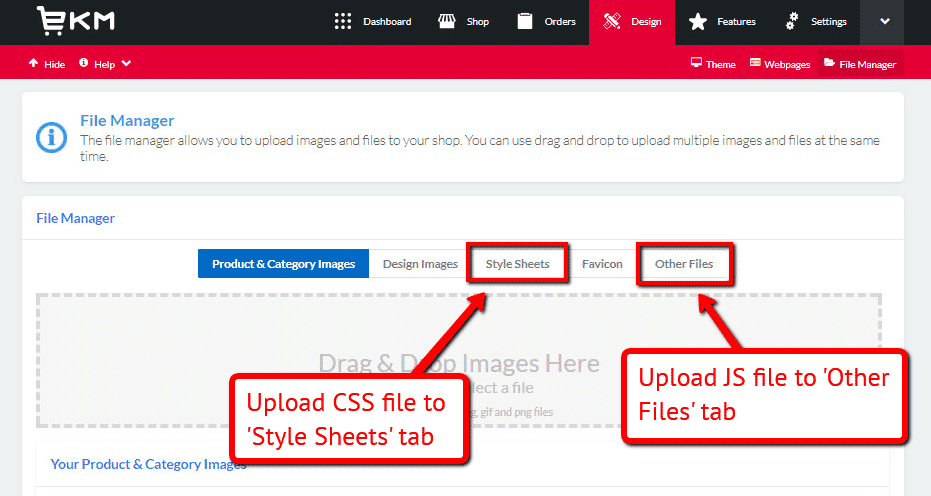
button.mz-button:before, button.mz-button:after { top: 50%; width: 40%; height: 40%; position: absolute; transform: translateY(-50%) rotate(45deg); } button.mz-button.mz-button-prev:before { content: ''; left: 40%; border-left: 1px solid white; border-bottom: 1px solid white; } button.mz-button.mz-button-next:before { content: ''; left: 15%; border-top: 1px solid white; border-right: 1px solid white; } button.mz-button.mz-button-close:before { content: ''; left: 50%; width: 80%; height: 1px; background-color: white; transform: translate(-50%, -50%) rotate(45deg); } button.mz-button.mz-button-close:after { content: ''; left: 50%; width: 80%; height: 1px; background-color: white; transform: translate(-50%, -50%) rotate(-45deg); }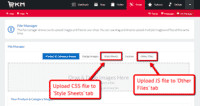 Go to Design > File Manager and upload magiczoomplus.js in the Other files tab and magiczoomplus.css in the Style Sheets tab.
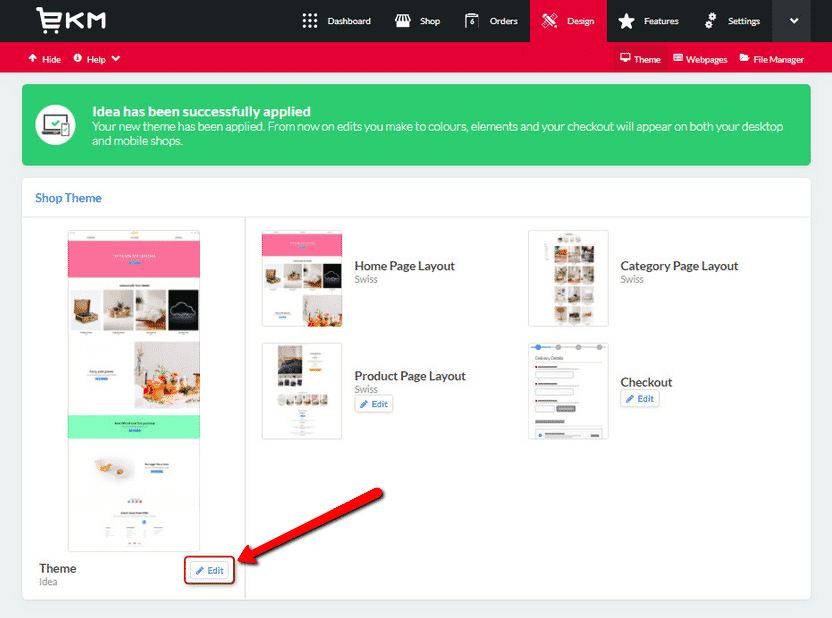
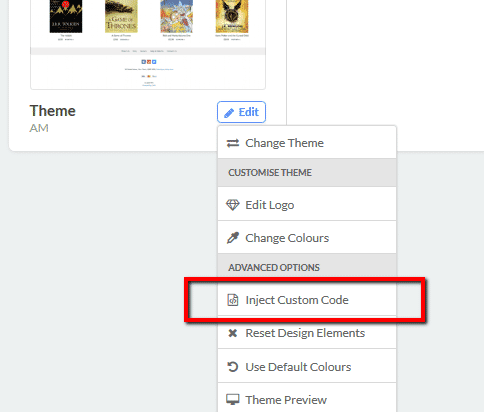
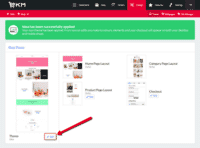 Go to Design > Theme > Edit.
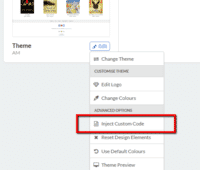 Select Inject Custom Code.
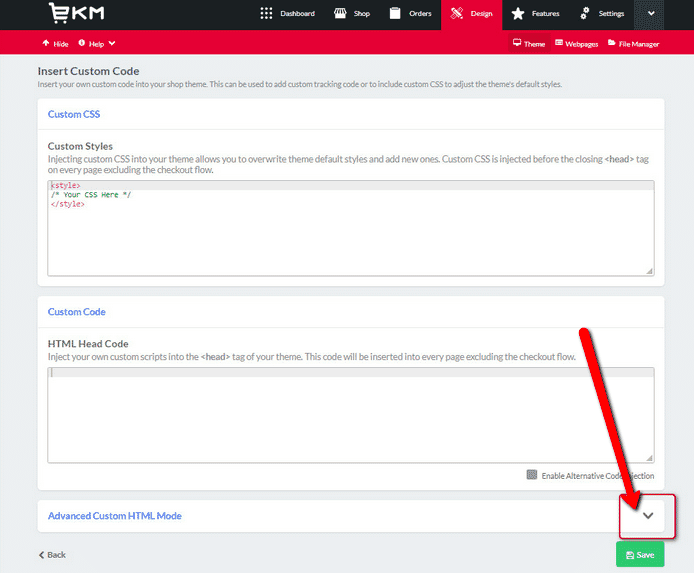
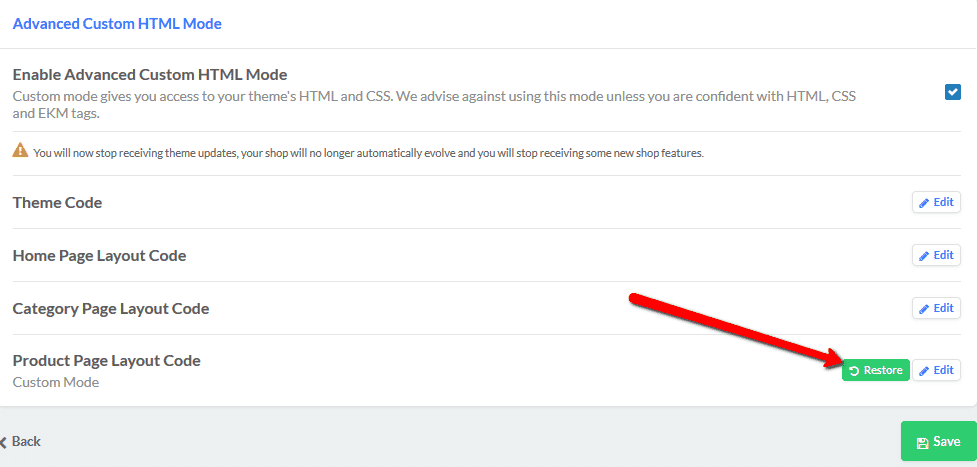
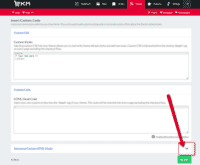 Scroll to the bottom of the page and click the down arrow on the Advanced Custom HTML Mode section.
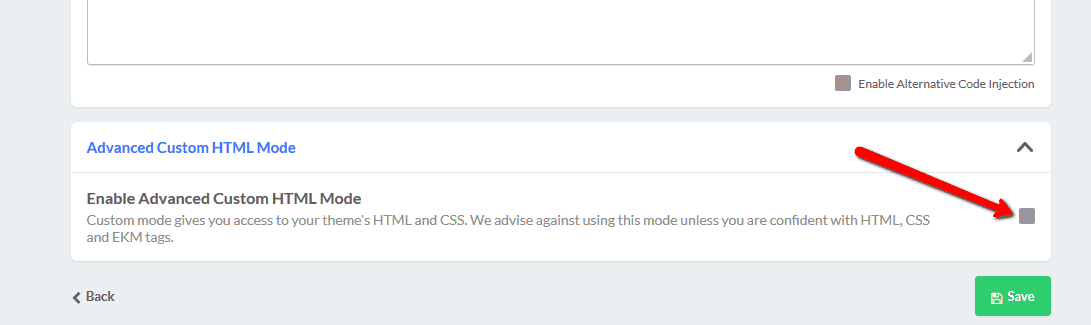
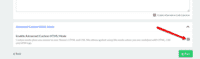 Tick 'Enable Advanced Custom HTML Mode'.
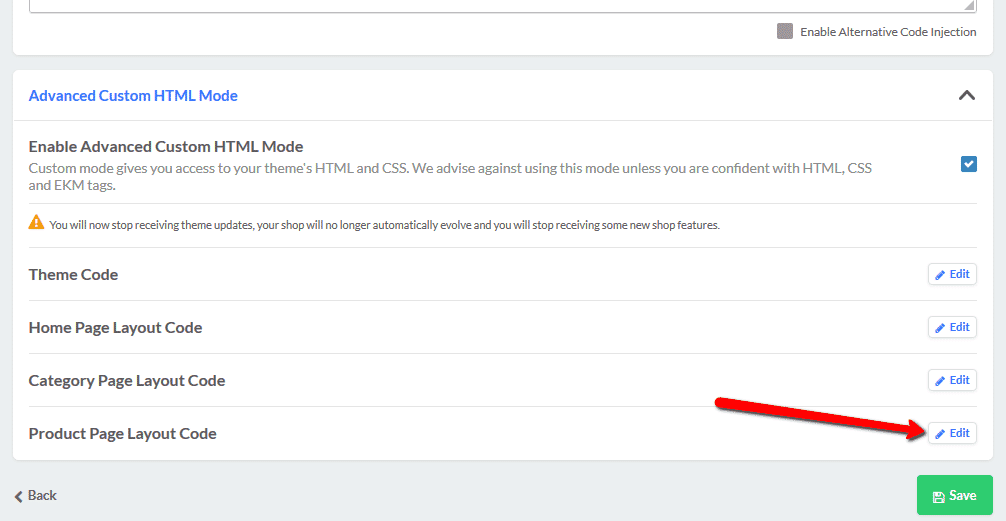
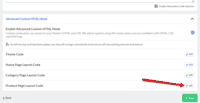 Click the Edit button for the Product Page Layout Code.
Add the following code somewhere in the editing template:
<link href="/ekmps/shops/[ekm:siteusername][/ekm:siteusername]/resources/Styles/magiczoomplus.css" rel="stylesheet" media="screen">
<script src="/ekmps/shops/[ekm:siteusername][/ekm:siteusername]/resources/Other/magiczoomplus.js"></script>
The file paths to the .js and .css files above may be incorrect - you can find the actual paths in the tabs Other files and Style Sheets within the File manager section.
Replace the main code image code [ekm:productimage]..[/ekm:productimage] with the following code:
<div class="product-page__images grid-6 col">
  <a href="[ekm:productimage]width='auto';height='1000';images_layout='[image_1_url]';[/ekm:productimage]" id="mainImage" class="MagicZoom">
    <img src="[ekm:productimage]width='auto';height='450';images_layout='[image_1_url]';[/ekm:productimage]"/>
	</a>
	<div style="margin:15px 0;">
    <script>
      var altimages = {
        1: {
          "thumb" : "[ekm:productimage]width='auto';height='80';images_layout='[image_1_url]';[/ekm:productimage]",
          "small" : "[ekm:productimage]width='auto';height='450';images_layout='[image_1_url]';[/ekm:productimage]",
          "large" : "[ekm:productimage]width='auto';height='1000';images_layout='[image_1_url]';[/ekm:productimage]"
        },
        2: {
          "thumb" : "[ekm:productimage]width='auto';height='80';images_layout='[image_2_url]';[/ekm:productimage]",
          "small" : "[ekm:productimage]extra_images_width='450';images_layout='[image_2_url]';[/ekm:productimage]",
          "large" : "[ekm:productimage]extra_images_width='1000';images_layout='[image_2_url]';[/ekm:productimage]"
        },
        3: {
          "thumb" : "[ekm:productimage]width='auto';height='80';images_layout='[image_3_url]';[/ekm:productimage]",
          "small" : "[ekm:productimage]extra_images_width='450';images_layout='[image_3_url]';[/ekm:productimage]",
          "large" : "[ekm:productimage]extra_images_width='1000';images_layout='[image_3_url]';[/ekm:productimage]"
        },
        4: {
          "thumb" : "[ekm:productimage]width='auto';height='80';images_layout='[image_4_url]';[/ekm:productimage]",
          "small" : "[ekm:productimage]extra_images_width='450';images_layout='[image_4_url]';[/ekm:productimage]",
          "large" : "[ekm:productimage]extra_images_width='1000';images_layout='[image_4_url]';[/ekm:productimage]"
        },
        5: {
          "thumb" : "[ekm:productimage]width='auto';height='80';images_layout='[image_5_url]';[/ekm:productimage]",
          "small" : "[ekm:productimage]extra_images_width='450';images_layout='[image_5_url]';[/ekm:productimage]",
          "large" : "[ekm:productimage]extra_images_width='1000';images_layout='[image_5_url]';[/ekm:productimage]"
        }
      }
      for (var i = 1; i <= Object.keys(altimages).length; i++) {
        if (altimages[i]["small"] != "") {
          document.write('<a href="' + altimages[i]['large'] + '" data-zoom-id="mainImage" data-image="' + altimages[i]['small'] + '"><img src="' + altimages[i]['thumb'] + '" alt=""/></a>');
          document.write(' ');
        }
      }
    </script>
  </div>
</div>
You can use your own values for width and height of the small and large images.
- Click 'Save Changes' button. That's it!
- Buy Magic Zoom Plus To upgrade your free and fully functional trial version of Magic Zoom Plus (which removes the "Trial version" text), buy Magic Zoom Plus. Then overwrite the demo magiczoomplus.js file with the one from your licensed version.
Thanks for trying Magic Zoom Plus on your EKM site! What did you hope Magic Zoom Plus could do? How can we improve it? Let us know, we're always improving our tools based on customer feedback.
-
 Go to: Design > Theme > Edit > Inject Custom Code > Scroll to the bottom of the page to Advanced Custom HTML Mode section > Product Page Layout Code > Click 'Restore'.
 - Go to Design > File Manager and delete magiczoomplus.js from the Other files tab and magiczoomplus.css from the Style Sheets tab.
- Magic Zoom Plus is now uninstalled.



Magic Zoom Plus for EKM
  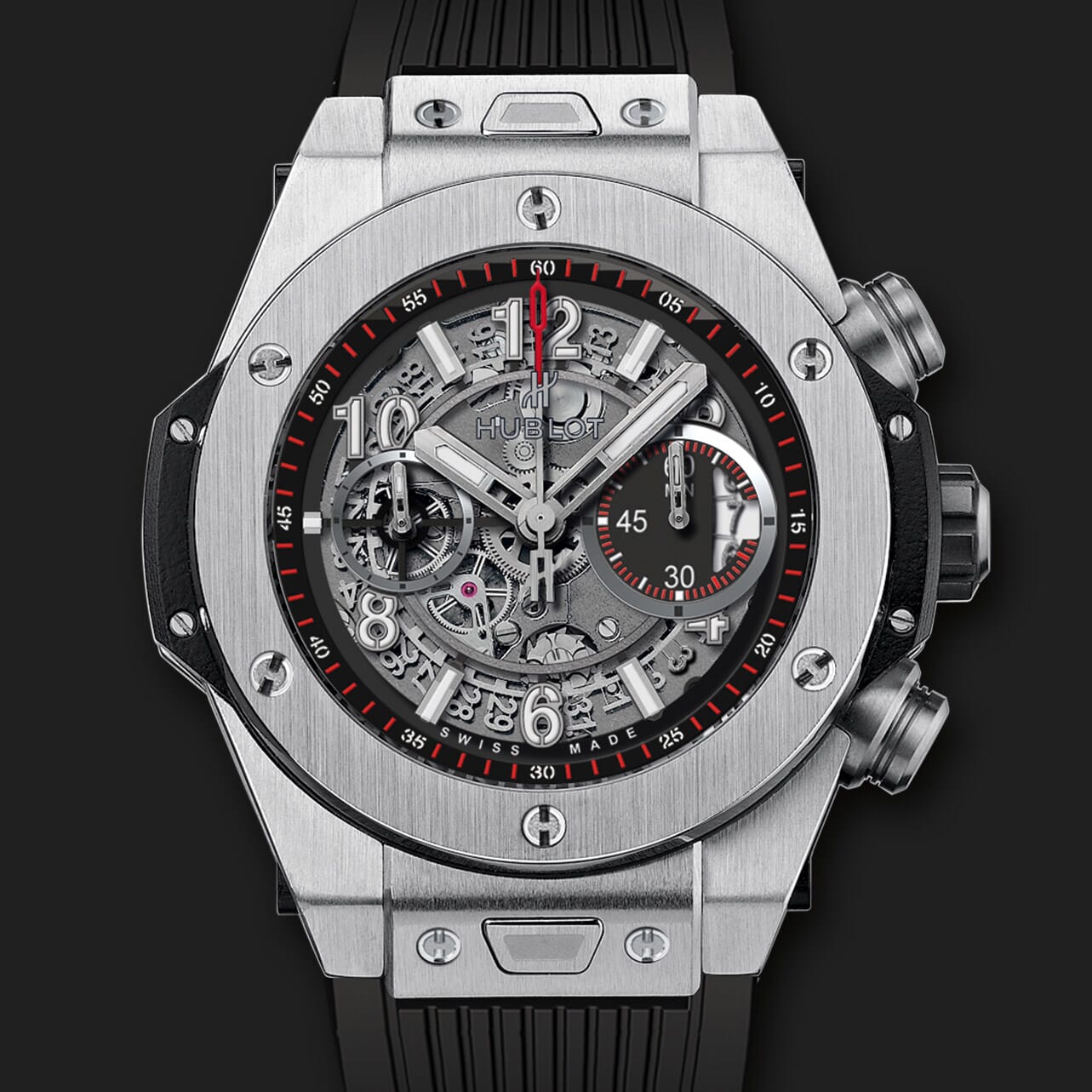 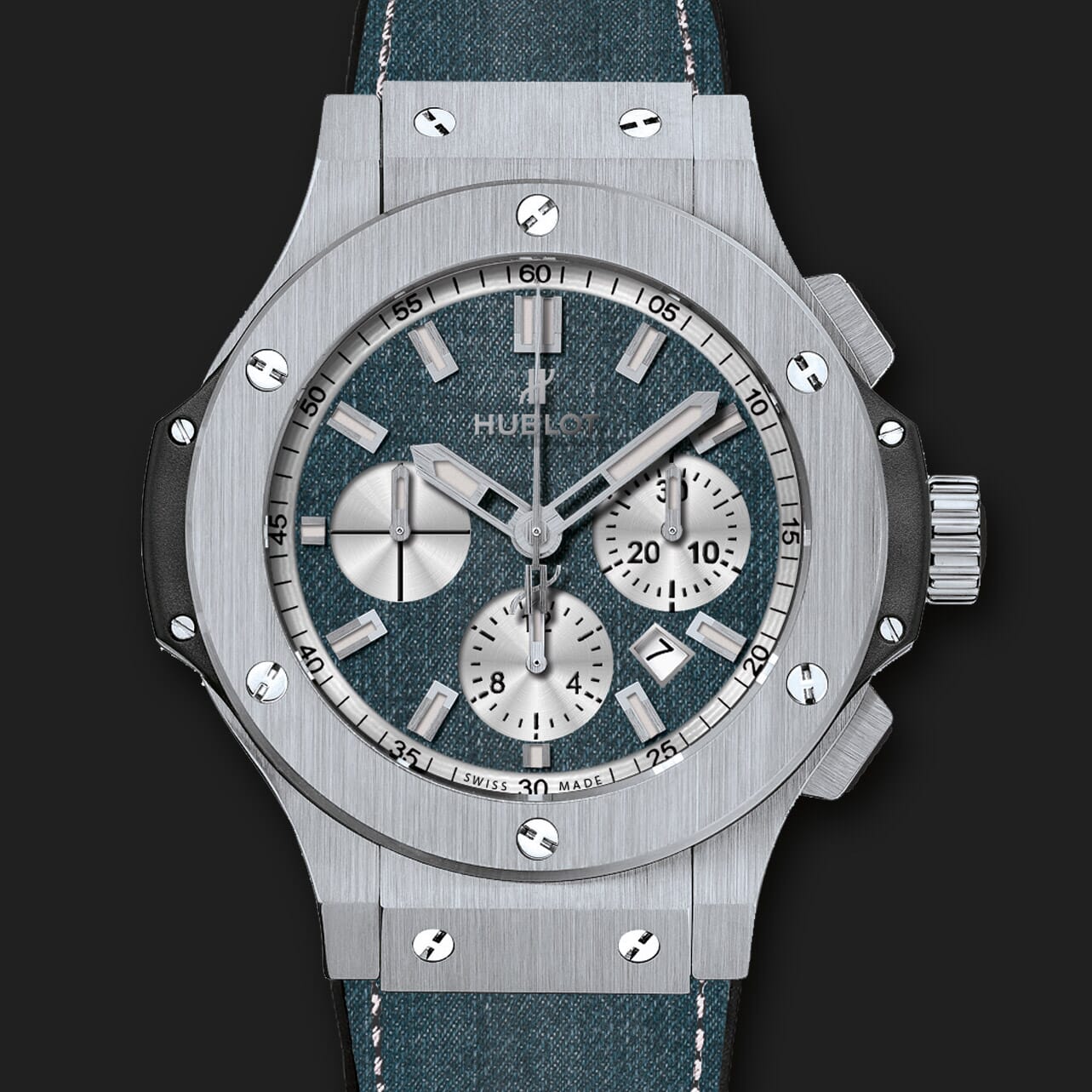 | |
Magic Zoom for EKM
Choose from internal or external zoom.
- Works perfectly on any website, with or without jQuery.
- Load fast and smoothly on any page, with responsive design.
- All latest versions
93% of users say it boosted their sales
Responsive
Fast loading
SEO friendly
Supports video
Easy to customise
Switchable thumbnails
Friendly support
One-off payment
Regularly updated
jQuery compatible
On-demand loading
Optimised for mobile
- Download Magic Zoom (free and fully functional trial version).
- Go to Design > File Manager and upload magiczoom.js in the Other files tab and magiczoom.css in the Style Sheets tab.
- Go to Design > Theme > Edit.
- Select Inject Custom Code.
- Scroll to the bottom of the page and click the down arrow on the Advanced Custom HTML Mode section.
- Tick 'Enable Advanced Custom HTML Mode'.
- Click the Edit button for the Product Page Layout Code.
Add the following code somewhere in the editing template:
<link href="/ekmps/shops/[ekm:siteusername][/ekm:siteusername]/resources/Styles/magiczoom.css" rel="stylesheet" media="screen">
<script src="/ekmps/shops/[ekm:siteusername][/ekm:siteusername]/resources/Other/magiczoom.js"></script>
The file paths to the .js and .css files above may be incorrect - you can find the actual paths in the tabs Other files and Style Sheets within the File manager section.
Replace the main code image code [ekm:productimage]..[/ekm:productimage] with the following code:
<div class="product-page__images grid-6 col">
  <a href="[ekm:productimage]width='auto';height='1000';images_layout='[image_1_url]';[/ekm:productimage]" id="mainImage" class="MagicZoom">
    <img src="[ekm:productimage]width='auto';height='450';images_layout='[image_1_url]';[/ekm:productimage]"/>
	</a>
	<div style="margin:15px 0;">
    <script>
      var altimages = {
        1: {
          "thumb" : "[ekm:productimage]width='auto';height='80';images_layout='[image_1_url]';[/ekm:productimage]",
          "small" : "[ekm:productimage]width='auto';height='450';images_layout='[image_1_url]';[/ekm:productimage]",
          "large" : "[ekm:productimage]width='auto';height='1000';images_layout='[image_1_url]';[/ekm:productimage]"
        },
        2: {
          "thumb" : "[ekm:productimage]width='auto';height='80';images_layout='[image_2_url]';[/ekm:productimage]",
          "small" : "[ekm:productimage]extra_images_width='450';images_layout='[image_2_url]';[/ekm:productimage]",
          "large" : "[ekm:productimage]extra_images_width='1000';images_layout='[image_2_url]';[/ekm:productimage]"
        },
        3: {
          "thumb" : "[ekm:productimage]width='auto';height='80';images_layout='[image_3_url]';[/ekm:productimage]",
          "small" : "[ekm:productimage]extra_images_width='450';images_layout='[image_3_url]';[/ekm:productimage]",
          "large" : "[ekm:productimage]extra_images_width='1000';images_layout='[image_3_url]';[/ekm:productimage]"
        },
        4: {
          "thumb" : "[ekm:productimage]width='auto';height='80';images_layout='[image_4_url]';[/ekm:productimage]",
          "small" : "[ekm:productimage]extra_images_width='450';images_layout='[image_4_url]';[/ekm:productimage]",
          "large" : "[ekm:productimage]extra_images_width='1000';images_layout='[image_4_url]';[/ekm:productimage]"
        },
        5: {
          "thumb" : "[ekm:productimage]width='auto';height='80';images_layout='[image_5_url]';[/ekm:productimage]",
          "small" : "[ekm:productimage]extra_images_width='450';images_layout='[image_5_url]';[/ekm:productimage]",
          "large" : "[ekm:productimage]extra_images_width='1000';images_layout='[image_5_url]';[/ekm:productimage]"
        }
      }
      for (var i = 1; i <= Object.keys(altimages).length; i++) {
        if (altimages[i]["small"] != "") {
          document.write('<a href="' + altimages[i]['large'] + '" data-zoom-id="mainImage" data-image="' + altimages[i]['small'] + '"><img src="' + altimages[i]['thumb'] + '" alt=""/></a>');
          document.write(' ');
        }
      }
    </script>
  </div>
</div>
You can use your own values for width and height of the small and large images.
- Click 'Save Changes' button. That's it!
- Buy Magic Zoom To upgrade your free and fully functional trial version of Magic Zoom (which removes the "Trial version" text), buy Magic Zoom. Then overwrite the demo magiczoom.js file with the one from your licensed version.
Thanks for trying Magic Zoom on your EKM site! What did you hope Magic Zoom could do? How can we improve it? Let us know, we're always improving our tools based on customer feedback.
- Go to: Design > Theme > Edit > Inject Custom Code > Scroll to the bottom of the page to Advanced Custom HTML Mode section > Product Page Layout Code > Click 'Restore'.
- Go to Design > File Manager and delete magiczoom.js from the Other files tab and magiczoom.css from the Style Sheets tab.
- Magic Zoom is now uninstalled.


Magic Zoom for EKM
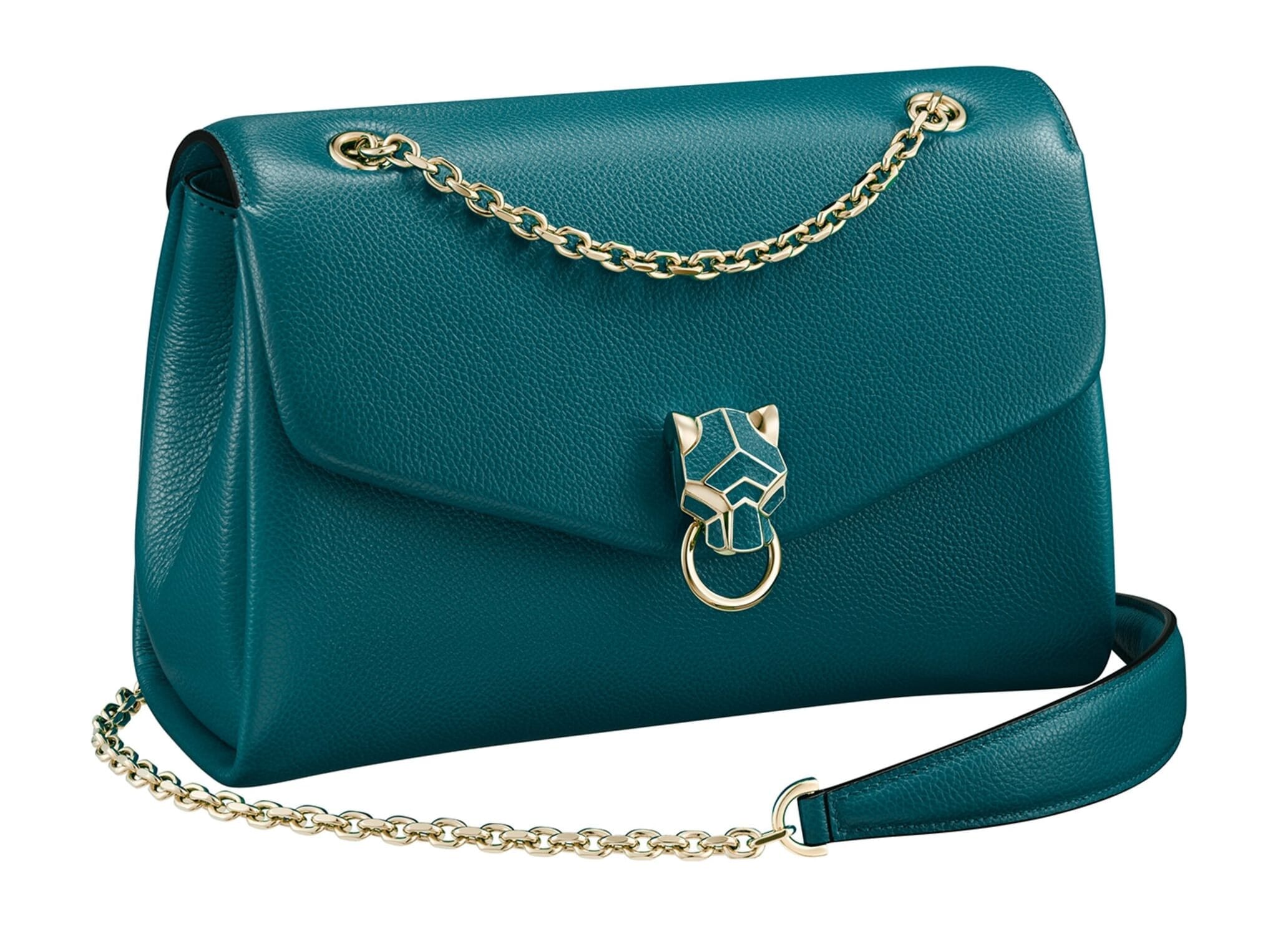 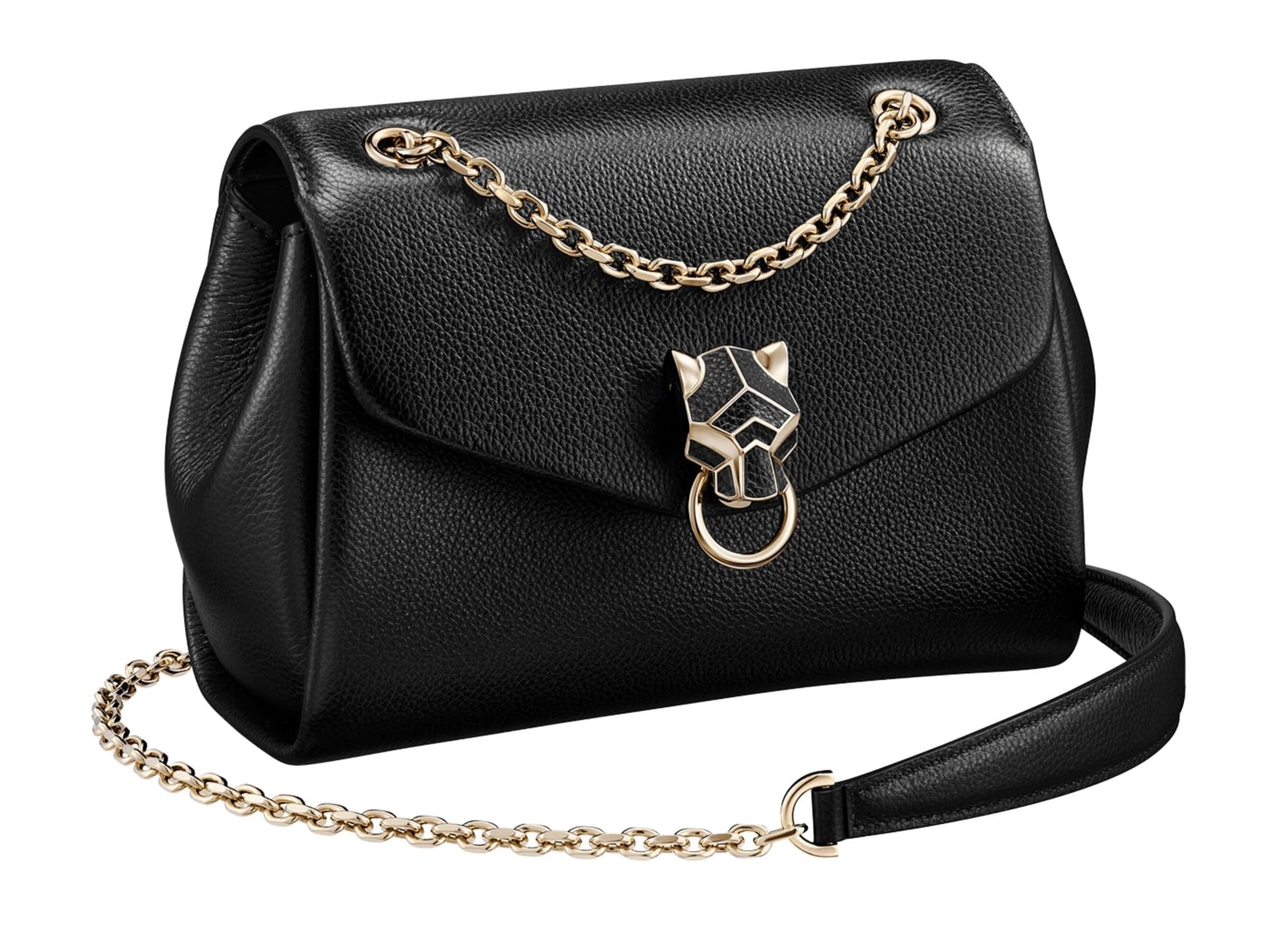   | |
Magic Thumb for EKM
Automatically fill the screen with enlarged images.
- Use Youtube and Vimeo videos out-of-the-box or easily add self-hosted videos
- Provide a seamless mobile experience, with intuitive swipe gestures.
- All latest versions
92% of users say its the best image lightbox
Responsive
Fast loading
SEO friendly
Lazy loading
Supports video
Friendly support
One-off payment
Regularly updated
jQuery compatible
Swappable thumbnails
- Download Magic Thumb (free and fully functional trial version).
- Go to Design > File Manager and upload magicthumb.js in the Other files tab and magicthumb.css in the Style Sheets tab.
- Go to Design > Theme > Edit.
- Select Inject Custom Code.
- Scroll to the bottom of the page and click the down arrow on the Advanced Custom HTML Mode section.
- Tick 'Enable Advanced Custom HTML Mode'.
- Click the Edit button for the Product Page Layout Code.
Add the following code somewhere in the editing template:
<link href="/ekmps/shops/[ekm:siteusername][/ekm:siteusername]/resources/Styles/magicthumb.css" rel="stylesheet" media="screen">
<script src="/ekmps/shops/[ekm:siteusername][/ekm:siteusername]/resources/Other/magicthumb.js"></script>
The file paths to the .js and .css files above may be incorrect - you can find the actual paths in the tabs Other files and Style Sheets within the File manager section.
Replace the main code image code [ekm:productimage]..[/ekm:productimage] with the following code:
<div class="product-page__images grid-6 col">
<a href="[ekm:productimage]width='auto';height='1000';images_layout='[image_1_url]';[/ekm:productimage]" id="mainImage" class="MagicThumb">
<img src="[ekm:productimage]width='auto';height='450';images_layout='[image_1_url]';[/ekm:productimage]">
</a>
<div style="margin:15px 0;">
    <script>
      var altimages = {
        1: {
          "thumb" : "[ekm:productimage]width='auto';height='80';images_layout='[image_1_url]';[/ekm:productimage]",
          "small" : "[ekm:productimage]width='auto';height='450';images_layout='[image_1_url]';[/ekm:productimage]",
          "large" : "[ekm:productimage]width='auto';height='1000';images_layout='[image_1_url]';[/ekm:productimage]"
        },
        2: {
          "thumb" : "[ekm:productimage]width='auto';height='80';images_layout='[image_2_url]';[/ekm:productimage]",
          "small" : "[ekm:productimage]extra_images_width='450';images_layout='[image_2_url]';[/ekm:productimage]",
          "large" : "[ekm:productimage]extra_images_width='1000';images_layout='[image_2_url]';[/ekm:productimage]"
        },
        3: {
          "thumb" : "[ekm:productimage]width='auto';height='80';images_layout='[image_3_url]';[/ekm:productimage]",
          "small" : "[ekm:productimage]extra_images_width='450';images_layout='[image_3_url]';[/ekm:productimage]",
          "large" : "[ekm:productimage]extra_images_width='1000';images_layout='[image_3_url]';[/ekm:productimage]"
        },
        4: {
          "thumb" : "[ekm:productimage]width='auto';height='80';images_layout='[image_4_url]';[/ekm:productimage]",
          "small" : "[ekm:productimage]extra_images_width='450';images_layout='[image_4_url]';[/ekm:productimage]",
          "large" : "[ekm:productimage]extra_images_width='1000';images_layout='[image_4_url]';[/ekm:productimage]"
        },
        5: {
          "thumb" : "[ekm:productimage]width='auto';height='80';images_layout='[image_5_url]';[/ekm:productimage]",
          "small" : "[ekm:productimage]extra_images_width='450';images_layout='[image_5_url]';[/ekm:productimage]",
          "large" : "[ekm:productimage]extra_images_width='1000';images_layout='[image_5_url]';[/ekm:productimage]"
        }
      }
      for (var i = 1; i <= Object.keys(altimages).length; i++) {
        if (altimages[i]["small"] != "") {
          document.write('<a href="' + altimages[i]['large'] + '" data-thumb-id="mainImage" data-image="' + altimages[i]['small'] + '"><img src="' + altimages[i]['thumb'] + '" alt=""/></a>');
          document.write(' ');
        }
      }
    </script>
  </div>
</div>
You can use your own values for width and height of the small and large images.
- Click 'Save Changes' button. That's it!
- Buy Magic Thumb To upgrade your free and fully functional trial version of Magic Thumb (which removes the "Trial version" text), buy Magic Thumb. Then overwrite the demo magicthumb.js file with the one from your licensed version.
Thanks for trying Magic Thumb on your EKM site! What did you hope Magic Thumb could do? How can we improve it? Let us know, we're always improving our tools based on customer feedback.
- Go to: Design > Theme > Edit > Inject Custom Code > Scroll to the bottom of the page to Advanced Custom HTML Mode section > Product Page Layout Code > Click 'Restore'.
- Go to Design > File Manager and delete magicthumb.js from the Other files tab and magicthumb.css from the Style Sheets tab.
- Go to Design > File Manager and remove following files from the Design Images tab:
- buttons1.png
- loader.gif
- Magic Thumb is now uninstalled.

Magic Thumb for EKM
About
These instructions are for EKM. Use them to add effects to your website including image zoom on hover/mouseover; image lightbox (enlarge image to full screen) and image magnifiers.