




No coding required.
Use your Magic Thumb extension almost anywhere on your OpenCart site.
You can even apply different zoom options to each page or block.
Supported pages & blocks
- Product details page
- Category page
- Search page
- Manufacturers page
- Latest block
- Featured block
- Bestsellers block
- Specials block
- Manual install elsewhere
- OpenCart 3.x
- OpenCart 2.x
- OpenCart 1.5.x
Magic Thumb allows you to showcase your product details in a beautiful and convenient way that is implemented by the biggest and most successful E-Commerce businesses like Amazon.
The customer sees the enlarged picture of a product on click or hover (your choice). Enable this image lightbox anywhere – Product page, Category page, Search page, Manufacturers page, Latest block, Featured block, Bestsellers block or Specials block of your store. Combine our lighbox module with Magic Scroll and show multiple product thumbnails in a neat and compact way.
Our lightbox module for OpenCart is a spectacular result of 9 years of work of the most talented developers and UX experts. With more than 45,000 customers (including Google, Lufthansa, Audi and Coca Cola), timely support and continuous refinements, you can rest assured Magic Thumb is the right solution for your OpenCart store.
Improve the user experience of your store - try Magic Thumb today.
Verified by OpenCart:
Read reviews of Magic Thumb on the official marketplace for OpenCart extensions.
Rating 
Key features
Beautiful lightboxes
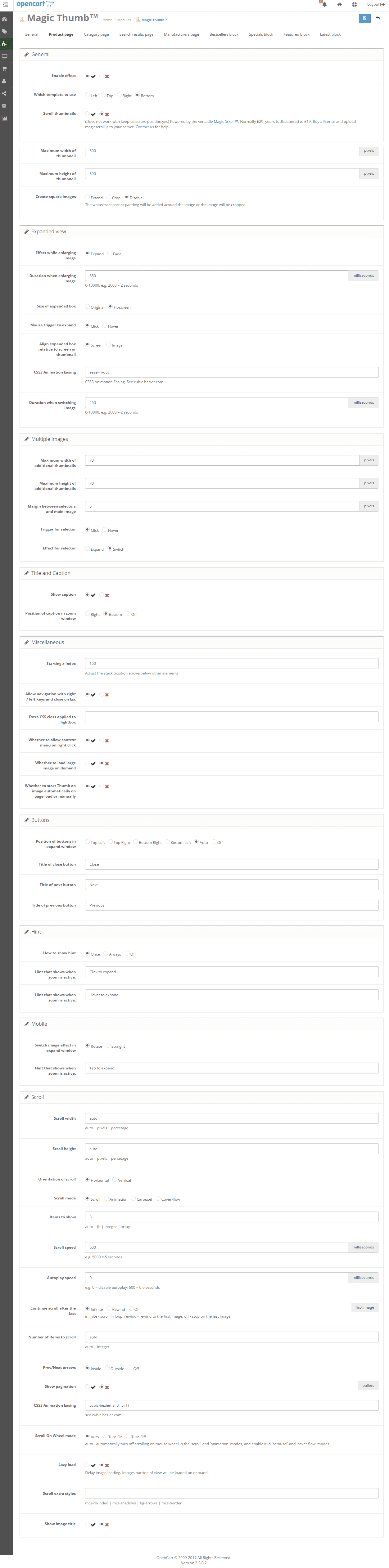
Improves conversions on any OpenCart stores, regardless of your version. Install Magic Thumb in a jiffy, then customise it as you desire. Choose hover effects, zoom style, speed and 40 more options from the settings page.
Perfectly refined
We spent over 9 years constantly improving Magic Thumb, in particular, its experience on any device. Responsive and carefully refined for all screen types, it looks gorgeous on mobiles and desktops alike.Google SEO improvements
High quality images will not only please your customers, Google will appreciate them too. Magic Thumb uses SEO-friendly URL to help you maximise new visitors from search engines.
Surprisingly fast
Our image module makes your customers happy for visiting your store. We've done our best to make images load instantly. Magic Thumb uses pure JavaScript (without jQuery) so it works on absolutely any website without fail.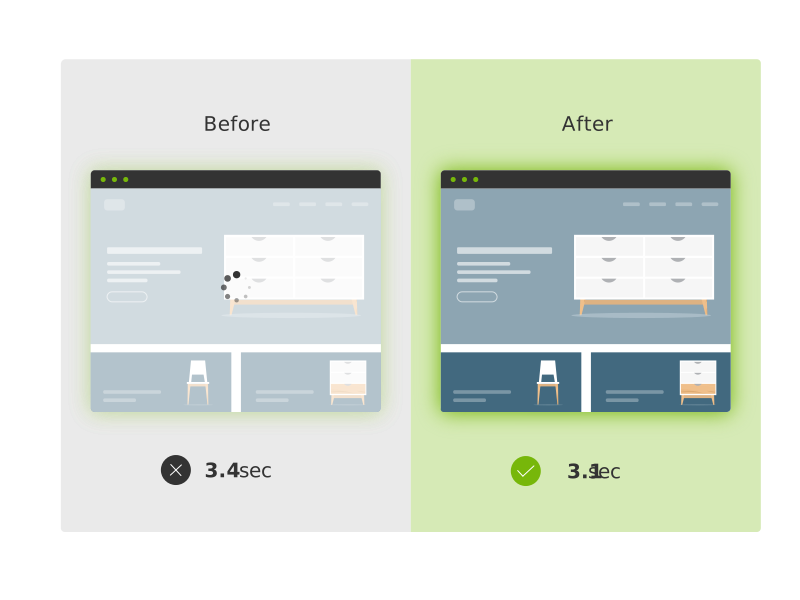
Become a part of a fellowship
Magic Toolbox software is used by over 45 thousand professionals. We are proud to deliver the finest image effects to leading websites and constantly work to improve our tools for our customers. Please message our team with any ideas or questions and we'll reply within 24 hours.
Live demos

Screenshots
Installation
- Download Magic Thumb for OpenCart (free and fully functional demo version).
- Unzip the file on your computer and FTP the magicthumb folder to your OpenCart directory (on your server), keeping the file and folder structure intact.
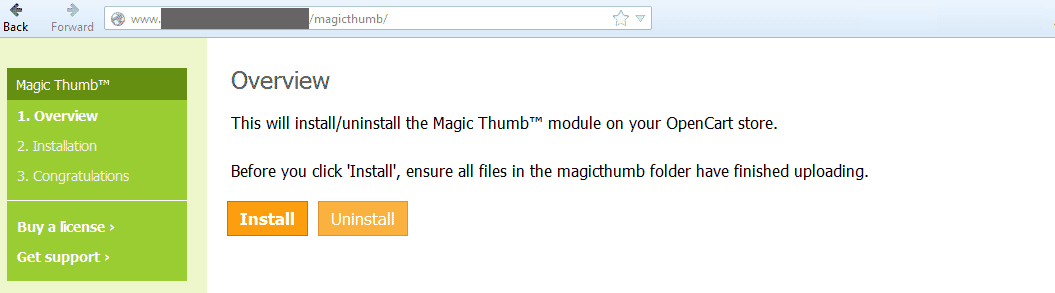
 Go to http://www.yoursite.url/magicthumb/ in your browser > click 'Install' (replace yoursite.url with your domain name.
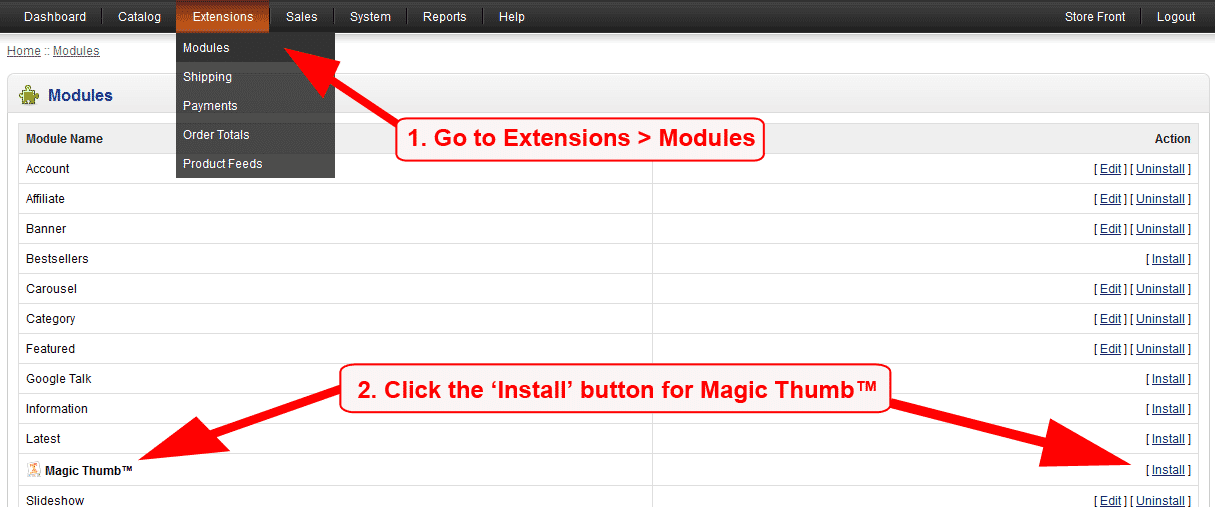
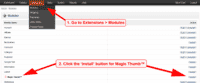 Go to [Admin panel > Extensions > Modules] and install module.
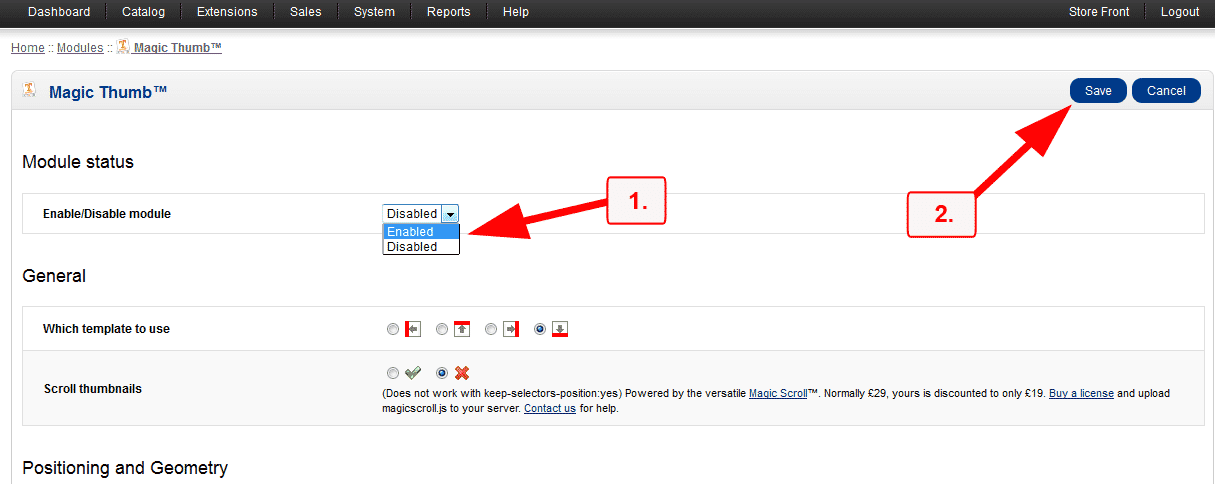
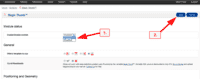 Remain on [Admin panel > Extensions > Modules] and click 'Edit' by the Magic Thumb listing and enable module.
- If you are using OpenCart 2.x go to [Admin panel > Modifications] and click 'Refresh' button.
- Magic Thumb is now installed!
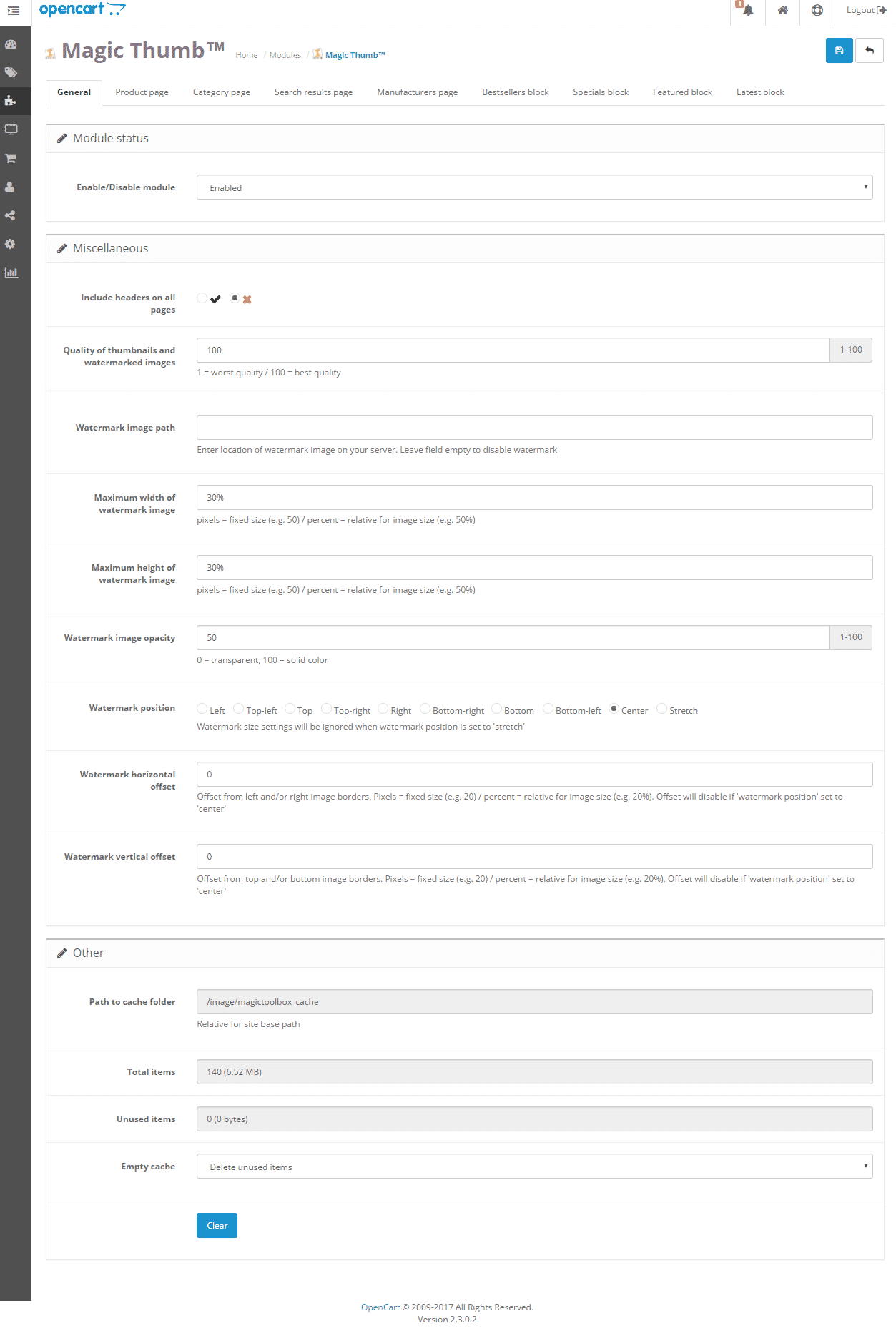
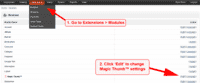 Customize the Magic Thumb module through the [Extensions > Modules > Edit] menu in your OpenCart admin panel.
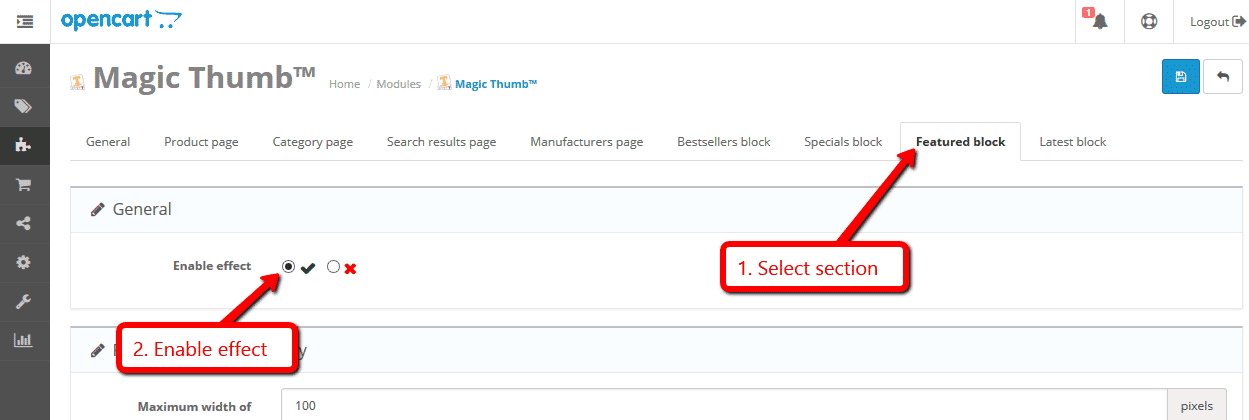
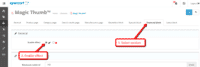 Magic Thumb can be enabled on any page or section you choose.
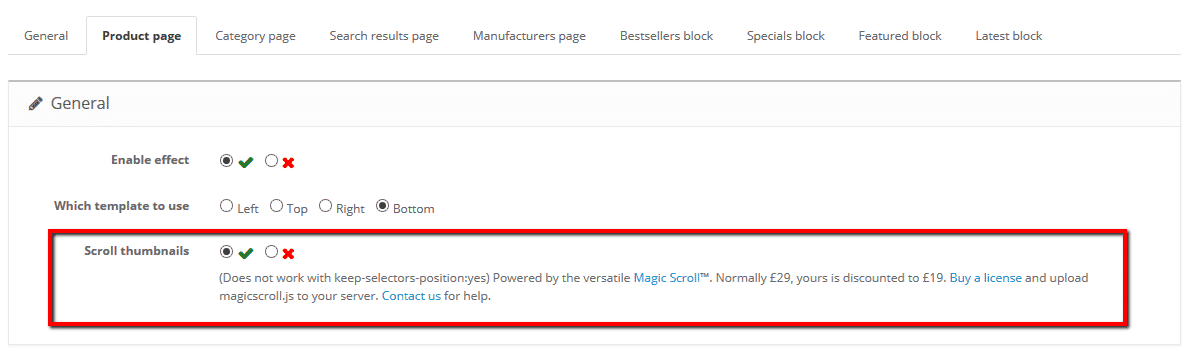
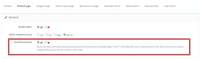 Activate Magic Scroll to enjoy organised thumbnails on your product page: Extensions > Modules > Magic Thumb > Edit > 'Product page' tab > 'General' section > Scroll thumbnails > Select 'Yes' > Save changes.
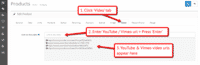 A popular feature (OC2 & OC3) is to display product images & video.
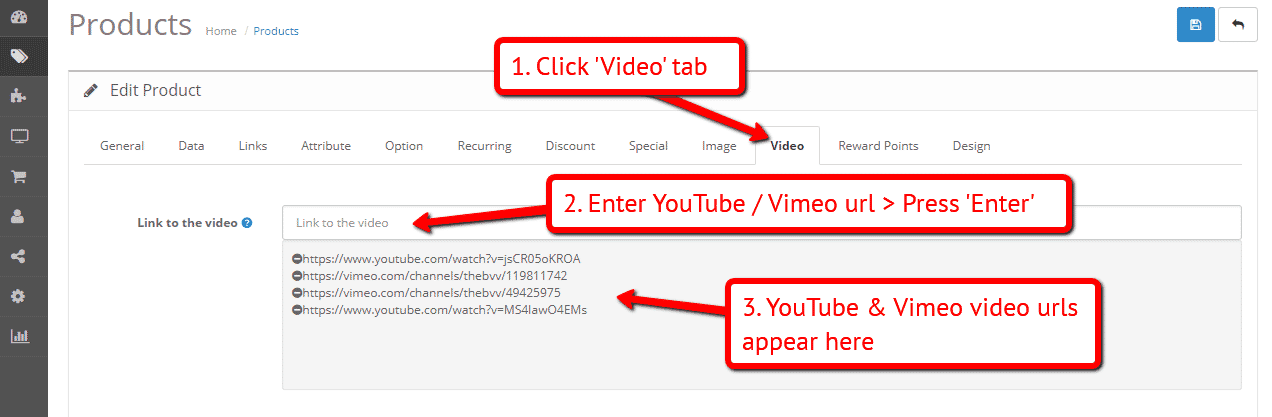
Open an existing product or create a new one > Click 'Video' tab > Enter YouTube or Vimeo video url(s) > Press 'Enter' > Save change.- Buy Magic Thumb To upgrade your free and fully functional trial version of Magic Thumb (which removes the "Trial version" text), buy Magic Thumb and overwrite following file with the same one from your licensed version:
catalog/view/javascript/magicthumb.js

If you run OpenCart inside Joomla using AceShop, please integrate Magic Thumb using the instructions below.
- Download Magic Thumb for OpenCart (free and fully functional demo version).
- Unzip the file on your computer and FTP the admin and catalog folders to the components/com_aceshop/opencart/ folder (on your server).
- Go to [Admin panel > Components > AceShop > Dashboard > Extensions > Modules] and install module.
- Go to [Admin panel > Components > AceShop > Dashboard > Extensions > Extension Installer] and install magicthumb.ocmod.xml file.
- Go back to [Admin panel > Components > AceShop > Dashboard > Extensions > Modules] and click 'Edit' by the Magic Thumb listing and enable module.
- Magic Thumb is now installed!
- Customize the Magic Thumb module through the [Admin panel > Components > AceShop > Dashboard > Extensions > Modules > Edit] menu in your Joomla admin panel.
- Buy Magic Thumb To upgrade your free and fully functional trial version of Magic Thumb (which removes the "Trial version" text), buy Magic Thumb and overwrite following file with the same one from your licensed version:
components/com_aceshop/opencart/catalog/view/javascript/magicthumb.js
If you run OpenCart inside Joomla using MijoShop, please integrate Magic Thumb using the instructions below.
- Download Magic Thumb for OpenCart (free and fully functional demo version).
- Unzip the file on your computer and FTP the admin and catalog folders to the components/com_mijoshop/opencart/ folder (on your server).
- Go to [Admin panel > Components > MijoShop > Dashboard > Extensions > Modules] and install module.
- Go to [Admin panel > Components > MijoShop > Dashboard > Extensions > Extension Installer] and install magicthumb.ocmod.xml file.
- Go back to [Admin panel > Components > MijoShop > Dashboard > Extensions > Modules] and click 'Edit' by the Magic Thumb listing and enable module.
- Magic Thumb is now installed!
- Customize the Magic Thumb module through the [Admin panel > Components > MijoShop > Dashboard > Extensions > Modules > Edit] menu in your Joomla admin panel.
- Buy Magic Thumb To upgrade your free and fully functional trial version of Magic Thumb (which removes the "Trial version" text), buy Magic Thumb and overwrite following file with the same one from your licensed version:
components/com_mijoshop/opencart/catalog/view/javascript/magicthumb.js
If you run OpenCart inside Joomla using jCart, please integrate Magic Thumb using the instructions below.
- Download Magic Thumb for OpenCart (free and fully functional demo version).
- Unzip the file on your computer and FTP the admin, catalog and system folders to the components/com_jcart/ folder (on your server).
- Go to [Admin panel > Components > jCart > Modules] and install module.
- Go back to [Admin panel > Components > jCart > Modules] and click 'Edit' by the Magic Thumb listing and enable module.
- Magic Thumb is now installed!
- Customize the Magic Thumb module through the [Admin panel > Components > jCart > Modules > Edit] menu in your Joomla admin panel.
- Buy Magic Thumb To upgrade your free and fully functional trial version of Magic Thumb (which removes the "Trial version" text), buy Magic Thumb and overwrite following file with the same one from your licensed version:
components/com_jcart/catalog/view/javascript/magicthumb.js
Video instructions
Multiple images
Swapping between many images is already a standard feature in Magic Thumb. But if you have lots of images, the page can look complicated.
Make your thumbnails look slick and organised with Magic Scroll for OpenCart. It neatly contains the images adds arrows to slide between them. Example:









- Simply activate Magic Scroll on the Magic Thumb options page.
- To remove the "Please upgrade" text, buy a license and overwrite the /catalog/view/javascript/magicscroll.js file with that from your licensed version.
Combine zoom & video (OC2 & OC3)
OpenCart 2.x and 3.x users now receive 2 tools in 1: image zoom & video!
Product videos offer potential customers a clear demonstration of any product. Conveying an incredible amount of information very quickly. Videos are proven to increase likelihood to buy, spend longer on your site and spend more per order.
It's time to stand out from the competition and turn potential customers into actual customers.
- Make sure Magic Thumb is installed on your OpenCart store.
- Open an existing product or create a new one.
- Click 'Video' tab > Enter YouTube or Vimeo video url(s) > Press 'Enter' > Save change.
 Refresh web page > Product video(s) appear as thumbnails on product page.
- That's it!

Combine zoom & spin (OC2 & OC3)
 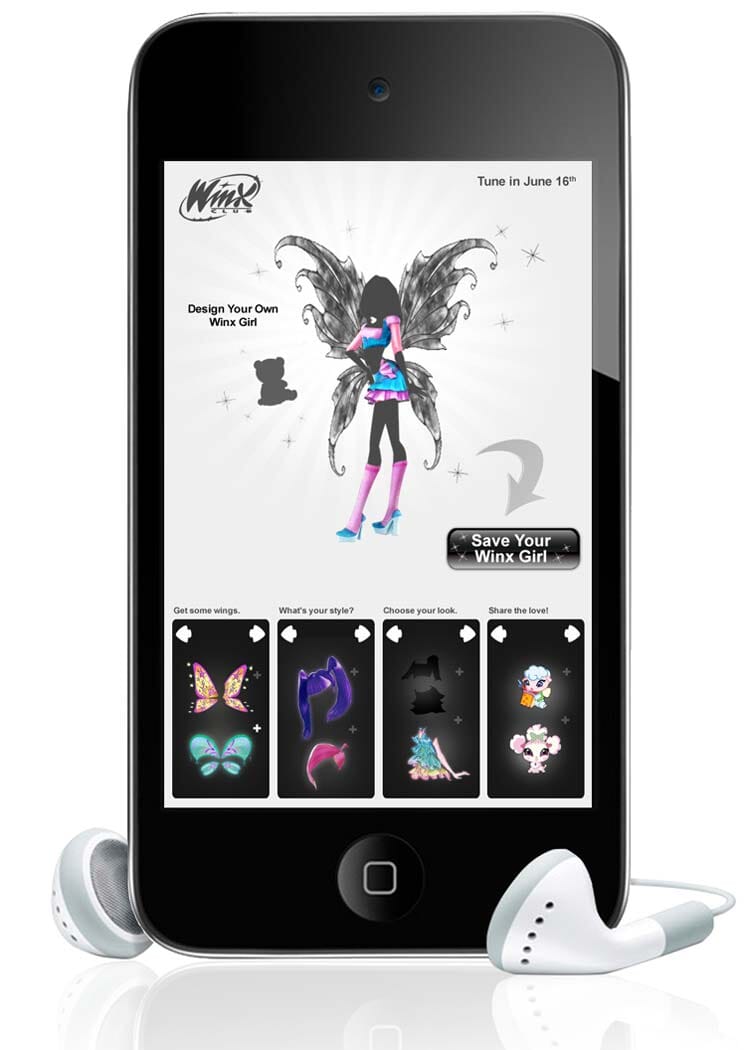  |  |
To zoom some images and spin others on your product page (like the example above) on your OpenCart 2.x or OpenCart 3.x store, you can install both Magic Thumb and Magic 360.
- Install the OpenCart extension for Magic Thumb.
- Install the OpenCart extension for Magic 360.
- Create a new product or open an existing one.
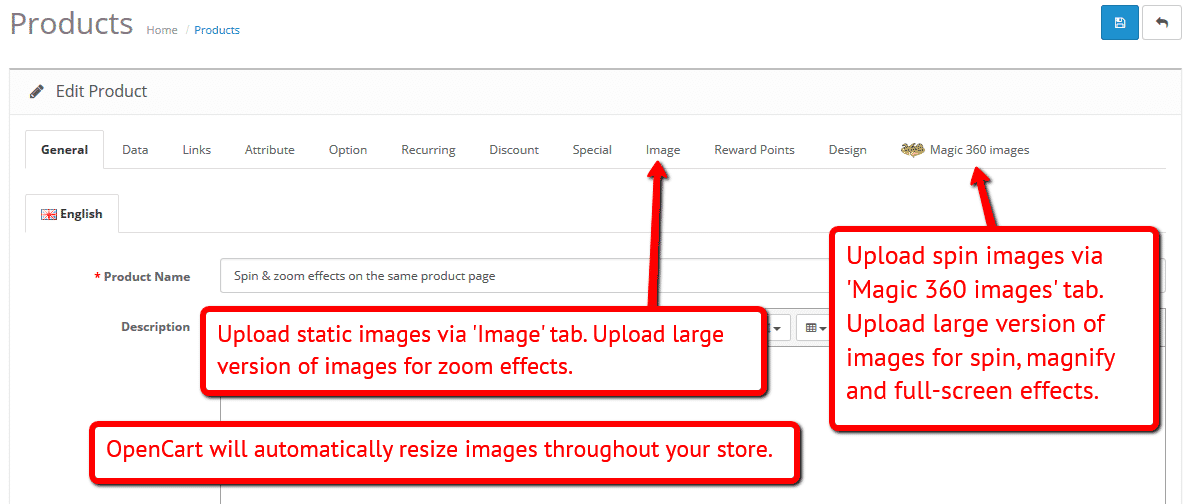
- Upload your zoom and enlarge images via the 'Images' section. Upload your 360 spin images via the 'Magic 360 images' section (screenshot -
 ).
).
Zoom in CMS area
Magic Thumb works anywhere on your OpenCart store, including CMS pages. Add this image lightbox in minutes to any CMS page. Have a question? Let us know, we're here to help!
- Go to the module options page: [Admin panel > Extensions > Magic Thumb].
- Go to 'General' tab > 'Miscellaneous' section > 'Include headers on all pages' option > Click 'tick' > Save settings.
- Go to 'Catalog > Information'.
- Open existing page or create a new page.
- Scroll down to 'Description' section > Click 'Code View' button.
Add zooming to any image on your CMS page by referencing the small and large images. Reference your small image with <img> and link it to your big image using the CSS class of "MagicThumb". Your code will look something like this:
<a href="big.jpg" class="MagicZoom" data-gallery="instructions-5" data-options="lazyZoom: true; expand: window; zoomMode: off; hint: off; rightClick: true; cssClass: dark-bg;"><img src="small.jpg"></a>
- Save changes.
- Check out detailed HTML instructions for Magic Thumb and customize this image lightbox exactly how you want it to look - effect, trigger, speed etc.
Product attributes


















Do your products come in different colours or styles?
Magic Thumb supports the Product Options Image PRO extension.
Attributes are configured on a per-product basis. Each option can have multiple images assigned. Our demo example uses 4 images for each attribute.
Whether you choose "Select", "Radio" and "Checkbox" - product attributes is a perfect way to show customers your product range.
Uninstallation
Thanks for trying Magic Thumb on your OpenCart site! What did you hope Magic Thumb could do? How can we improve it? Let us know, we're always improving our tools based on customer feedback.
- Go to [Admin panel > Extensions > Modules] and Uninstall module.
- Go to http://yoursite.url/magicthumb/ in your browser and click 'Uninstall' (replace yoursite.url with your domain name).
- If you are using OpenCart 2.x go to [Admin panel > Modifications] and click 'Refresh' button.
- Delete the magicthumb folder from your OpenCart directory (on your server).
- Magic Thumb is now uninstalled.
If you run OpenCart inside Joomla using AceShop, please uninstall Magic Thumb using the instructions below.
- Go to [Admin panel > Components > AceShop > Dashboard > Extensions > Modules] and click 'Edit' by the Magic Thumb listing and disable module.
- Remain on [Admin panel > Components > AceShop > Dashboard > Extensions > Modules] and uninstall module.
- Magic Thumb is now uninstalled!
If you run OpenCart inside Joomla using MijoShop, please uninstall Magic Thumb using the instructions below.
- Go to [Admin panel > Components > MijoShop > Dashboard > Extensions > Modules] and click 'Edit' by the Magic Thumb listing and disable module.
- Remain on [Admin panel > Components > MijoShop > Dashboard > Extensions > Modules] and uninstall module.
- Magic Thumb is now uninstalled!
FAQ
Does Magic Thumb OpenCart support product options?
Using a product options extension is a great way to show customers your full range of products (eg colours, sizes).
Magic Thumb has built-in support for Ka-Station Product Variants, Product Option Colour & Size Combination and Product Option Image Ultimate 3.
If you're using a different product options extension, get in touch and we'll check if Magic Thumb supports it.
Does Magic Thumb support retina screens?
Yes! Retina images are served for all your products. Your OpenCart customers will enjoy the high-def quality.
Customer reviews
Today I got the best and most patienced support I have experienced in years.
This company and the people working here, wow !!
Hope U make a lot of money !!
Michael Maardt, http://rent-postevand.dk/shop/Omvendt-osmose/less_waste/RO500SS
Henriette, 6566.eu
Submit your review
Your review has been received and will be posted soon.
Other OpenCart modules
Try our other great image effects!
 Magic Zoom
 Magic Zoom Plus
 Magic Slideshow
 Magic Scroll
 Magic 360
This lightbox extension for OpenCart was created to improve the image zoom capability on product pages, category pages, results page and other sections of your OpenCart store.
The addon uses JavaScript to enlarge your product images and it works on all browsers and devices including iPhone, iPad and Android mobile devices. It does not require jQuery or any other JavaScript frameworks.
OpenCart is the popular open source shopping cart platform.