










No coding required.
Use your Magic Slideshow addon almost anywhere on your PrestaShop site.
You can even apply different slideshow options to each page or block.
Supported pages & blocks
- Product details page
- Featured products block
- Viewed products block (sidebar)
- New products block
- New products block (sidebar)
- Bestsellers block (sidebar)
- Bestsellers block
- Specials block (sidebar)
- Specials block
- Home page
- CMS pages
- Manual install elsewhere
- PrestaShop 8
- PrestaShop 1.0 - 1.7.x
Looking for a PrestaShop image slider for your homepage? Magic Slideshow is the answer.
With an easy homepage settings page, you have complete control over your slider design. Simply upload your images, add a title and description and you're done!
Does your PrestaShop store have multiple languages? Great! It's easy to enter language translations with Magic Slideshow. Upload the image for each language, select the language from the dropdown menu, enter your new description and you're done.
Magic Slideshow is responsive to fit any screen and has over 20 options for controlling the size, effects, design and speed.
This website slider module can be used across your online store. As well homepage slideshows, you can easily add product page slideshow; custom block slideshows; and CMS page slideshows too.
Key features
Fabulous slideshows
Choose from a range of 15 spectacular effects, such as Ken Burns fading images, dissolve, slide and cube rotation. Customise the image slider with 30 adjustments. Even the most demanding user will enjoy exploring your store!Instant slideshow without coding
You don't need to know how to code to create magnificent JavaScript slideshows in under 5 minutes. It happily works with jQuery or without - no frameworks or dependencies required.
Fully responsive
Magic Slideshow will look great on any device. Make gorgeous homepage PrestaShop slideshows, or product slideshows, recently viewed product slideshows and other locations of your site. You can also add Magic Slideshow manually to any other page - just follow the instructions.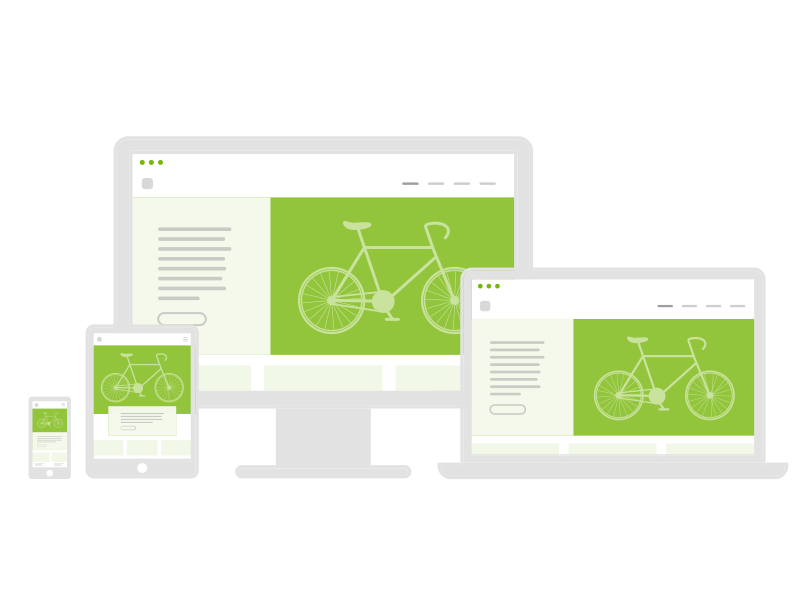
Stay up to date
We constantly improve Magic Slideshow. Since 2009, we've always updated it to support every new version of PrestaShop. Still, if you need any help, our friendly support team is ready to assist.
Optimised download speed & SEO
We created the lazy-loading option (to download pictures only when needed) to help your pages load fast. For great SEO, links use SEO-friendly URLs to help Google index your images and boost your visitors.
Screenshots

Installation
- Download the PrestaShop module for Magic Slideshow (free and fully functional demo version).
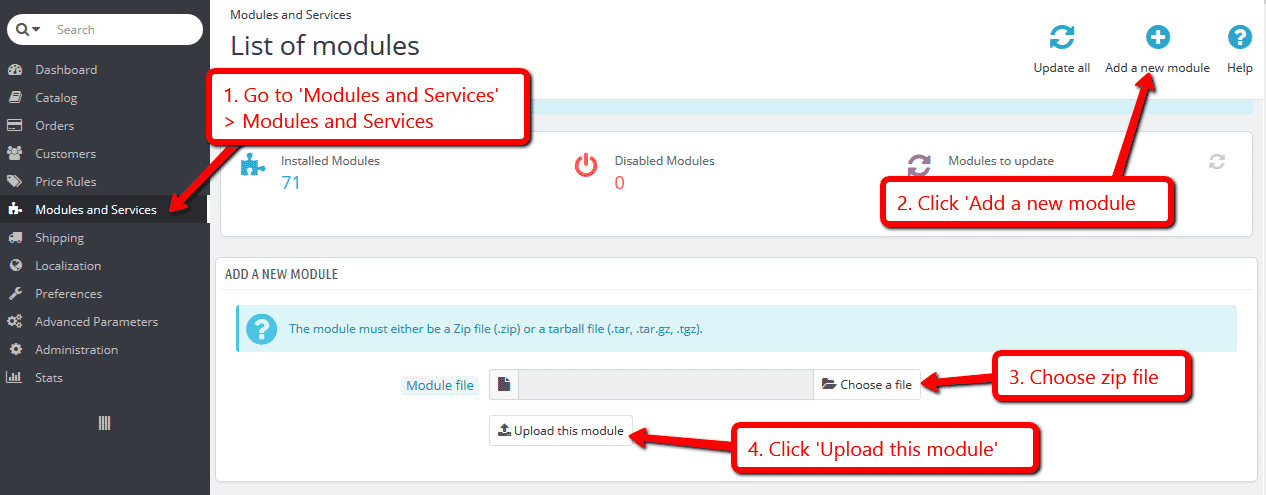
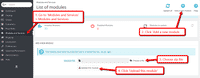 Either upload it via your PrestaShop admin area. Or unzip the file on your computer and FTP the magicslideshow folder to the /modules/ directory of your store, keeping the file and folder structure intact.
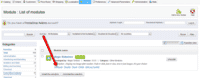
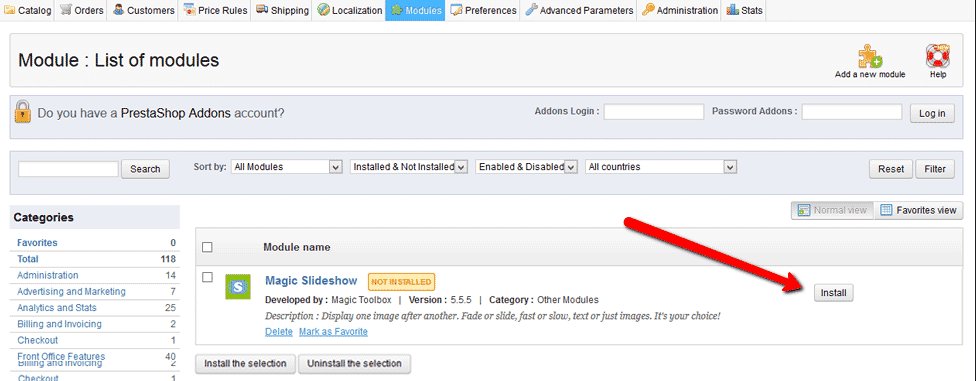
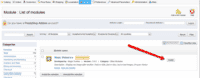 Activate the module via the Modules menu Modules > Other Modules > Install.
- The demo version is now installed!
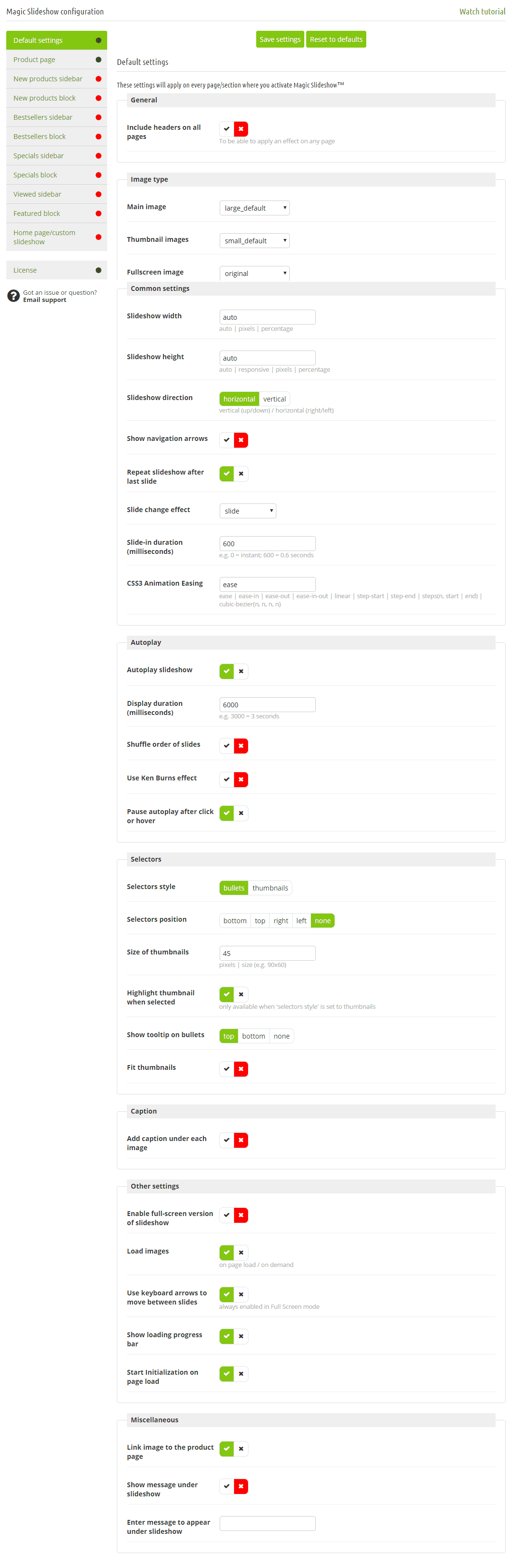
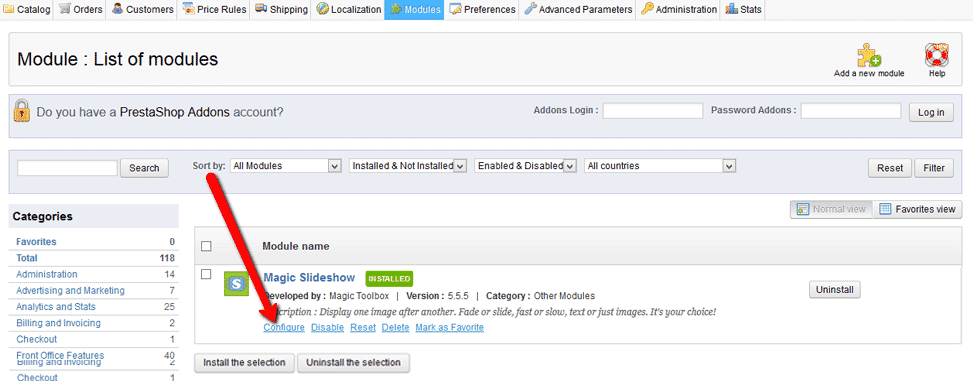
 Customize Magic Slideshow as you wish.
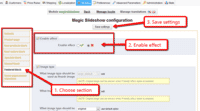 Magic Slideshow can be enabled on any page or section you choose.
- Buy Magic Slideshow To upgrade your free and fully functional trial version of Magic Slideshow (which removes the "Trial version" text), buy Magic Slideshow and overwrite following file with the same one from your licensed version:
/modules/magicslideshow/magicslideshow.js

Video tutorial
Setup a slideshow
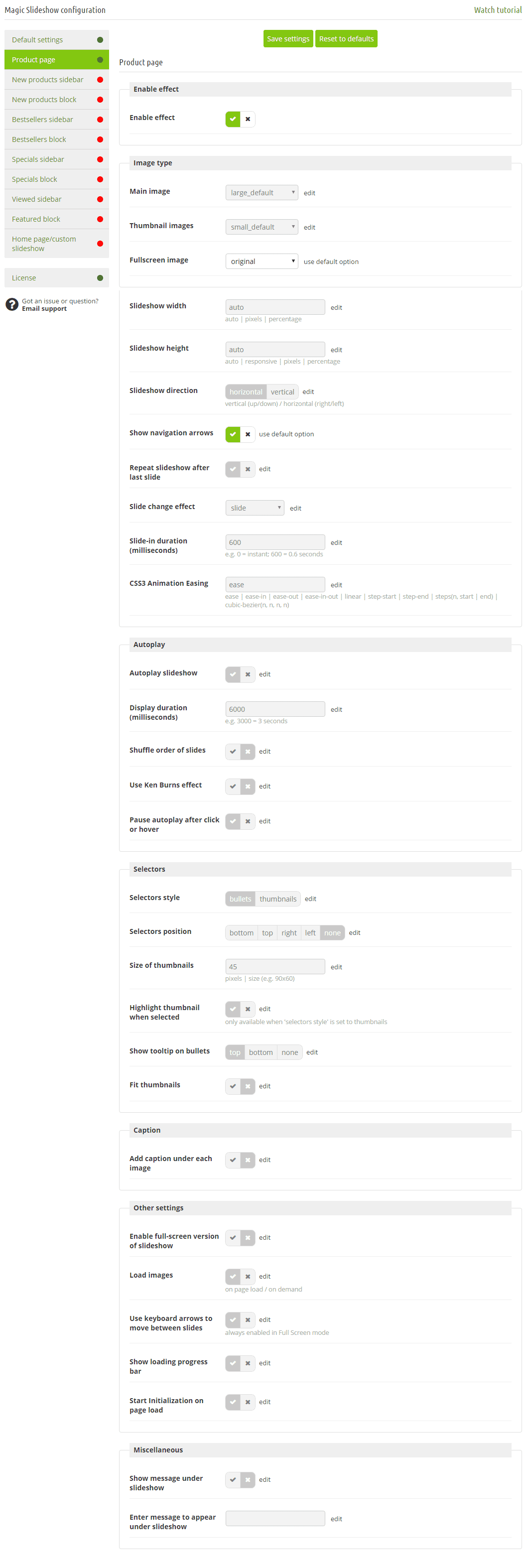
Add a slideshow by setting "Enable effect" on any of these blocks:
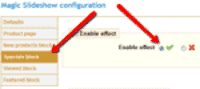 Product page
- New products block
- Specials block
- Viewed block
- Featured block
- Home page/custom slideshow
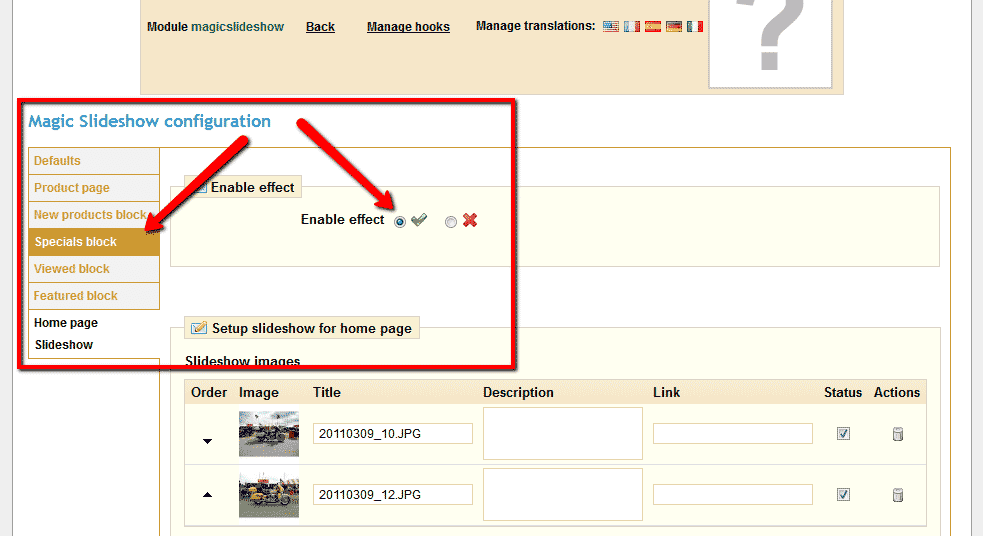
Use the following options to choose which images are used:
- What image type should be used as product image
- What image type should be used for 'Viewed products' block image
- What image type should be used for 'Specials' block image
- What image type should be used for 'Featured products' block image
Featured products slideshow
To create a slideshow of your featured products:
- Go to the module options page (Admin -> Modules -> MagicSlideshow -> Configure).
- Set the option "Use effect for 'Featured products' block" to "Yes".
- Choose
 which catalog you wish to use and how many products for the slideshow.
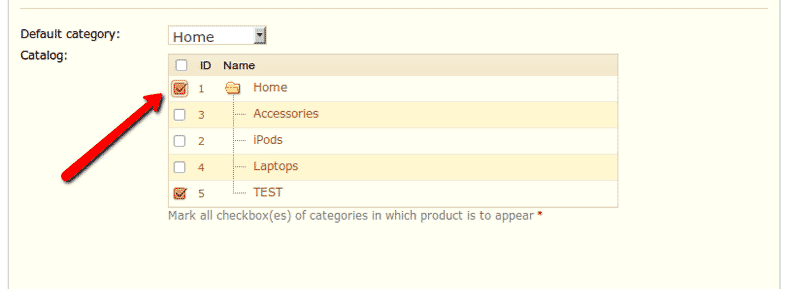

Home page slideshow
Add an amazing slideshow to your homepage in just a couple of clicks:
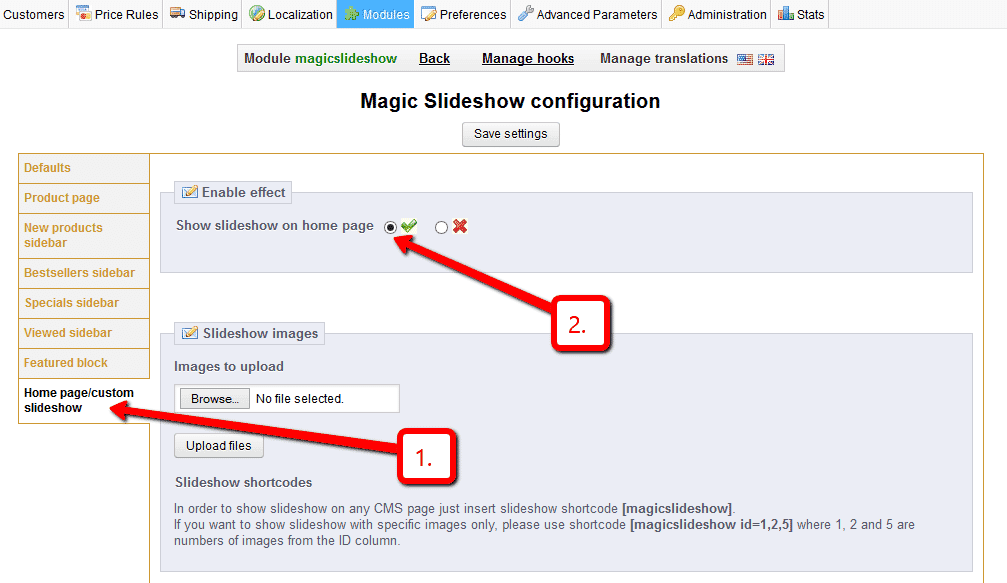
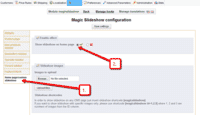 Enable Home page Slideshow section.
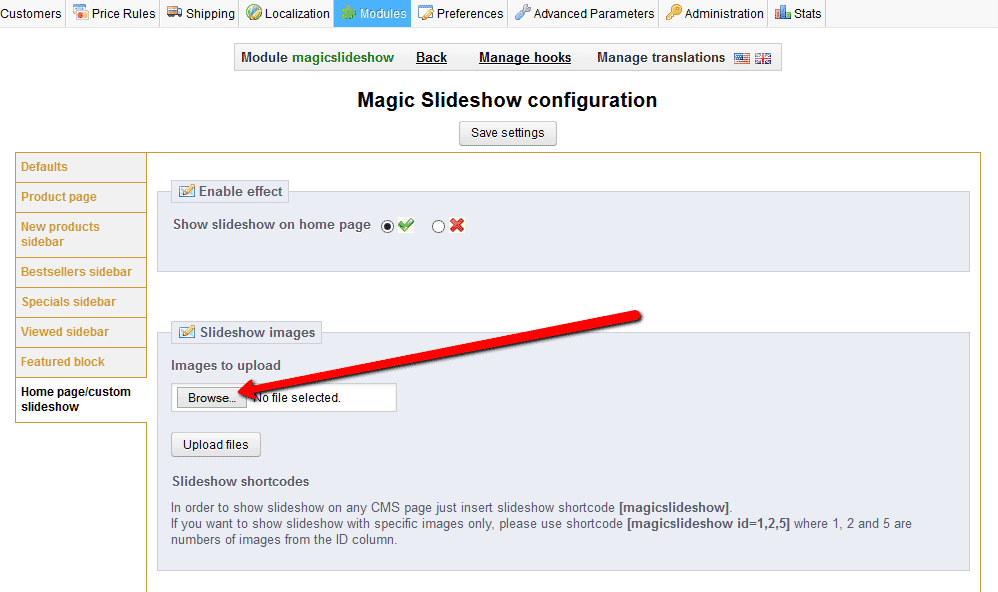
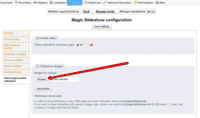 Select Upload images and browse your computer for your set of slideshow images.
- Your slideshow is now working!
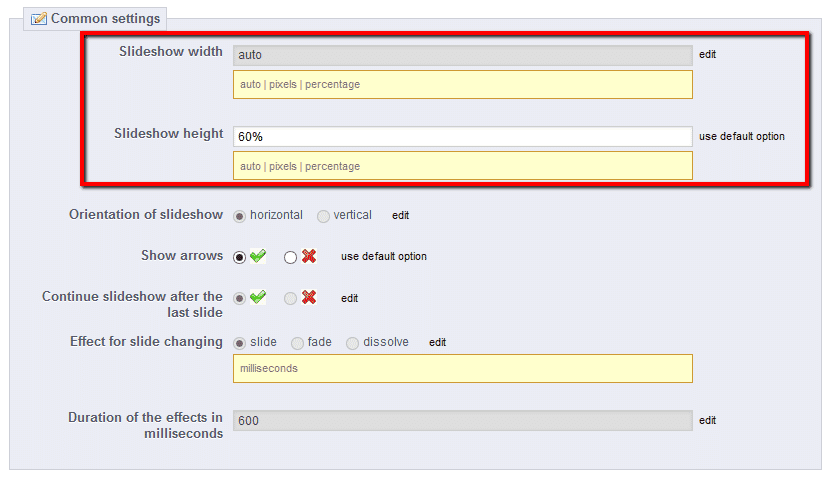
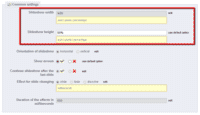 To set a specific slideshow size, change Slideshow width (pixels) and Slideshow height (pixels) options.
- Enjoy over 30 slideshow customizations. Try them all and see which works best for your site.
TIP: To show specific language as image description: Upload image > Set 'Lang' to correct language > Enter text in 'Title' and 'Description' fields. If your website supports 4 languages, repeat this process 4 times.
Slideshow in CMS area
- Go to the module options page Admin > Modules > Modules > Magic Slideshow > Configure.
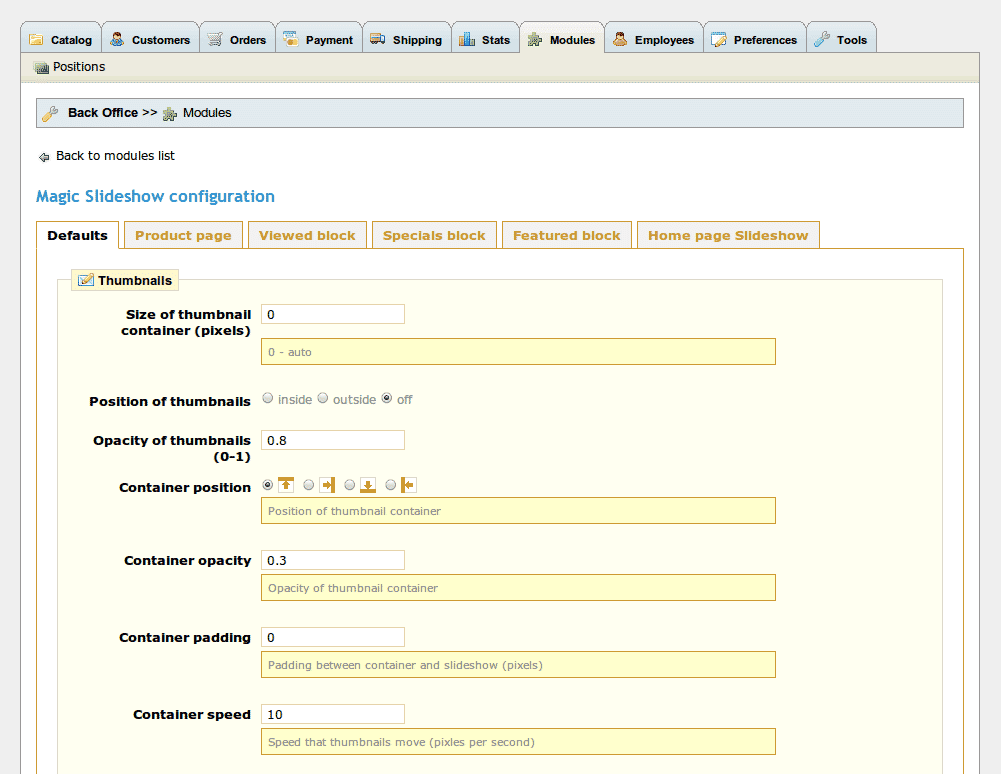
- Go to 'Defaults' section > Miscellaneous > Include headers on all pages > Click 'tick' > Save settings.
- Go to 'Home page/custom slideshow' section.
- Upload slideshow images > Save settings.
- Insert the slideshow shortcode [magicslideshow] where you want it to show on any CMS page.
- If you want to show slideshow with specific images only, please use shortcode [magicslideshow id=1,2,5] where 1, 2 and 5 are the numbers of images from the ID column.
Uninstallation
Thanks for trying Magic Slideshow on your PrestaShop site! What did you hope Magic Slideshow could do? How can we improve it? Let us know, we're always improving our tools based on customer feedback.
- Deactivate Magic Slideshow via the Modules and Services > Module and Services > Other Modules > Uninstall.
- Delete Magic Slideshow via the Modules and Services > Module and Services > Other Modules > Delete.
- Magic Slideshow is now uninstalled.
FAQ
I want my PrestaShop homepage slideshow to show in different languages.
No problem! If your PrestaShop store supports multiple languages, this is easy to do. In this example, we will use 'en', 'fr', 'it' and 'de'.
Simply upload the same image to your Homepage section 4 times. Then:
- set 1 slide to Lang 'en' and add English text to 'Title' and 'Description' fields
- set 1 slide to Lang 'fr' and add French text to 'Title' and 'Description' fields
- set 1 slide to Lang 'it' and add Italian text to 'Title' and 'Description' fields
- set 1 slide to Lang 'de' and add German text to 'Title' and 'Description' fieldsThis means no matter which version of your PrestaShop store customers visit they will see correct language over homepage slides.
Customer reviews
Christophe
Submit your review
Your review has been received and will be posted soon.
Other PrestaShop modules
Try our other great image effects!
 Magic Zoom
 Magic Zoom Plus
 Magic Thumb
 Magic Scroll
 Magic 360
This module was created for PrestaShop, the open source ecommerce solution. For help, contact us and we will help you install it on your website.