
extensions
Eye-catching images for BlueVoda
BlueVoda helps you create websites using drag and drop. Even if you have little or no experience, BlueVoda website builder is easy to use.
Next, make your BlueVoda site really shine, with these 5 magnificent image zoom and image slideshow extensions.
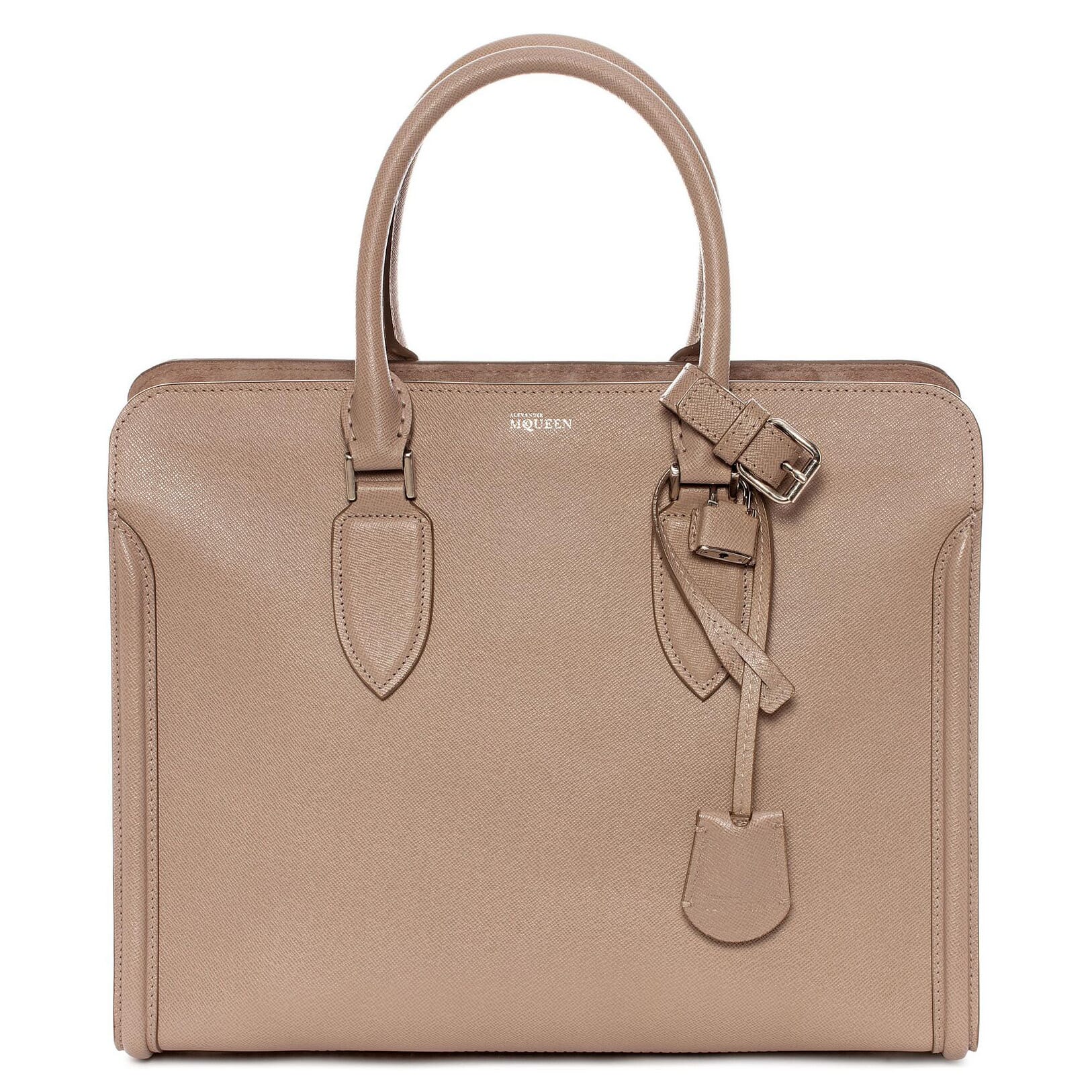  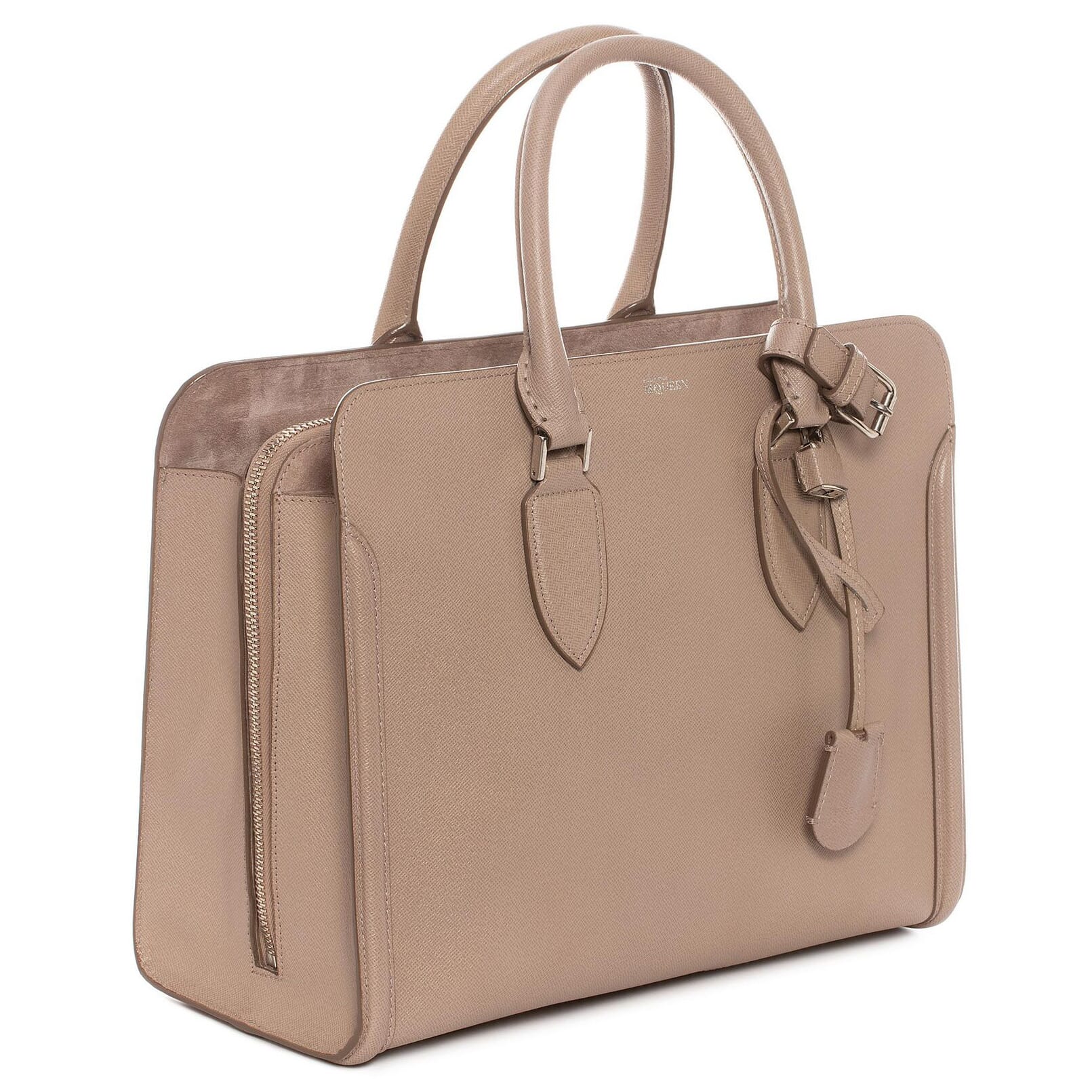 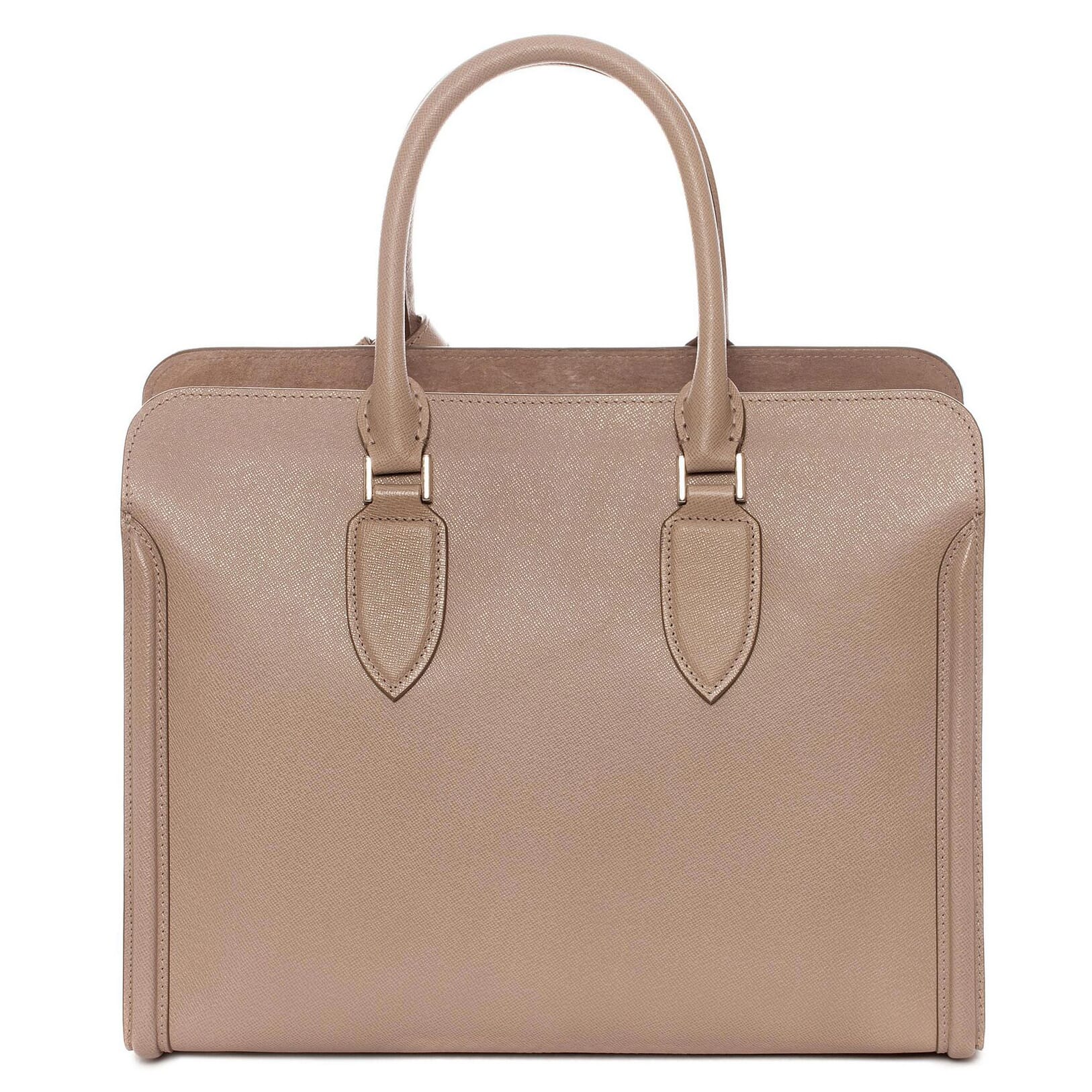 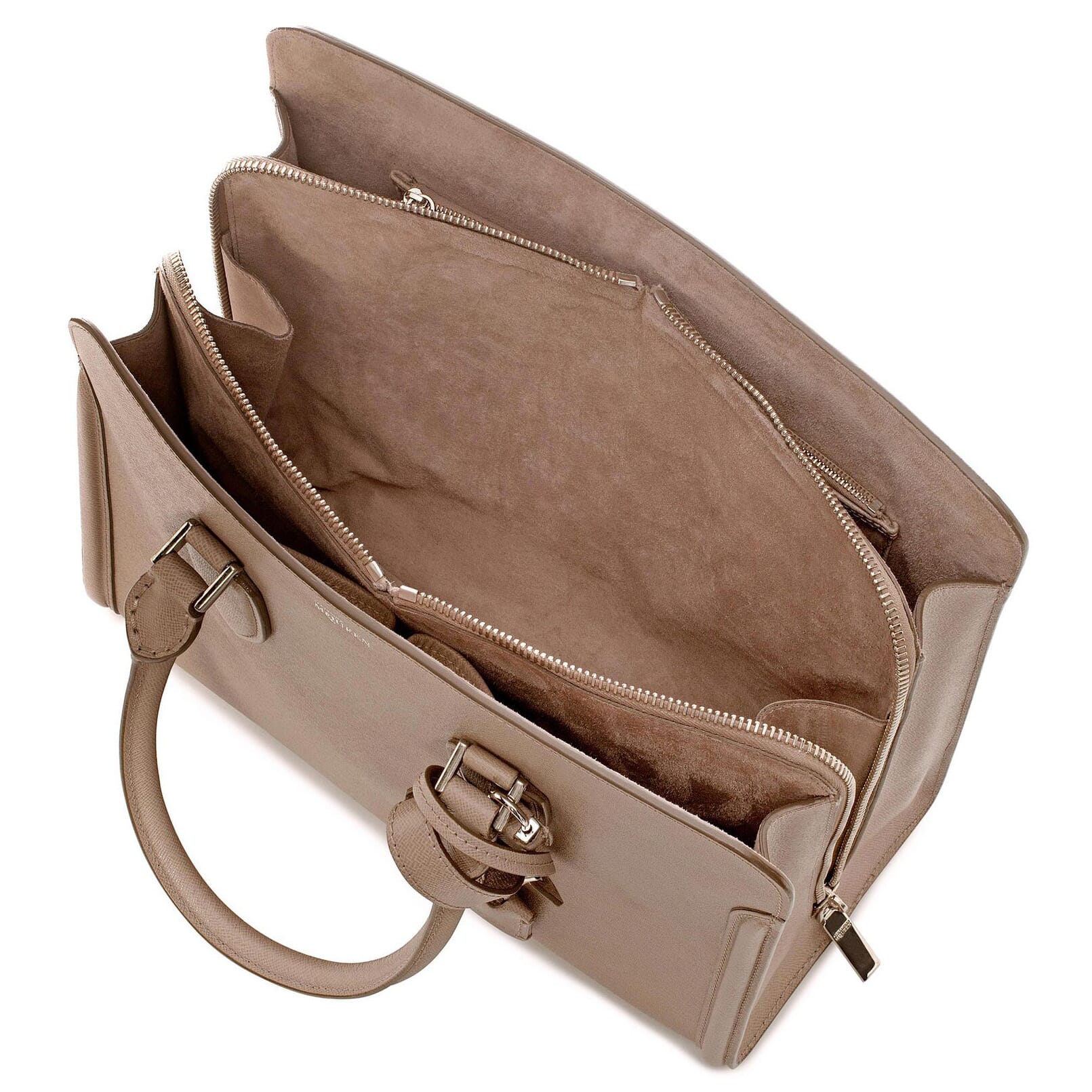 | |
Magic Zoom Plus for BlueVoda
Convenience image zoom will make your sales blossom
- Always updated to support the very latest browsers.
- Perfect for mobile - swipe to change image, double-tap to zoom.
- All latest versions
98% of shoppers say its their favourite zoom
Responsive
Fast loading
SEO friendly
Supports video
Easy to customise
Switchable thumbnails
Friendly support
One-off payment
jQuery compatible
Regularly updated
Lazy loading
Optimised for mobile
- Download Magic Zoom Plus (free and fully functional demo version).
- Unzip the file on your computer and FTP the magiczoomplus folder to your BlueVoda directory (on your server), keeping the file and folder structure intact.
- Within BlueVoda Website Builder, open the page you wish to edit.
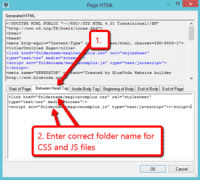
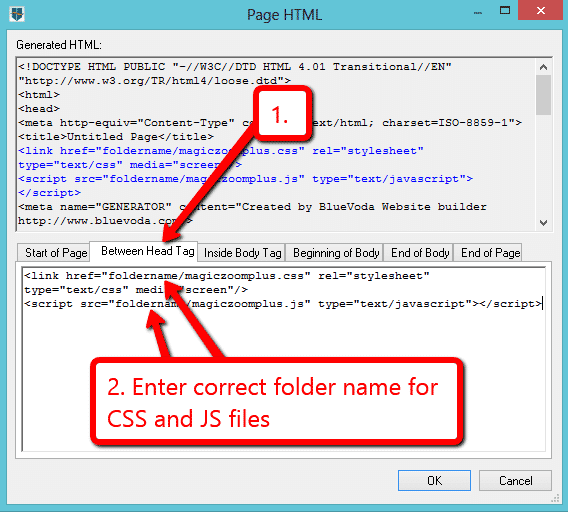
View the Page HTML (right click an empty part of page) and under BETWEEN HEAD TAG enter the location of the CSS and JS files e.g.
<link href="foldername/magiczoomplus.css" rel="stylesheet" media="screen">
<script src="foldername/magiczoomplus.js"></script>
On the web page, put an HTML box the size of your small image. Double click it to open the box and enter the code of the two images (small and large) e.g.
<a href="foldername/imagelarge.jpg" class="MagicZoom"><img src="foldername/imagesmall.jpg"></a>
- Preview your page and check whether any adjustment is needed to the HTML box.
- Customize Magic Zoom Plus how you want. Choose from a variety of options, then simply add the HTML code to your HTML box. Check out examples for inspiration of how Magic Zoom Plus can look.
- Publish the page when you are ready.
- Buy Magic Zoom Plus To upgrade your free and fully functional trial version of Magic Zoom Plus (which removes the "Trial version" text), buy Magic Zoom Plus or get a free Magic Zoom Plus license (for non-commercial sites such as personal blogs and charities). Then overwrite the demo magiczoomplus.js file with the one from your licensed version.
Thanks for trying Magic Zoom Plus on your BlueVoda site! What did you hope Magic Zoom Plus could do? How can we improve it? Let us know, we're always improving our tools based on customer feedback.
- Within BlueVoda Website Builder, open the page you wish to edit.
On the web page, double click the HTML box and delete the Magic Zoom Plus code, e.g.
<a href="foldername/imagelarge.jpg" class="MagicZoom"><img src="foldername/imagesmall.jpg"></a>
View the Page HTML (right click an empty part of page) and under BETWEEN HEAD TAG delete the location of the CSS and JS files e.g.
<link href="foldername/magiczoomplus.css" rel="stylesheet" media="screen">
<script src="foldername/magiczoomplus.js"></script>
- Delete the magiczoomplus folder from your BlueVoda website.
- Magic Zoom Plus is now uninstalled.



Magic Zoom Plus for BlueVoda
    | |
Magic Zoom for BlueVoda
Start selling more today
- The stylish way to zoom your images, frequently updated.
- Double tap for a glorious mobile experience.
- All latest versions
93% of users say it boosted their sales
Responsive
Fast loading
SEO friendly
Supports video
Easy to customise
Switchable thumbnails
Friendly support
One-off payment
Regularly updated
jQuery compatible
On-demand loading
Optimised for mobile
- Download Magic Zoom (free and fully functional demo version).
- Unzip the file on your computer and FTP the magiczoom folder to your BlueVoda directory (on your server), keeping the file and folder structure intact.
- Within BlueVoda Website Builder, open the page you wish to edit.
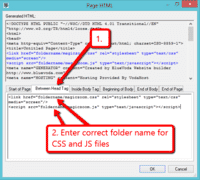
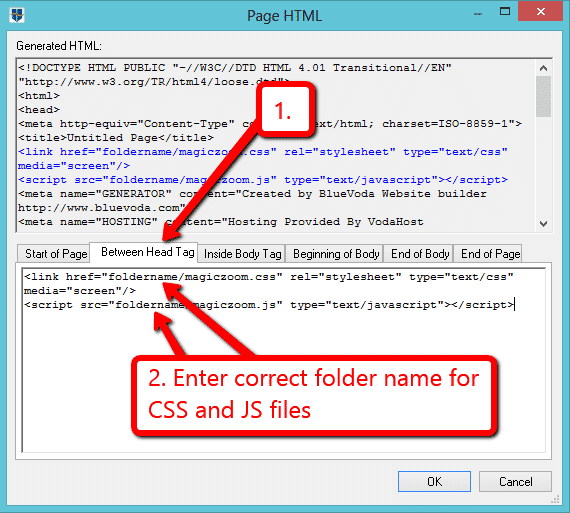
View the Page HTML (right click an empty part of page) and under BETWEEN HEAD TAG enter the location of the CSS and JS files e.g.
<link href="foldername/magiczoom.css" rel="stylesheet" media="screen">
<script src="foldername/magiczoom.js"></script>
On the web page, put an HTML box the size of your small image. Double click it to open the box and enter the code of the two images (small and large) e.g.
<a href="foldername/imagelarge.jpg" class="MagicZoom"><img src="foldername/imagesmall.jpg"></a>
- Preview your page and check whether any adjustment is needed to the HTML box.
- Customize Magic Zoom how you want. Choose from a variety of options, then simply add the HTML code to your HTML box. Check out examples for inspiration of how Magic Zoom can look.
- Publish the page when you are ready.
- Buy Magic Zoom To upgrade your free and fully functional trial version of Magic Zoom (which removes the "Trial version" text), buy Magic Zoom or get a free Magic Zoom license (for non-commercial sites such as personal blogs and charities). Then overwrite the demo magiczoom.js file with the one from your licensed version.
Thanks for trying Magic Zoom on your BlueVoda site! What did you hope Magic Zoom could do? How can we improve it? Let us know, we're always improving our tools based on customer feedback.
- Within BlueVoda Website Builder, open the page you wish to edit.
On the web page, double click the HTML box and delete the Magic Zoom code, e.g.
<a href="foldername/imagelarge.jpg" class="MagicZoom"><img src="foldername/imagesmall.jpg"></a>
View the Page HTML (right click an empty part of page) and under BETWEEN HEAD TAG delete the location of the CSS and JS files e.g.
<link href="foldername/magiczoom.css" rel="stylesheet" media="screen">
<script src="foldername/magiczoom.js"></script>
- Delete the magiczoom folder from your BlueVoda website.
- Magic Zoom is now uninstalled.


Magic Zoom for BlueVoda
 Zara 2014
 Zara 2014
 Zara 2014
 Zara 2014
 Zara 2014
 Zara 2014
 Zara 2014
 Zara 2014
 Zara 2015
 Zara 2015
 Zara 2015
 Zara 2015
 Zara 2015
 Zara 2015
 Zara 2015
 Zara 2015
 Zara 2015
 Zara 2015
Magic Scroll for BlueVoda
Discover the attractiveness that lies hidden in your BlueVoda store
- Experiment with a free trial before you buy
- Tweak the speed, direction, effects, arrows & more.
- All latest versions
91% of shoppers prefer it to static images
Scrollable images, HTML or videos
Combine with other Magic viewers
Highly customisable
All kinds of uses
jQuery compatible
Regularly updated
One-time payment
Responsive
- Download Magic Scroll (free and fully functional demo version).
- Unzip the file on your computer and FTP the magicscroll folder to your BlueVoda directory (on your server), keeping the file and folder structure intact.
- Within BlueVoda Website Builder, open the page you wish to edit.
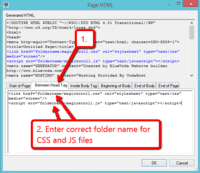
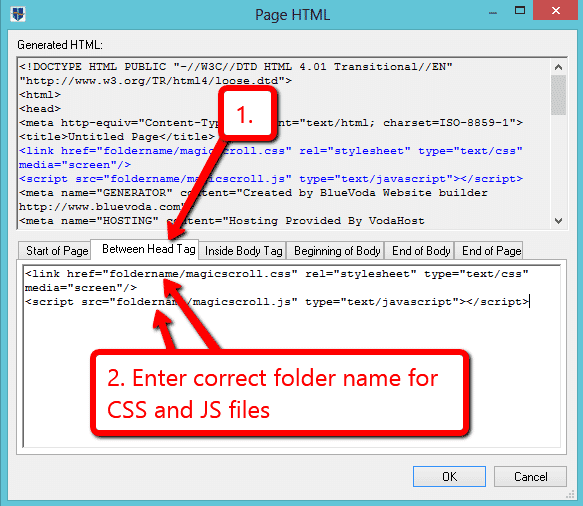
View the Page HTML (right click an empty part of page) and under BETWEEN HEAD TAG enter the location of the CSS and JS files e.g.
<link href="foldername/magicscroll.css" rel="stylesheet" media="screen">
<script src="foldername/magicscroll.js"></script>
On the web page, put an HTML box the size of your carousel. Double click it to open the box and enter the code e.g.
<div class="MagicScroll">
 <a href="/page-1/"><img src="example1.jpg"></a>
 <a href="/page-2/"><img src="example2.jpg"></a>
 <a href="/page-3/"><img src="example3.jpg"></a>
 <a href="/page-4/"><img src="example4.jpg"></a>
 <a href="/page-5/"><img src="example5.jpg"></a>
 <a href="/page-6/"><img src="example6.jpg"></a>
</div>
- Preview your page and check whether any adjustment is needed to the HTML box.
- Customize Magic Scroll how you want. Choose from a variety of options, then simply add the HTML code to your HTML box. Check out examples for inspiration of how Magic Scroll can look.
- Publish the page when you are ready.
- Buy Magic Scroll To upgrade your free and fully functional trial version of Magic Scroll (which removes the "Trial version" text), buy Magic Scroll or get a free Magic Scroll license (for non-commercial sites such as personal blogs and charities). Then overwrite the demo magicscroll.js file with the one from your licensed version.
Thanks for trying Magic Scroll on your BlueVoda site! What did you hope Magic Scroll could do? How can we improve it? Let us know, we're always improving our tools based on customer feedback.
- Within BlueVoda Website Builder, open the page you wish to edit.
On the web page, double click the HTML box and delete the MagicScroll code, e.g.
<div class="MagicScroll">
 <a href="/page-1/"><img src="example1.jpg"></a>
 <a href="/page-2/"><img src="example2.jpg"></a>
</div>
View the Page HTML (right click an empty part of page) and under BETWEEN HEAD TAG delete the location of the CSS and JS files e.g.
<link href="foldername/magicscroll.css" rel="stylesheet" media="screen">
<script src="foldername/magicscroll.js"></script>
- Delete the magicscroll folder from your BlueVoda website.
- Magic Scroll is now uninstalled.
FAQ
Can I change background colour of carousel?
Yes! By default, the Carousel & Cover-Flow modes use a grey/black background colour. You can change the Hex Colour to anything you want. With over 16,000 hex colours available, you'll be spoilt for choice. Simply add the CSS code you need to the Magic Scroll CSS file.
Carousel background
.MagicScroll[data-mode="carousel"] {
    background-color: <your-colour>;
}
Cover-flow background
.MagicScroll[data-mode="cover-flow"] {
    background-color: <your-colour>;
}


Magic Scroll for BlueVoda










Magic Slideshow for BlueVoda
Prefer slide, fade or Ken Burns? You choose.
- Navigate with bullets, arrows, thumbnails or swipe.
- The finest responsive image slideshow designed for BlueVoda.
- All latest versions
88% say it brings the home page to life
9 popular effects
Image thumbnails
Easy to customise
Clickable bullets
Fast loading
Responsive
Pure JavaScript & CSS
jQuery compatible
Regularly updated
One-off payment
SEO friendly
- Download Magic Slideshow (free and fully functional demo version).
- Unzip the file on your computer and FTP the magicslideshow folder to your BlueVoda directory (on your server), keeping the file and folder structure intact.
- Within BlueVoda Website Builder, open the page you wish to edit.
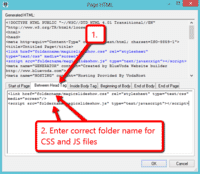
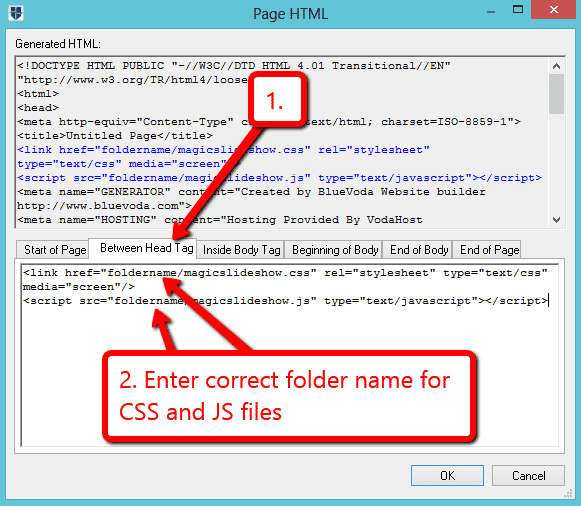
View the Page HTML (right click an empty part of page) and under BETWEEN HEAD TAG enter the location of the CSS and JS files e.g.
<link href="foldername/magicslideshow.css" rel="stylesheet" media="screen">
<script src="foldername/magicslideshow.js"></script>
On the web page, put an HTML box the size of your slideshow. Double click it to open the box and enter the code e.g.
<div class="MagicSlideshow"> <img src="http://example.com/images/your-image-1.jpg"> <img src="http://example.com/images/your-image-2.jpg"> <img src="http://example.com/images/your-image-3.jpg"> </div>- Preview your page and check whether any adjustment is needed to the HTML box.
- Customize Magic Slideshow how you want. Choose from a variety of options, then simply add the HTML code to your HTML box. Check out examples for inspiration of how Magic Slideshow can look.
- Publish the page when you are ready.
- Buy Magic Slideshow To upgrade your free and fully functional trial version of Magic Slideshow (which removes the "Trial version" text), buy Magic Slideshow or get a free Magic Slideshow license (for non-commercial sites such as personal blogs and charities). Then overwrite the demo magicslideshow.js file with the one from your licensed version.
Thanks for trying Magic Slideshow on your BlueVoda site! What did you hope Magic Slideshow could do? How can we improve it? Let us know, we're always improving our tools based on customer feedback.
- Within BlueVoda Website Builder, open the page you wish to edit.
On the web page, double click the HTML box and delete the MagicSlideshow code, e.g.
<div class="MagicSlideshow">
    <img src="http://example.com/images/your-image-1.jpg">
    <img src="http://example.com/images/your-image-2.jpg">
    <img src="http://example.com/images/your-image-3.jpg">
</div>
View the Page HTML (right click an empty part of page) and under BETWEEN HEAD TAG delete the location of the CSS and JS files e.g.
<link href="foldername/magicslideshow.css" rel="stylesheet" media="screen">
<script src="foldername/magicslideshow.js"></script>
- Delete the magicslideshow folder from your BlueVoda website.
- Magic Slideshow is now uninstalled.



Magic Slideshow for BlueVoda
    | |
Magic Thumb for BlueVoda
You have a vision. We have a way to implement it
- Darken or lighten the background to get the right feel.
- New product pages will make your sales blossom.
- All latest versions
92% of users say its the best image lightbox
Responsive
Fast loading
SEO friendly
Lazy loading
Supports video
Friendly support
One-off payment
Regularly updated
jQuery compatible
Swappable thumbnails
- Download Magic Thumb (free and fully functional demo version).
- Unzip the file on your computer and FTP the magicthumb folder to your BlueVoda directory (on your server), keeping the file and folder structure intact.
- Within BlueVoda Website Builder, open the page you wish to edit.
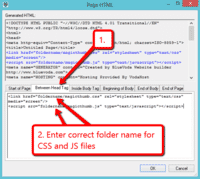
View the Page HTML (right click an empty part of page) and under BETWEEN HEAD TAG enter the location of the CSS and JS files e.g.
<link href="foldername/magicthumb.css" rel="stylesheet" media="screen">
<script src="foldername/magicthumb.js"></script>
On the web page, put an HTML box the size of your small image. Double click it to open the box and enter the code of the two images (small and large) e.g.
<a href="foldername/imagelarge.jpg" class="MagicThumb"><img src="foldername/imagesmall.jpg"></a>
- Preview your page and check whether any adjustment is needed to the HTML box.
- Customize Magic Thumb how you want. Choose from a variety of options, then simply add the HTML code to your HTML box. Check out examples for inspiration of how Magic Thumb can look.
- Publish the page when you are ready.
- Buy Magic Thumb To upgrade your free and fully functional trial version of Magic Thumb (which removes the "Trial version" text), buy Magic Thumb or get a free Magic Thumb license (for non-commercial sites such as personal blogs and charities). Then overwrite the demo magicthumb.js file with the one from your licensed version.

Thanks for trying Magic Thumb on your BlueVoda site! What did you hope Magic Thumb could do? How can we improve it? Let us know, we're always improving our tools based on customer feedback.
- Within BlueVoda Website Builder, open the page you wish to edit.
On the web page, double click the HTML box and delete the Magic Thumb code, e.g.
<a href="foldername/imagelarge.jpg" class="MagicThumb"><img src="foldername/imagesmall.jpg"></a>
View the Page HTML (right click an empty part of page) and under BETWEEN HEAD TAG delete the location of the CSS and JS files e.g.
<link href="foldername/magicthumb.css" rel="stylesheet" media="screen">
<script src="foldername/magicthumb.js"></script>
- Delete the magicthumb folder from your BlueVoda website.
- Magic Thumb is now uninstalled.



Magic Thumb for BlueVoda
About
These instructions are for BlueVoda Website Builder. Use them to add effects to your website including image zoom on hover/mouseover; image lightbox (enlarge image to full screen); image slideshows in JavaScript; and image carousels.